Email funnel and conversions
The Email Funnel tab shows how far your invitations travel. It counts every email you sent, then counts what happened at each step, up to the people who joined.
Before you start
You need permission to manage the event, or to be one of its hosts. Hosts can read the funnel even when they cannot edit the event.
No package limits this tab. Free, Professional and every other package show the same stages.
Figures arrive a few minutes after you send an email.
Where the funnel lives
Open the event from your events list by selecting its title.
Select the Email Funnel tab. It sits directly after Email Analytics.
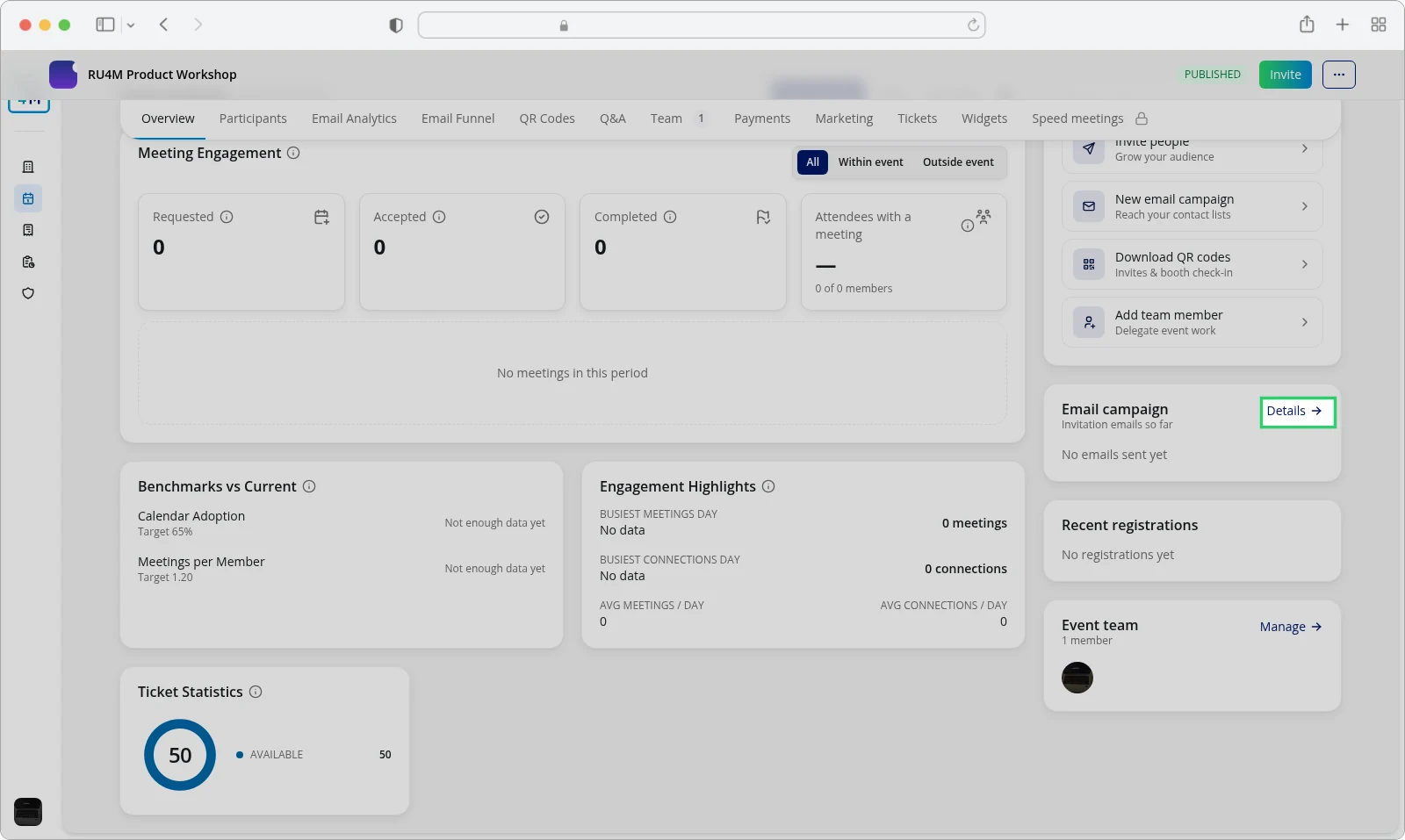
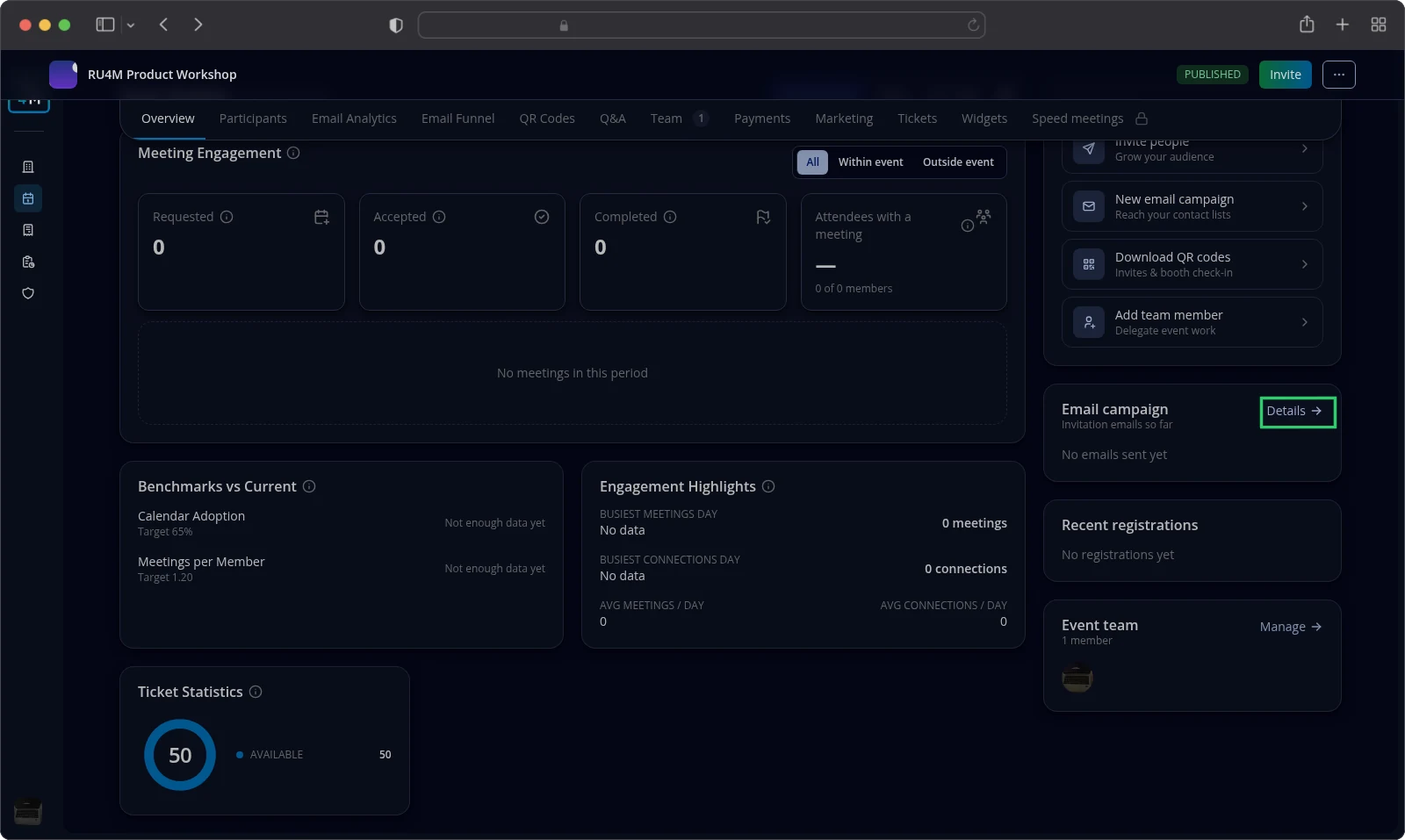
The Overview tab carries a shorter card called Email campaign. Select Details on that card and the page opens this tab.
Stages from email to participation
The tab counts five stages, always in this order: Sent, Delivered, Opened, Clicked and Joined.
Sent counts every email you sent for this event. Delivered counts the ones the mail provider accepted. Opened counts the recipients who read a message. Clicked counts the recipients who followed a link. Joined counts the people who went on to join the event.
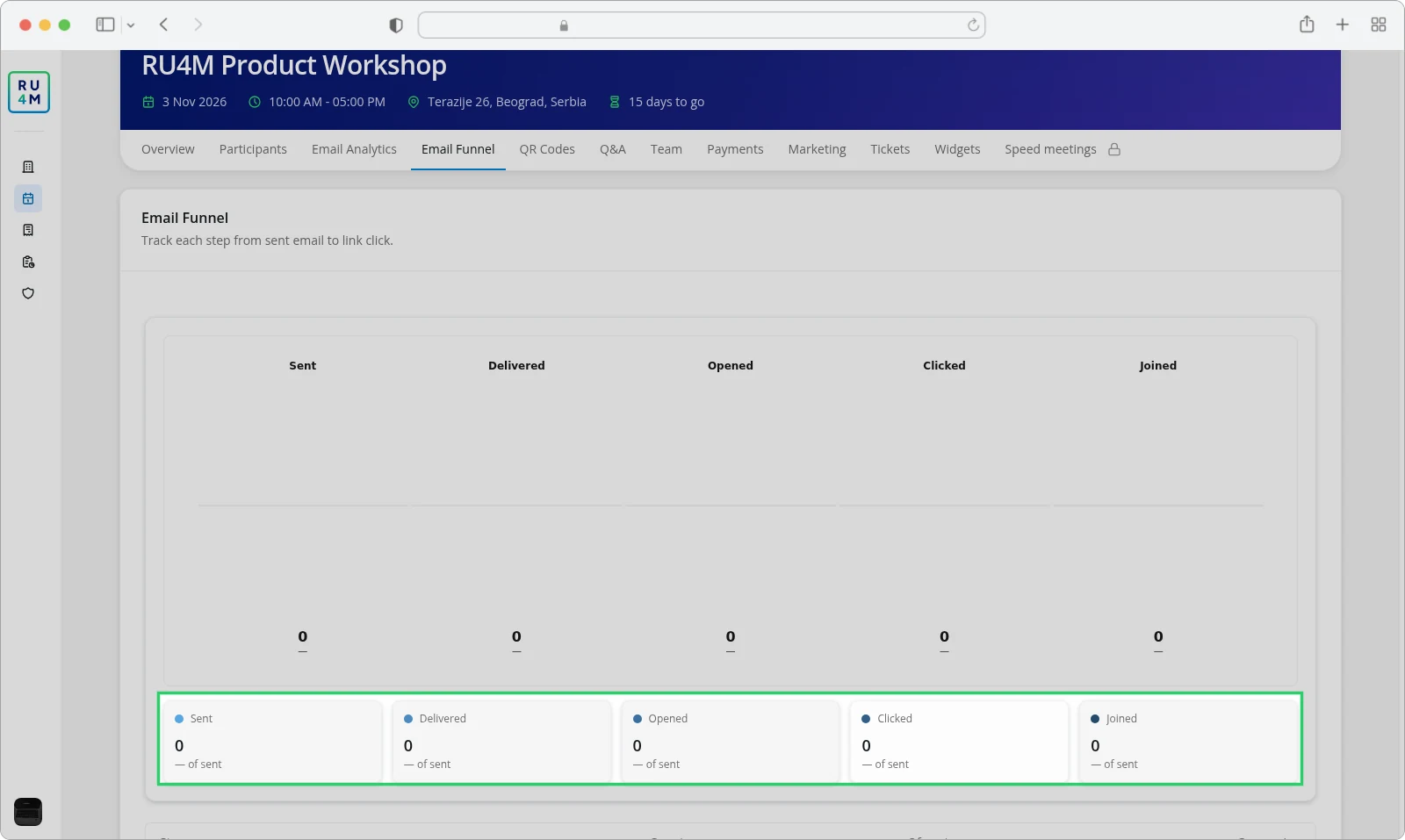
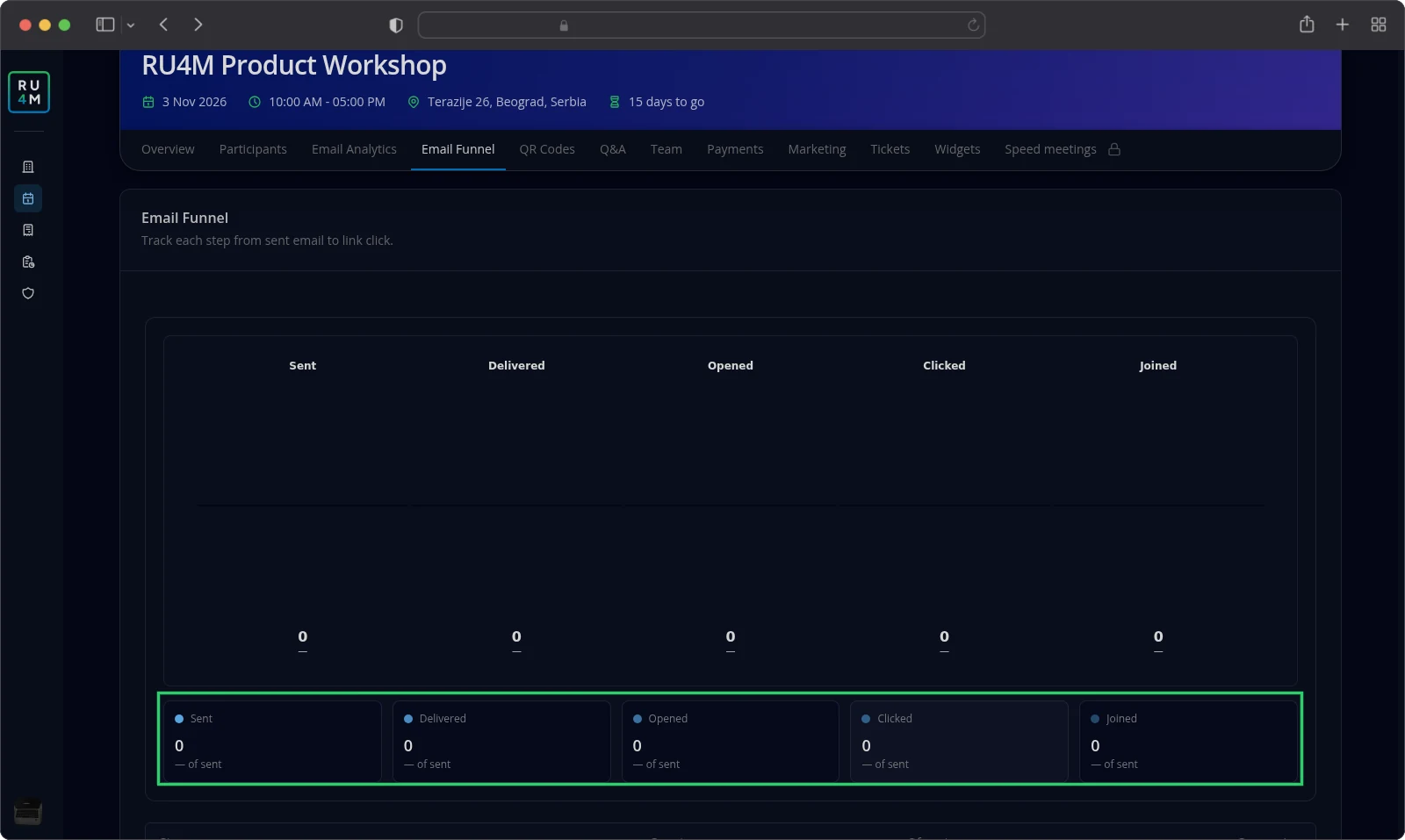
The chart draws each stage as wide as its share of what you sent, so a narrow band means that step loses people. A card sits under the chart for every stage and repeats its count and its share of sent.
A stage with nothing behind it shows a dash instead of a percentage.
Conversions between stages
The table under the cards repeats all five stages in four columns.
Stage names the step. Count repeats how many people reached it. Of sent measures the stage against everything you sent. Conversion measures the stage against the step before it.
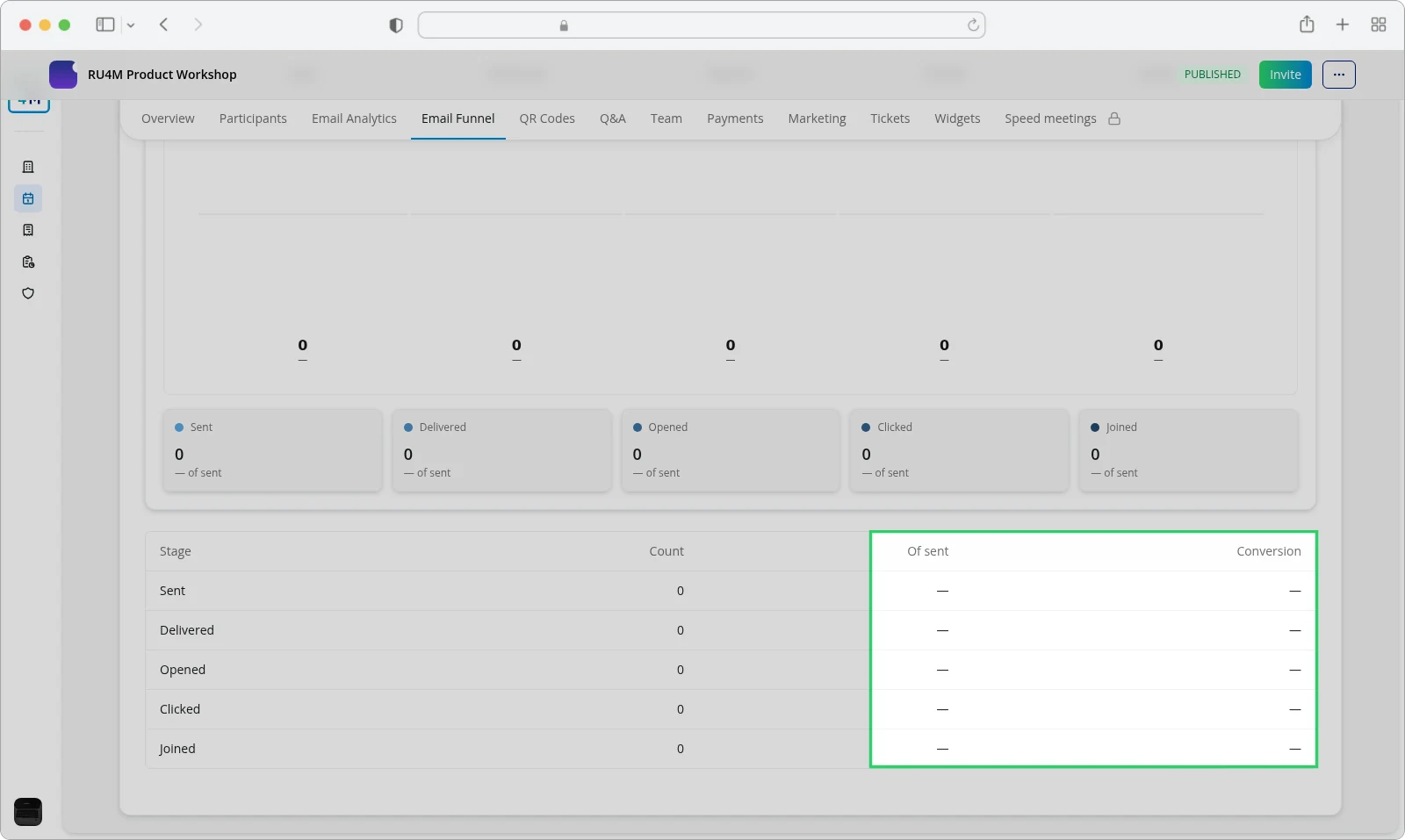
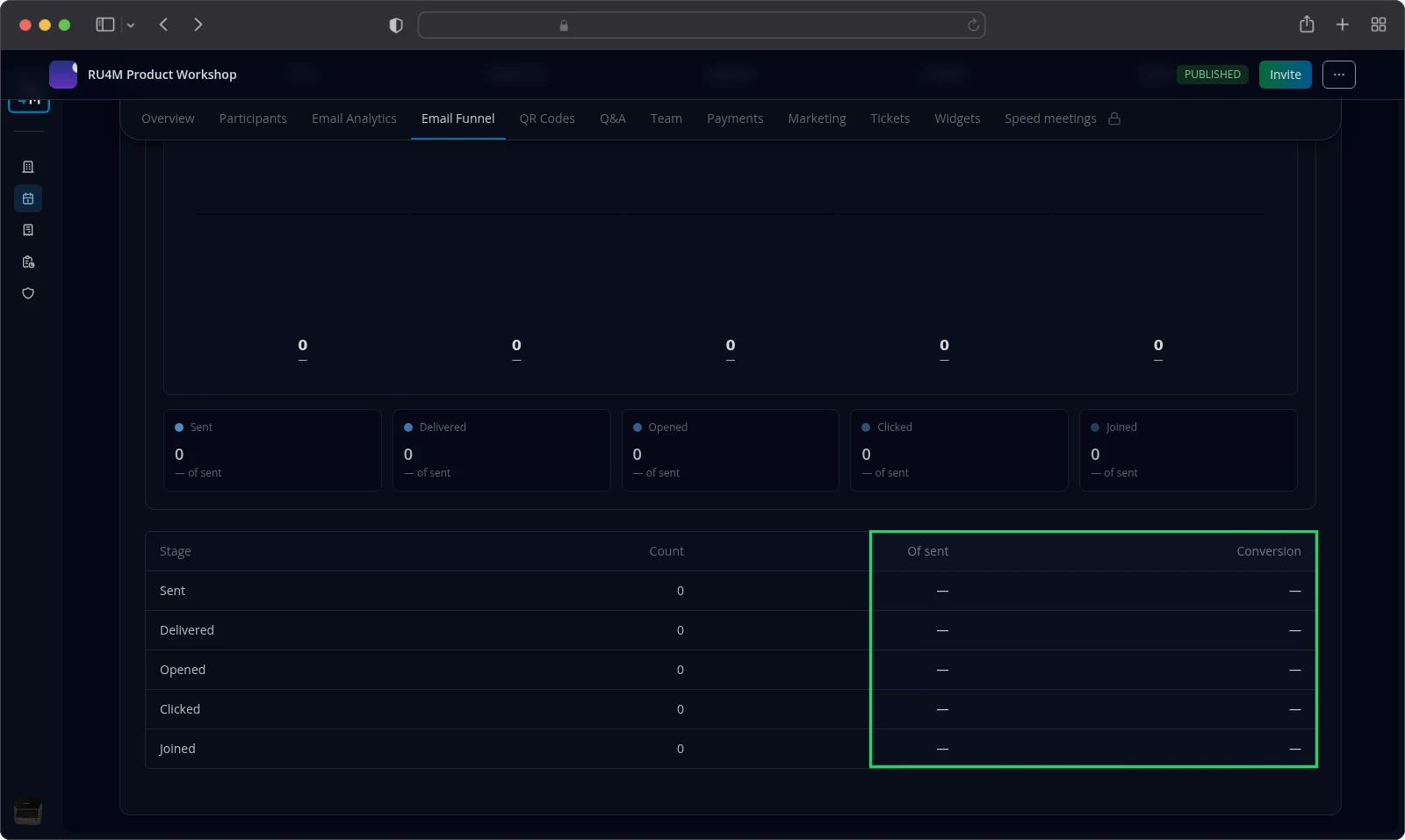
Sent is the first stage, so it is the base every other Of sent share is measured against. Its own Of sent reads 100% whenever there is anything to divide by.
Conversion answers a different question. It tells you how much of the previous step carried on. Read the two columns together: a healthy Of sent beside a low Conversion points at the step that loses people.
The Overview card counts the same event. It shows Emails sent beside Delivery rate, Open rate and Click rate. All three rates are shares of what you sent, so they match the Of sent column rather than the Conversion column.
Periods, filters and interpreting results
This tab carries no period and no filter. It counts the whole life of the event so far, and it does not split figures per campaign.
The Overview card reads No emails sent yet while nothing has gone out for the event.
Opened can stay below Clicked. Some mail apps do not report that a message was opened, so the open count falls while the click count still rises. Read the two stages together before you conclude anything about your subject lines.
When the figures cannot load, the tab reports Failed to load the new email analytics. Select Try again to ask for them once more.
Troubleshooting
Every rate shows a dash. Nothing has been counted for this event yet. Send your first invitation and come back after a few minutes.
Opened is lower than Clicked. Some mail apps block open tracking, and the count cannot rise. Clicked is the reliable figure there.
The tab reports that it could not load. Select Try again. If it keeps failing, ask a manager of the event for the figures.
I can open the event but not read the funnel. Only the people who manage an event and its hosts can read it. Ask one of them for the numbers.