Editing basic details
Update an event's title, location, dates, images and texts, or remove the event entirely. This guide covers changes you make after the event exists, whether it is still a draft or already published.
Before you start
You need to be the person who created the event, one of its managers, or an administrator or moderator of the organizing company. Hosts cannot edit an event.
You reach the editor from your events list. The editor opens in Quick edit. Nothing you type is stored until you save it.
Quick and advanced editing
Open the actions menu at the end of the event's row, then select Edit.
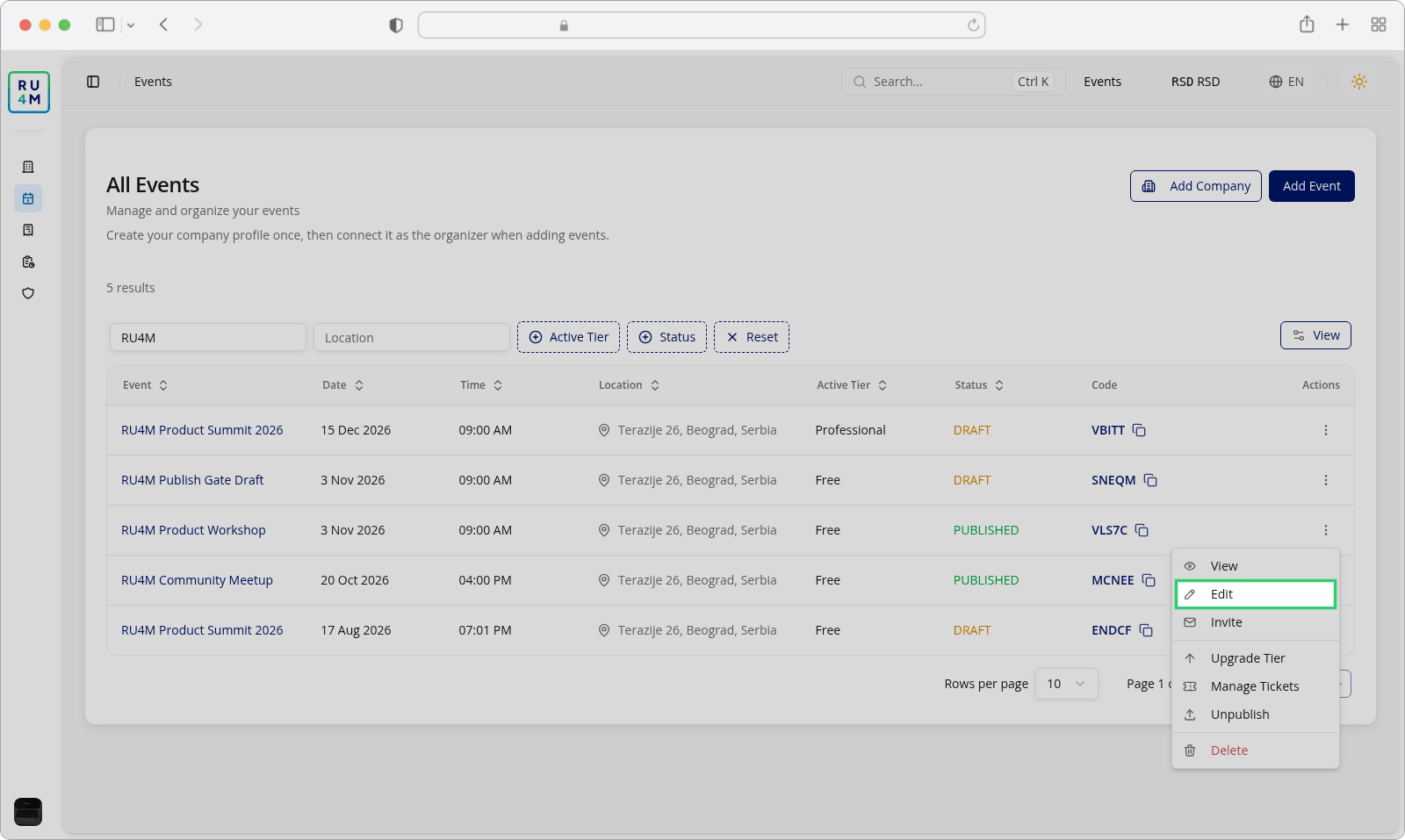
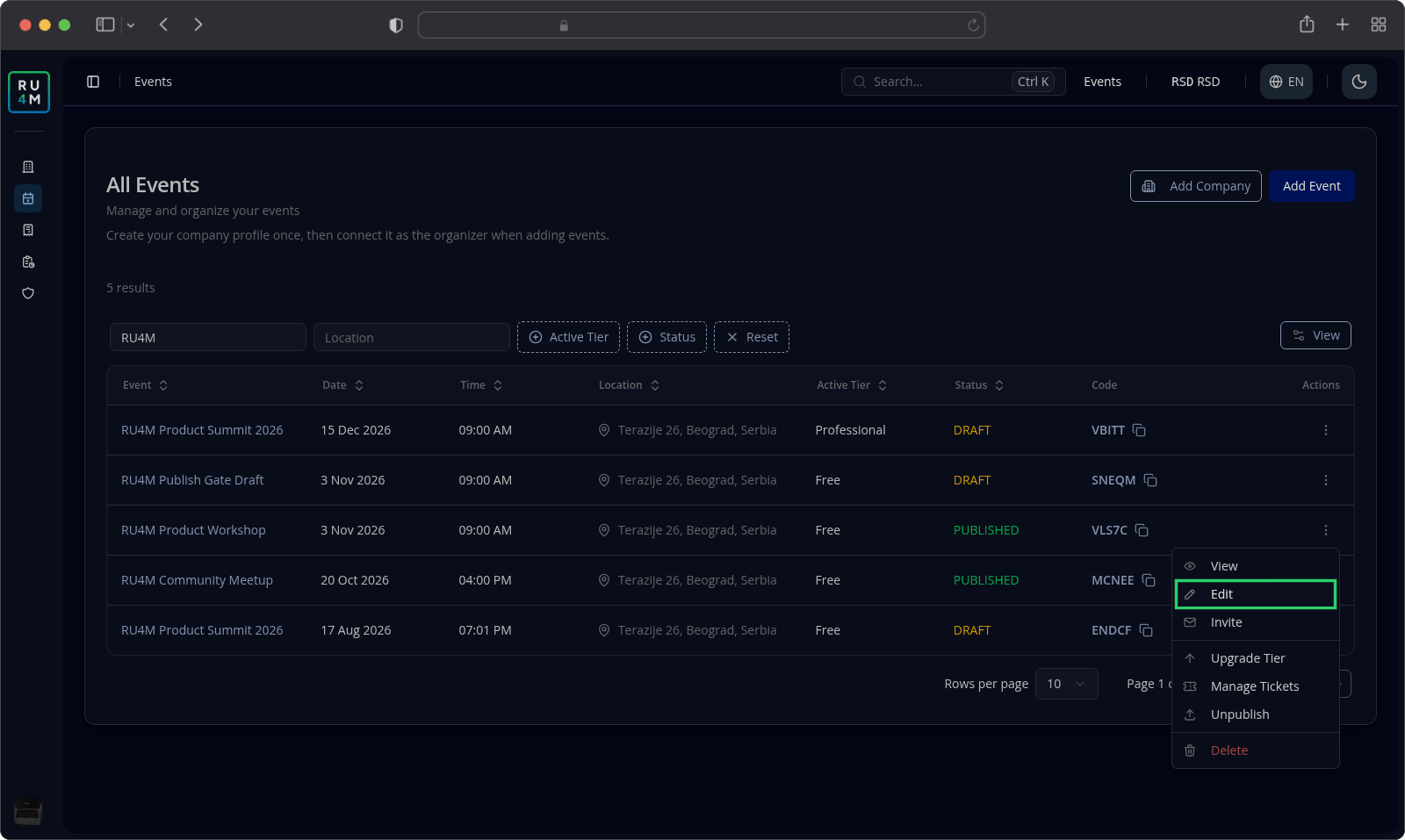
You can also open the event's own page and select Edit in its header. Both ways in land on the same screen.
The editor has two modes, and you switch between them with Quick edit and Advanced.
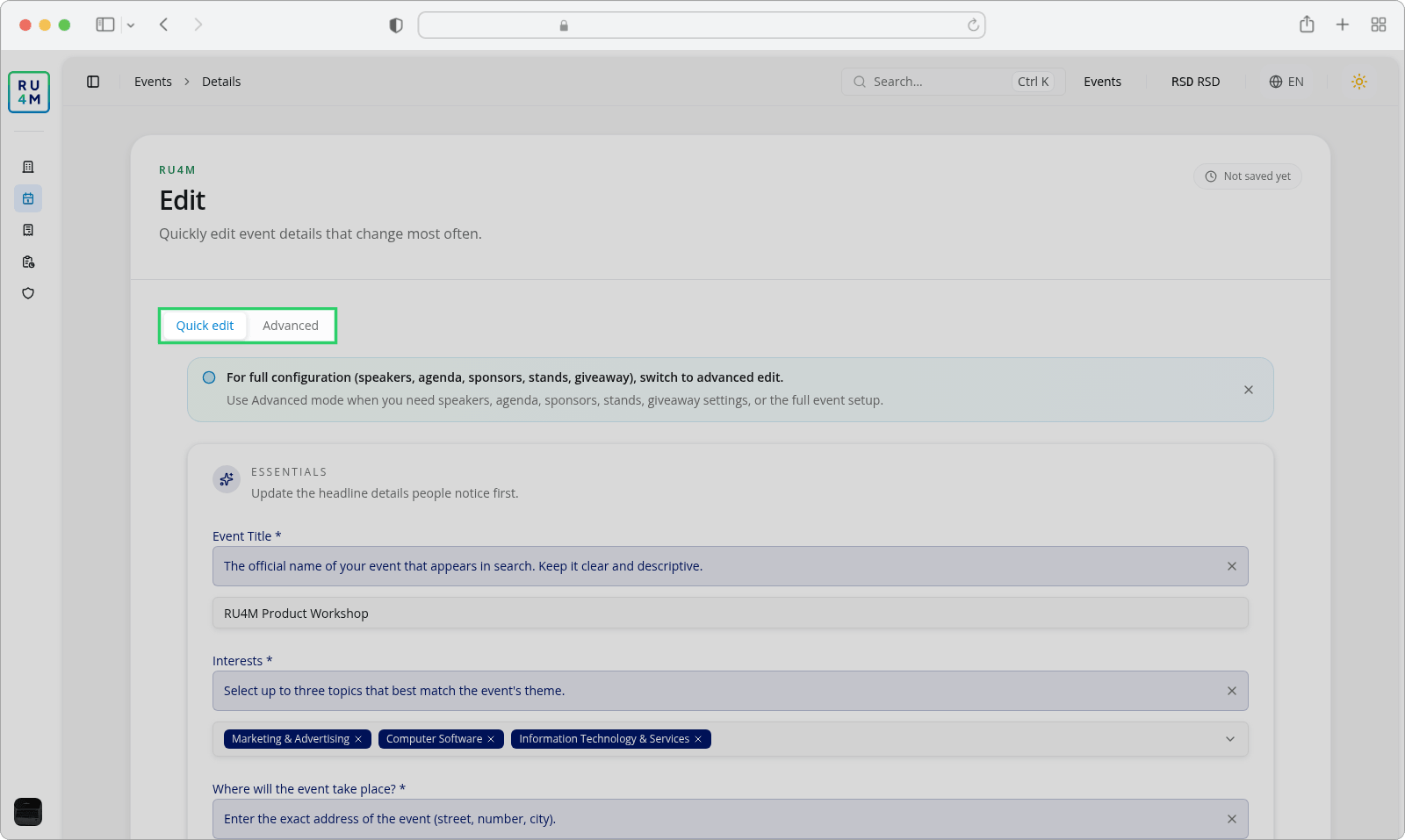
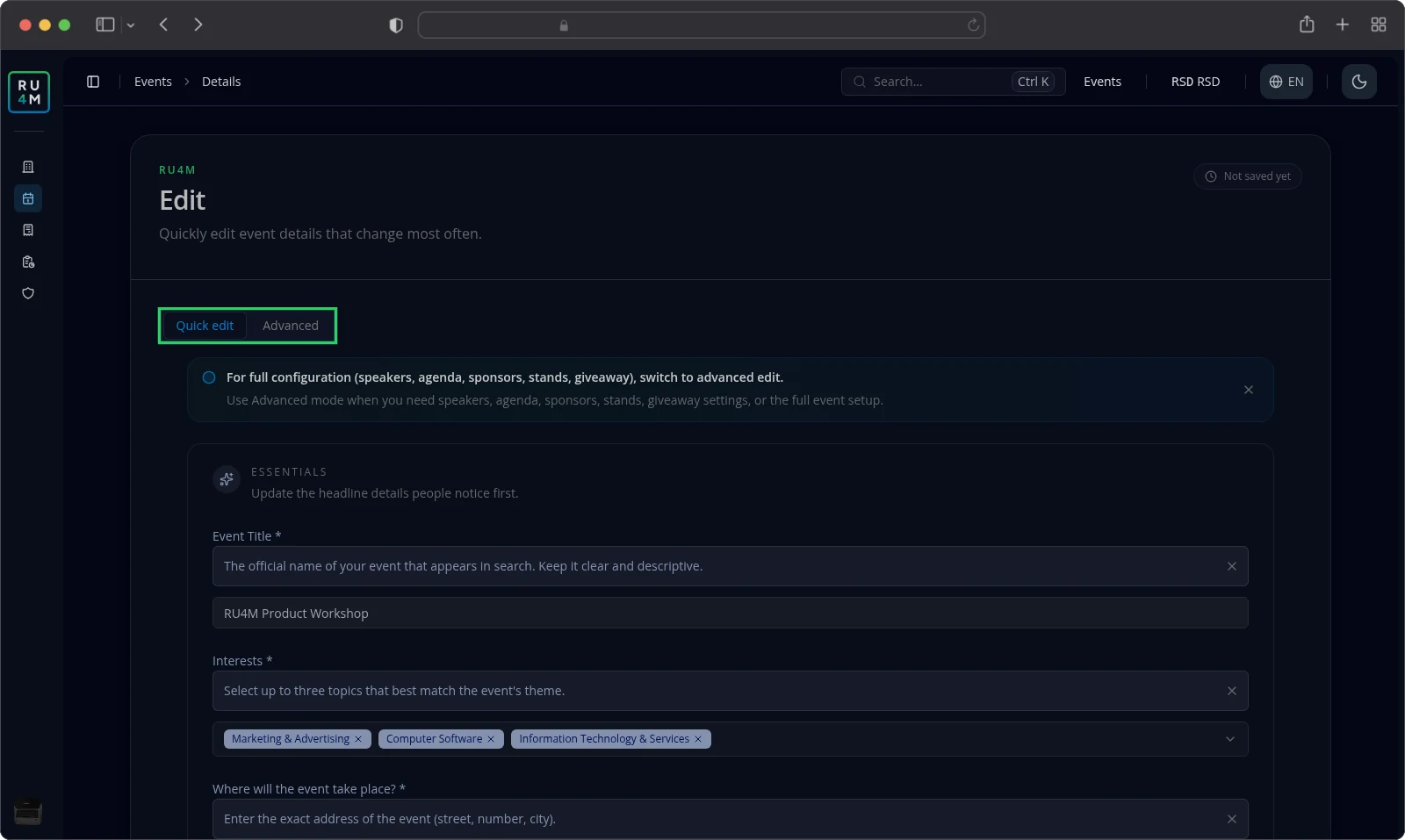
Quick edit groups everything that changes often into four sections: Essentials, Emails and tickets, Content and Schedule. Use it for almost every edit.
Advanced spreads the same event across separate tabs. Choose it when you set up the event once, or when a tab is missing from Quick edit.
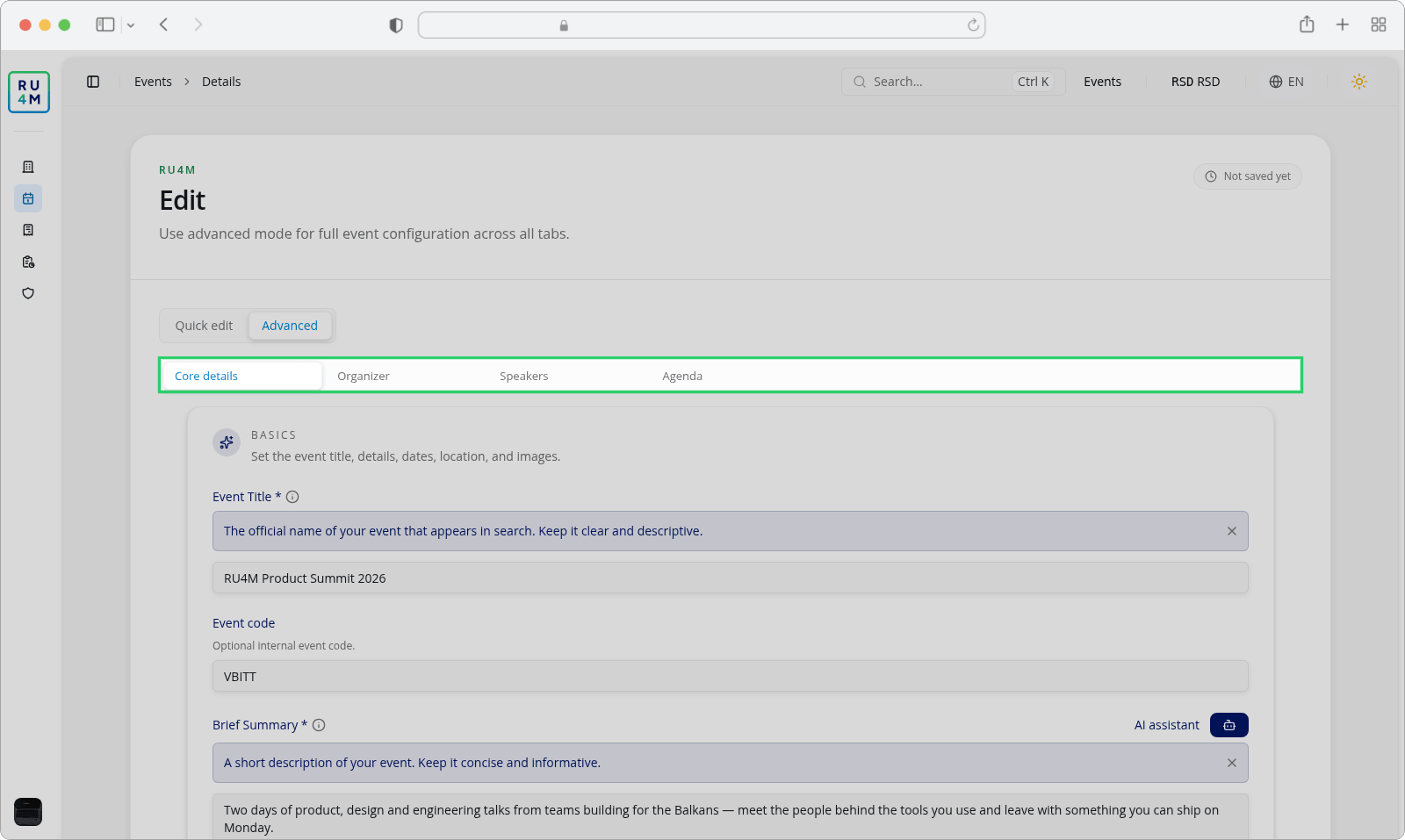
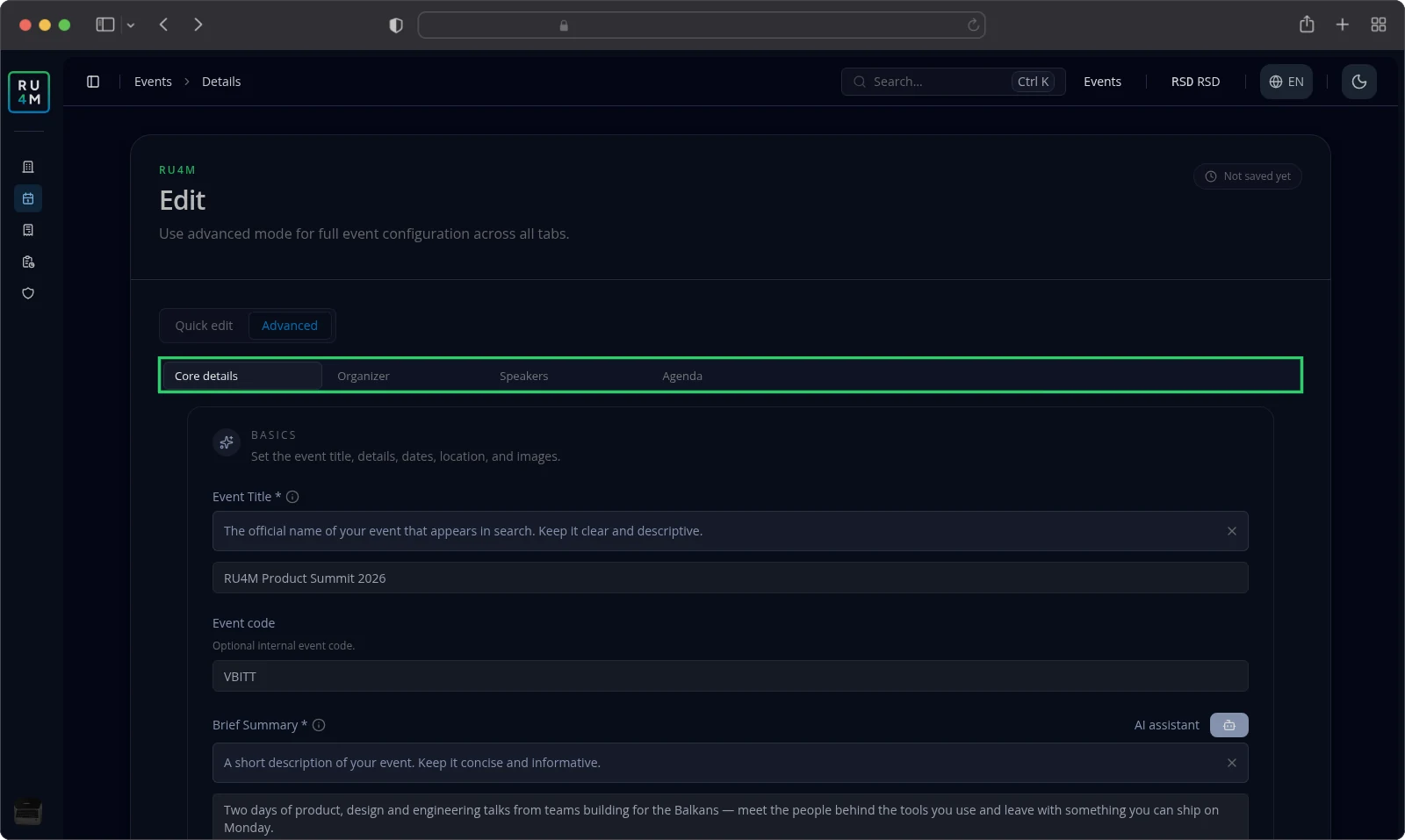
Core details and Organizer are always there. The remaining tabs appear only when your event's package includes them:
- Speakers covers who is on stage. See Organizer and speakers.
- Agenda covers sessions and rooms. See Program and sessions.
- Sponsors and Stands cover the exhibition side. See Sponsors and stands.
- Giveaway covers prize draws. See Giveaways.
Which package unlocks which tab is not covered here. The Packages and payment guide is still in preparation.
In Quick edit the buttons are Cancel, Save and Exit and Save and Continue. Both save buttons stay greyed out until you change something. Save and Exit returns you to the event's page; Save and Continue moves you to Advanced, on Core details.
In Advanced the button reads Exit while nothing is changed, and Next moves you to the following tab.
The status at the top tells you where your work stands: Not saved yet, Unsaved changes, and Saved at {time} once you save.
Nothing is stored until you save. Switch tabs or modes with unsaved work, and Backoffice asks first.
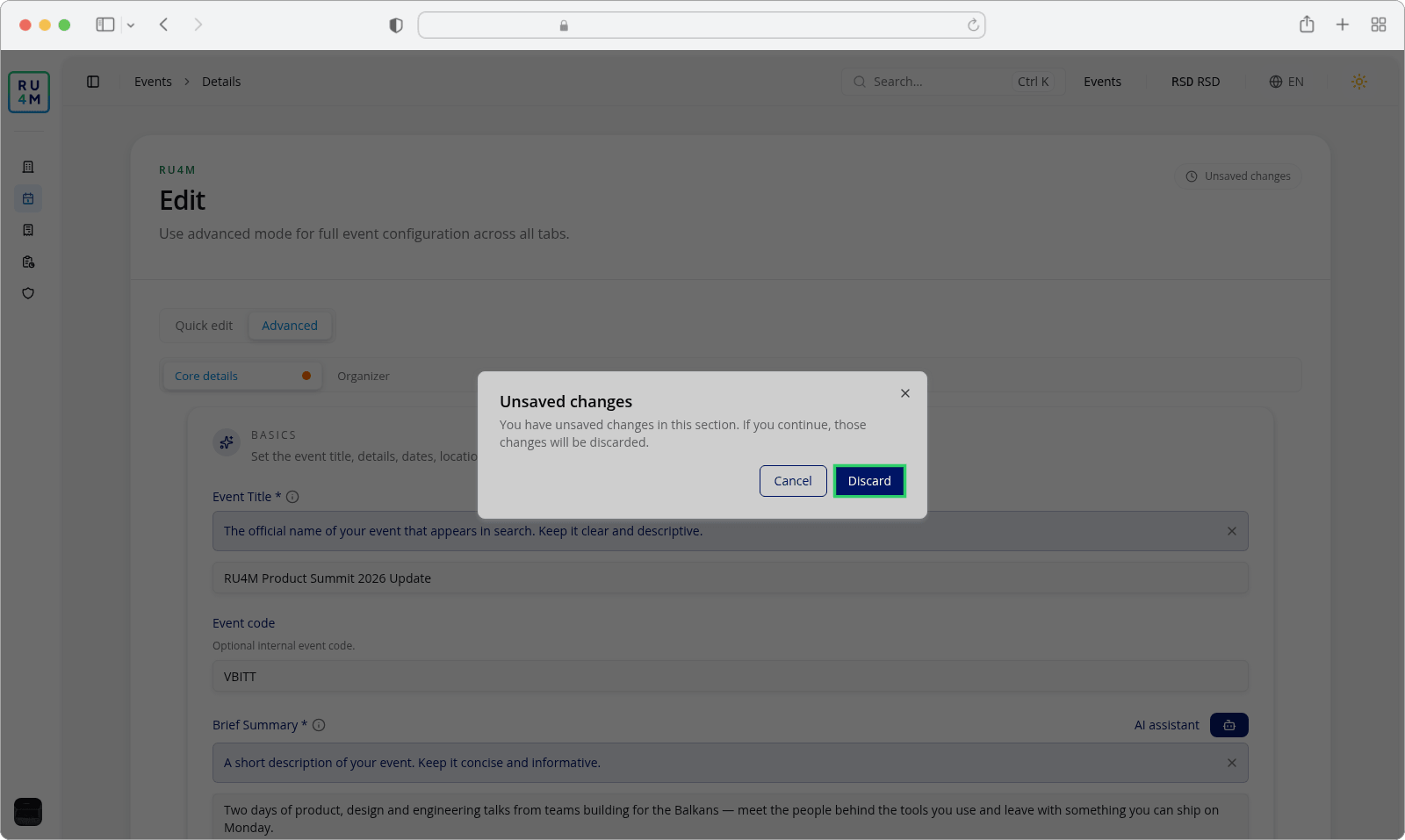
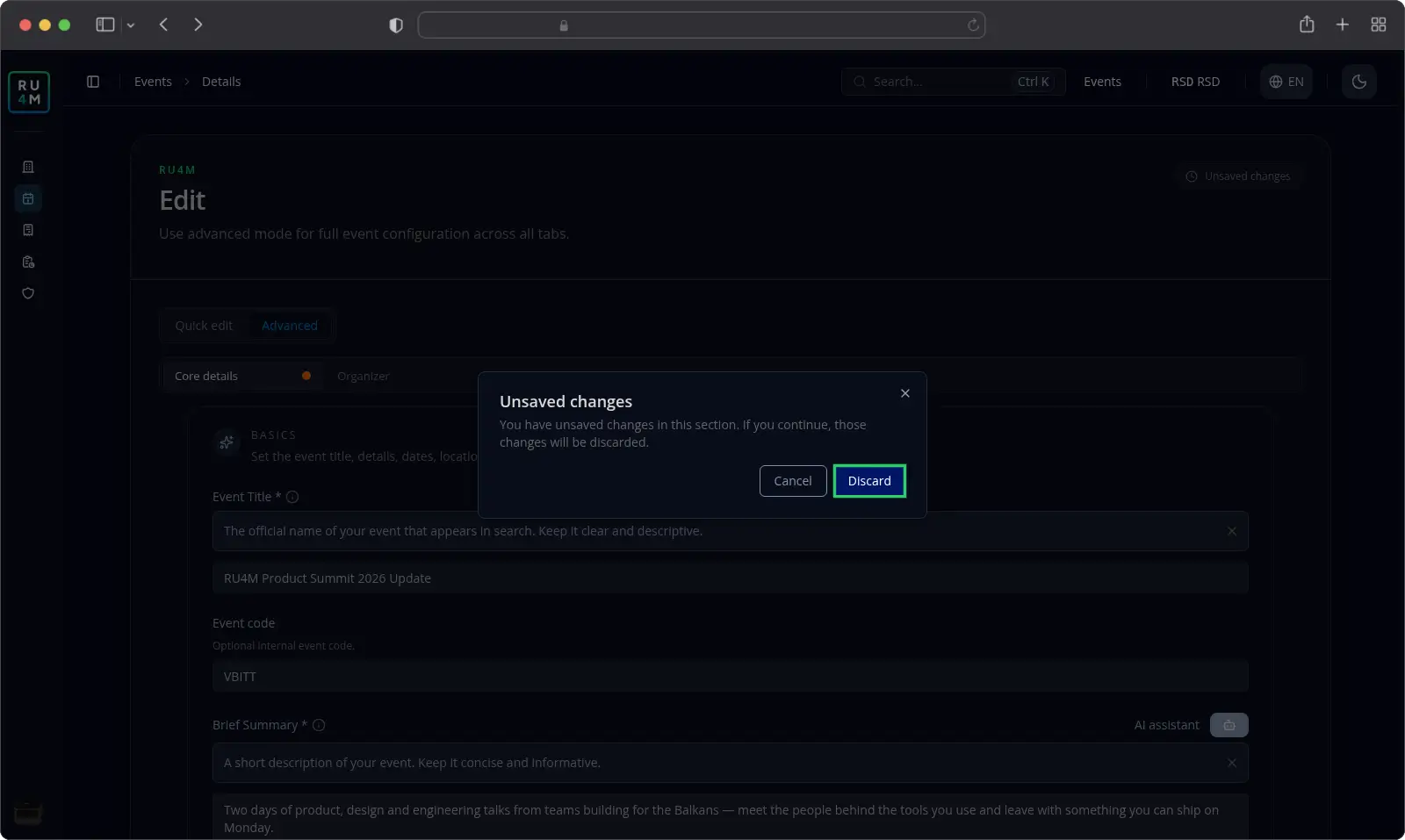
Select Cancel to go back and keep working. Select Discard to lose the changes and continue. Leaving the page or reloading your browser asks your browser's own confirmation.
Basic details and location
The Essentials section of Quick edit carries the fields people notice first.
- Enter the Event Title. It accepts up to 100 characters.
- Choose between one and three Interests.
- Type the address into Where will the event take place? and pick a suggestion.
- Choose Public or Private under Is this event public or private?
- Leave Enable Countdown on to show a countdown before the event.
The location field accepts only an address you pick from the list. Typed text on its own is not enough.
The Schedule section holds when the event happens.
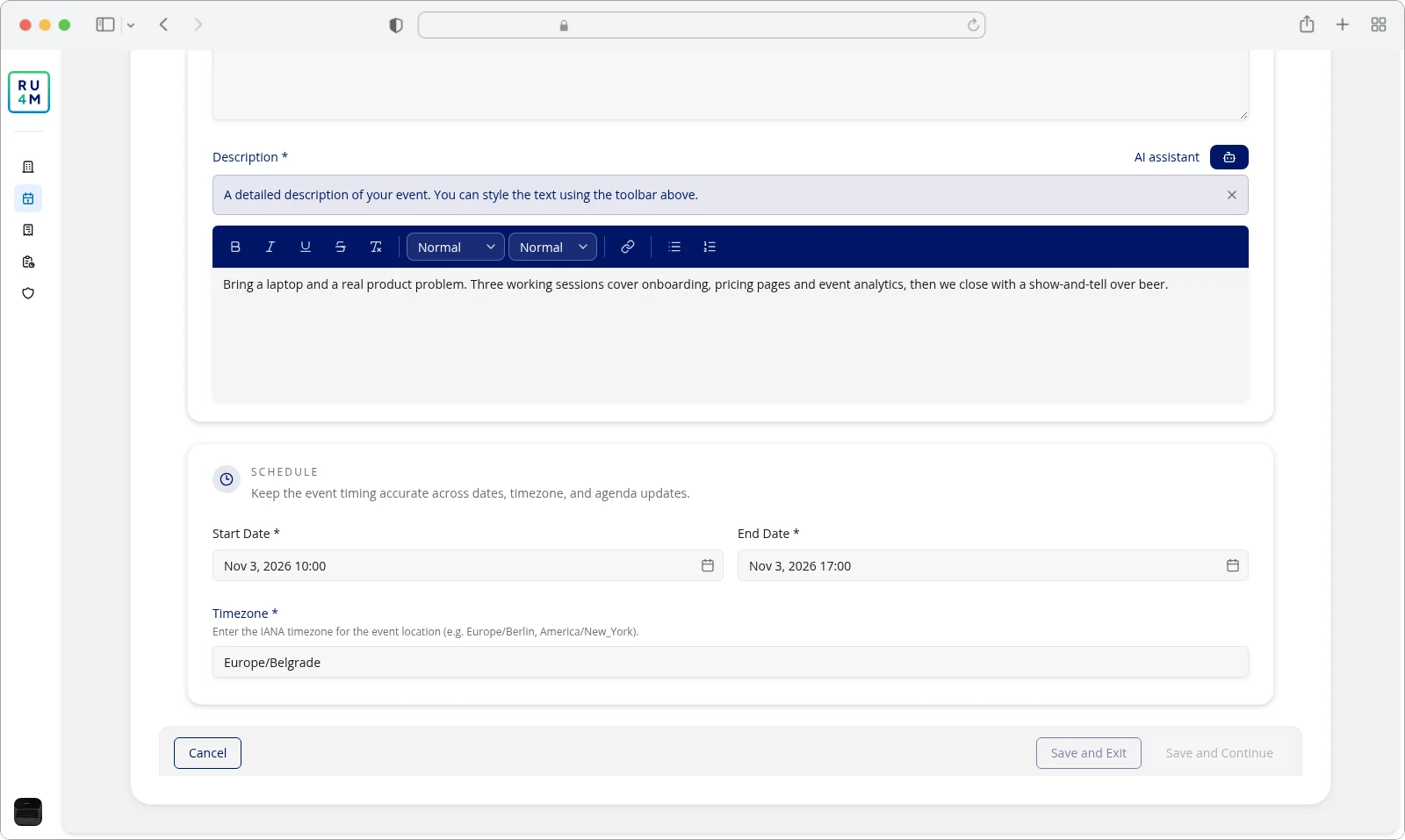
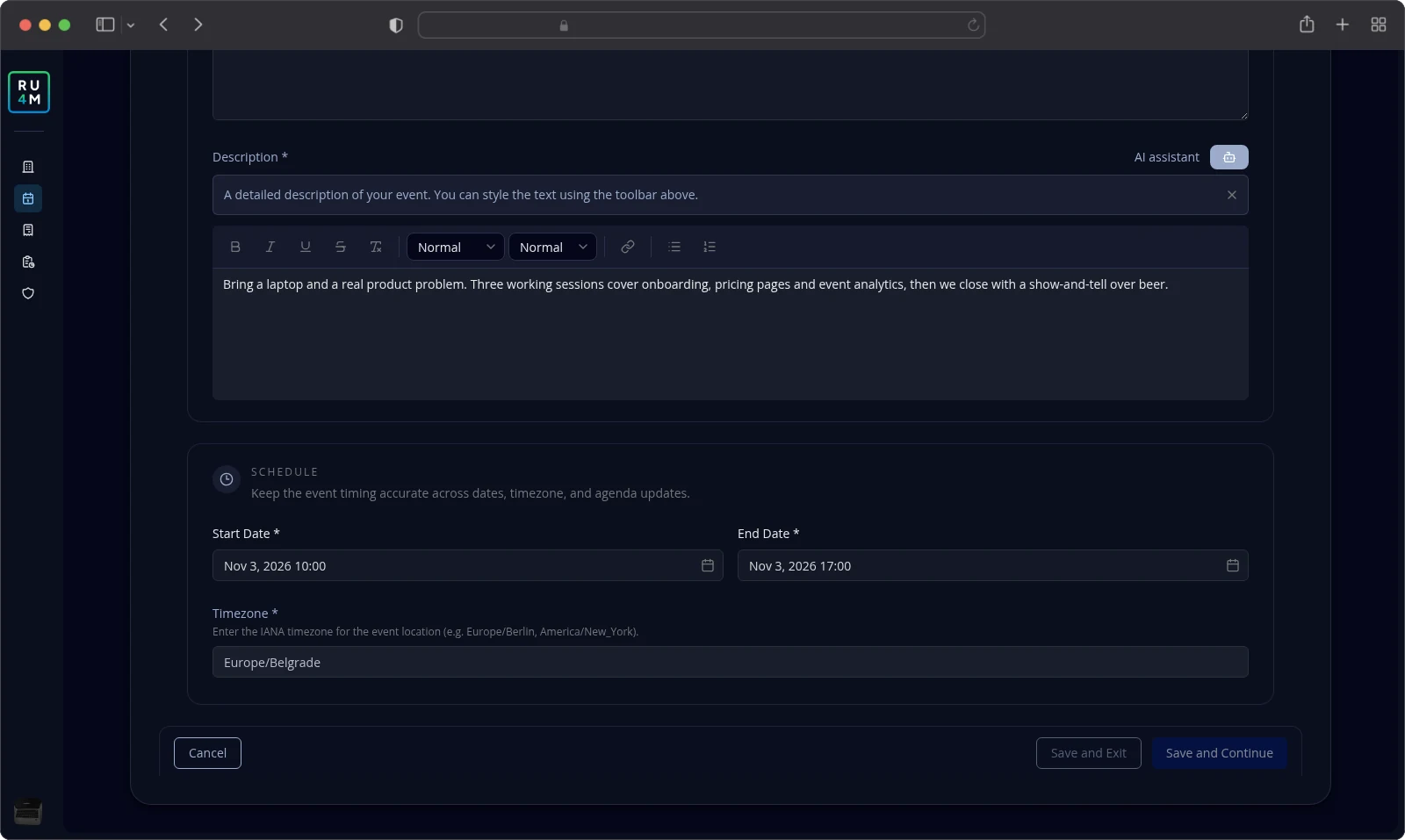
Set the Start Date, the End Date and the Timezone. The end time must fall after the start time, and a start date moved into the past is refused.
Moving dates or the timezone can move the sessions you already planned. When it does, Backoffice asks you to confirm before saving. The Program and sessions guide is still in preparation and does not cover the sessions yet.
Select Save and Exit when you are done. Your event's page opens, and the change is live.
Published events stay editable. The same fields behave exactly as they do on a draft.
Images and descriptions
The Content section of Quick edit holds what attendees read before they decide to join.
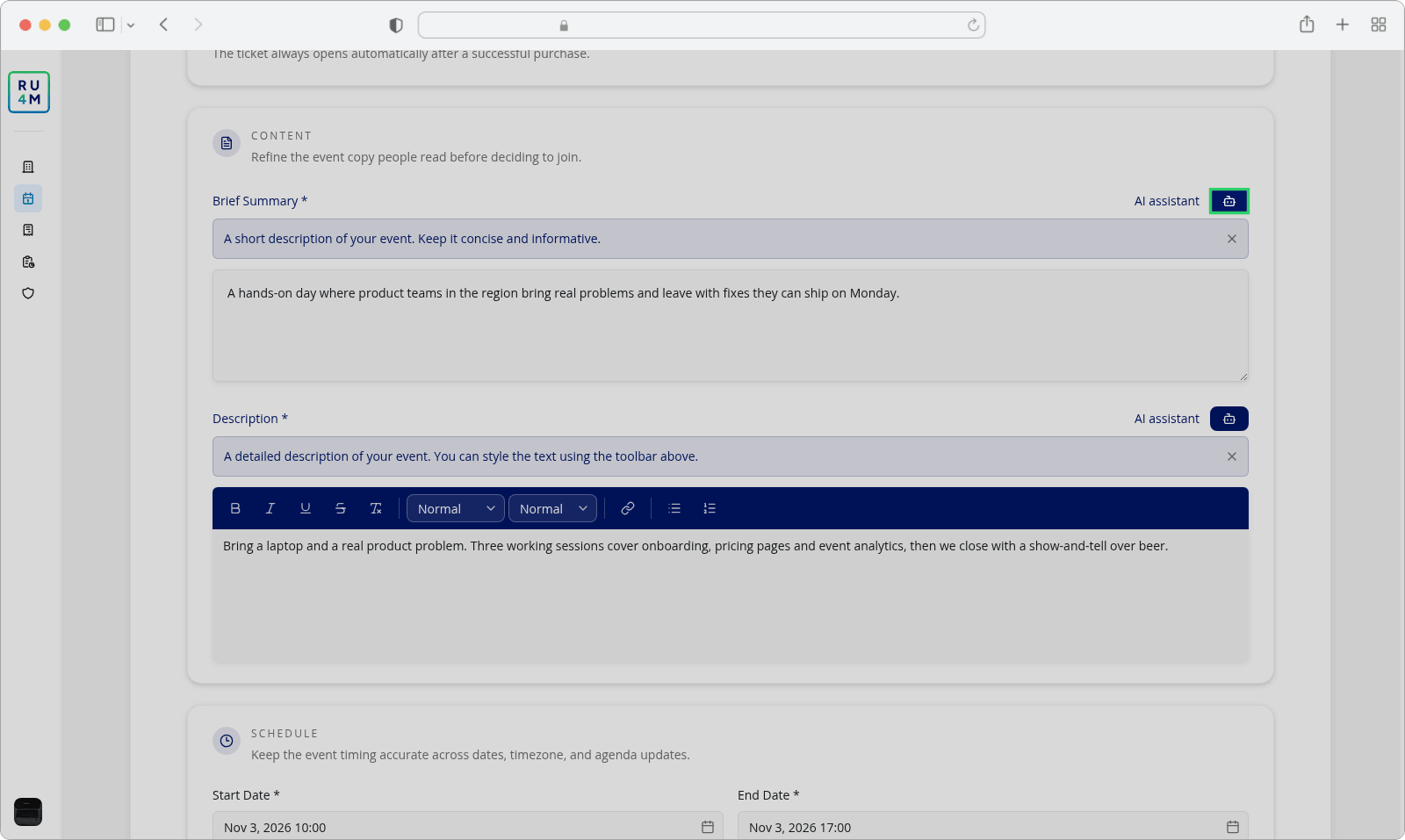
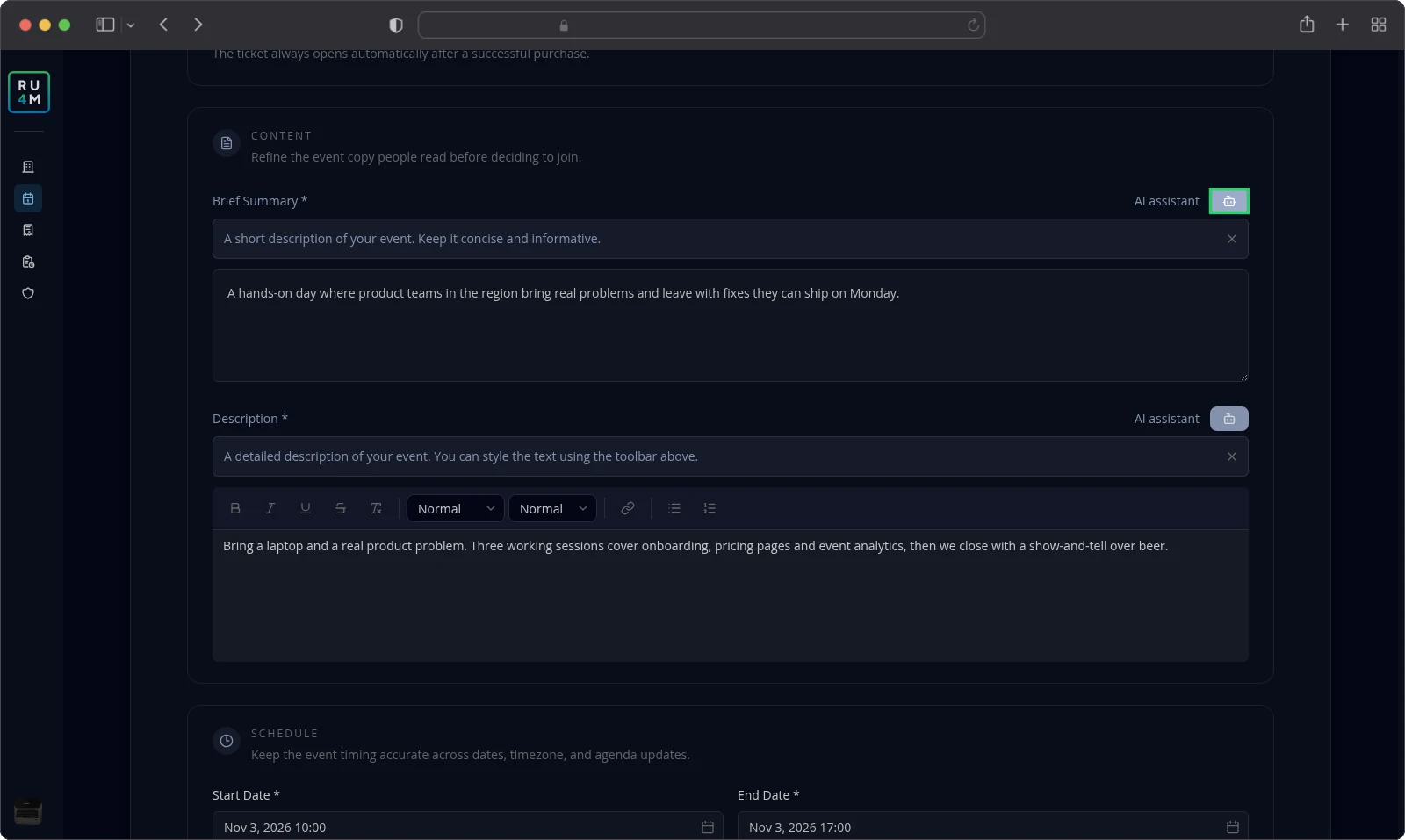
The Brief Summary is the short line shown in lists and previews. It accepts between 10 and 250 characters.
The Description is the full text on the event's own page. You can style it with the toolbar above the box.
Next to each field sits an AI assistant button. Select it and Backoffice writes a first draft from your event's title, interests and location. Read it, then edit it in your own words before you save.
Images live only in Advanced, on the Core details tab. Open Gallery to reach them.
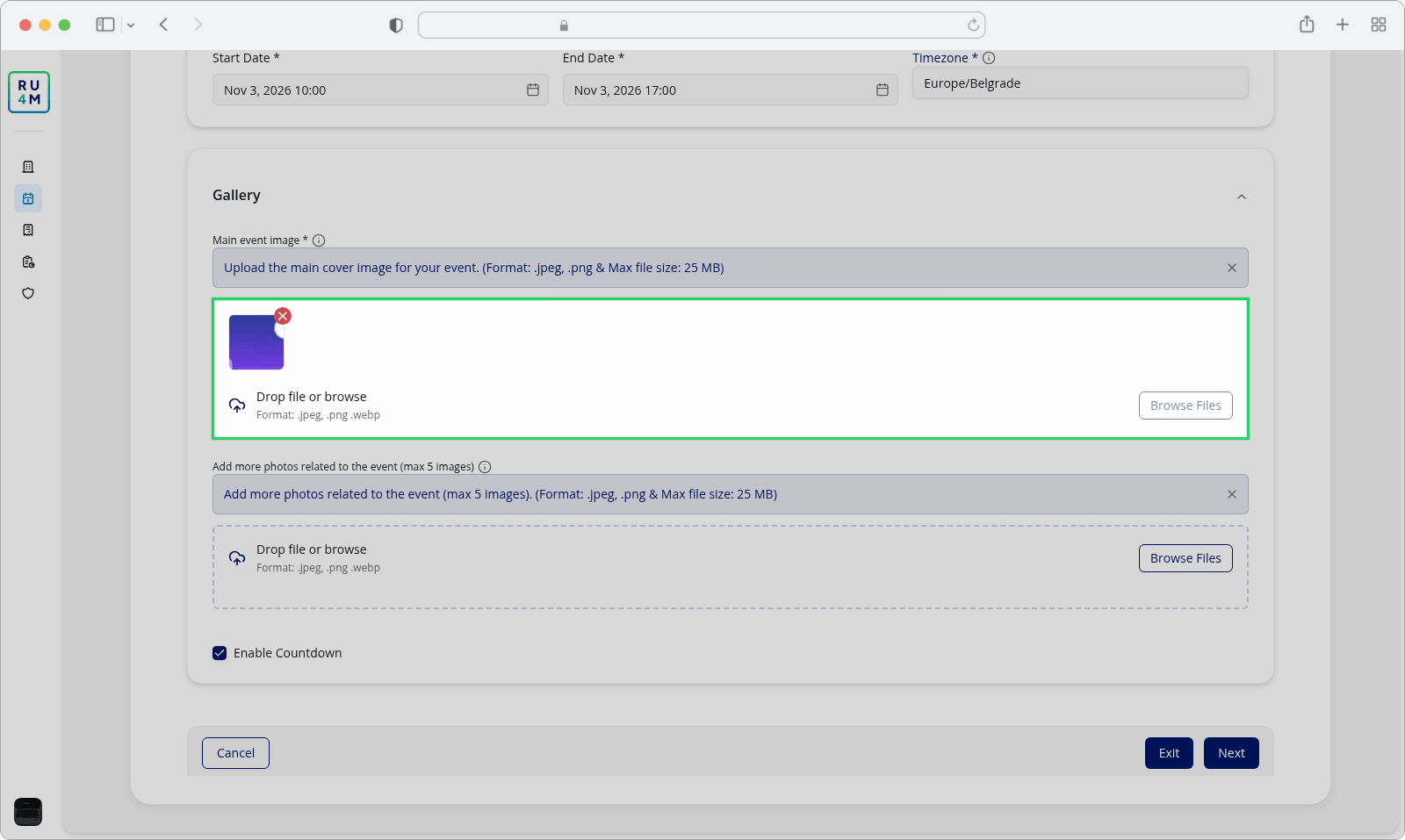
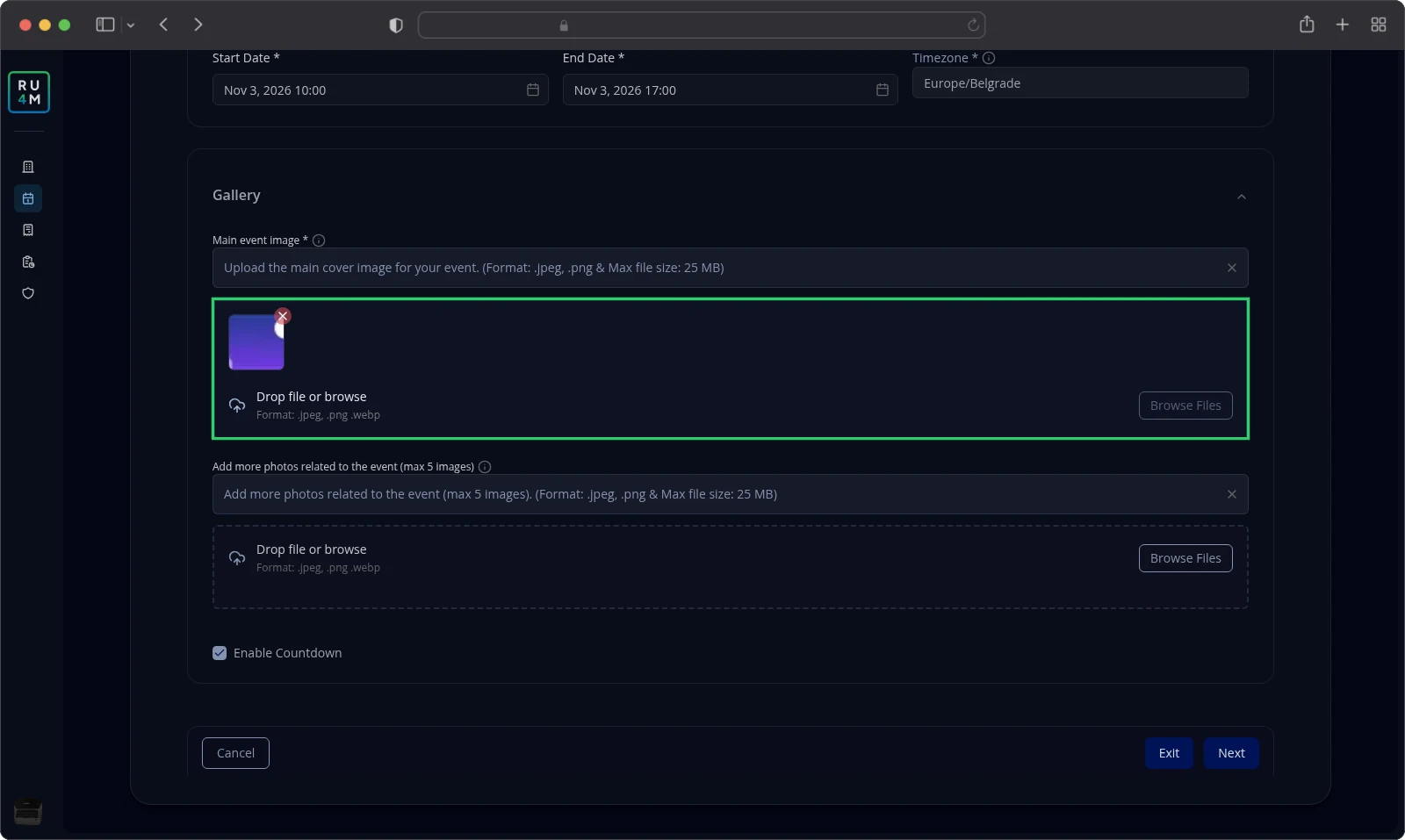
The Main event image is the picture people see first. It is required, holds one file, and opens a crop dialog at 16:9.
- Drop a file into the area, or select Browse Files.
- Frame the picture in the crop dialog.
- Confirm the crop.
The field explains itself: "Upload the main cover image for your event. (Format: .jpeg, .png & Max file size: 25 MB)". The drop area also lists .webp as an accepted format.
Add more photos related to the event (max 5 images) fills the gallery beside your cover. Use the same drop area, and remove a photo with the cross on its thumbnail.
The images you see in Create and publish are the ones you change here.
Deleting an event
Deleting removes the event from Backoffice for everyone. You cannot undo it from the app.
Open the actions menu at the end of the event's row, then select Delete. You find Delete only in this menu, on your events list. It is not on the event's own page, and not in the editor.
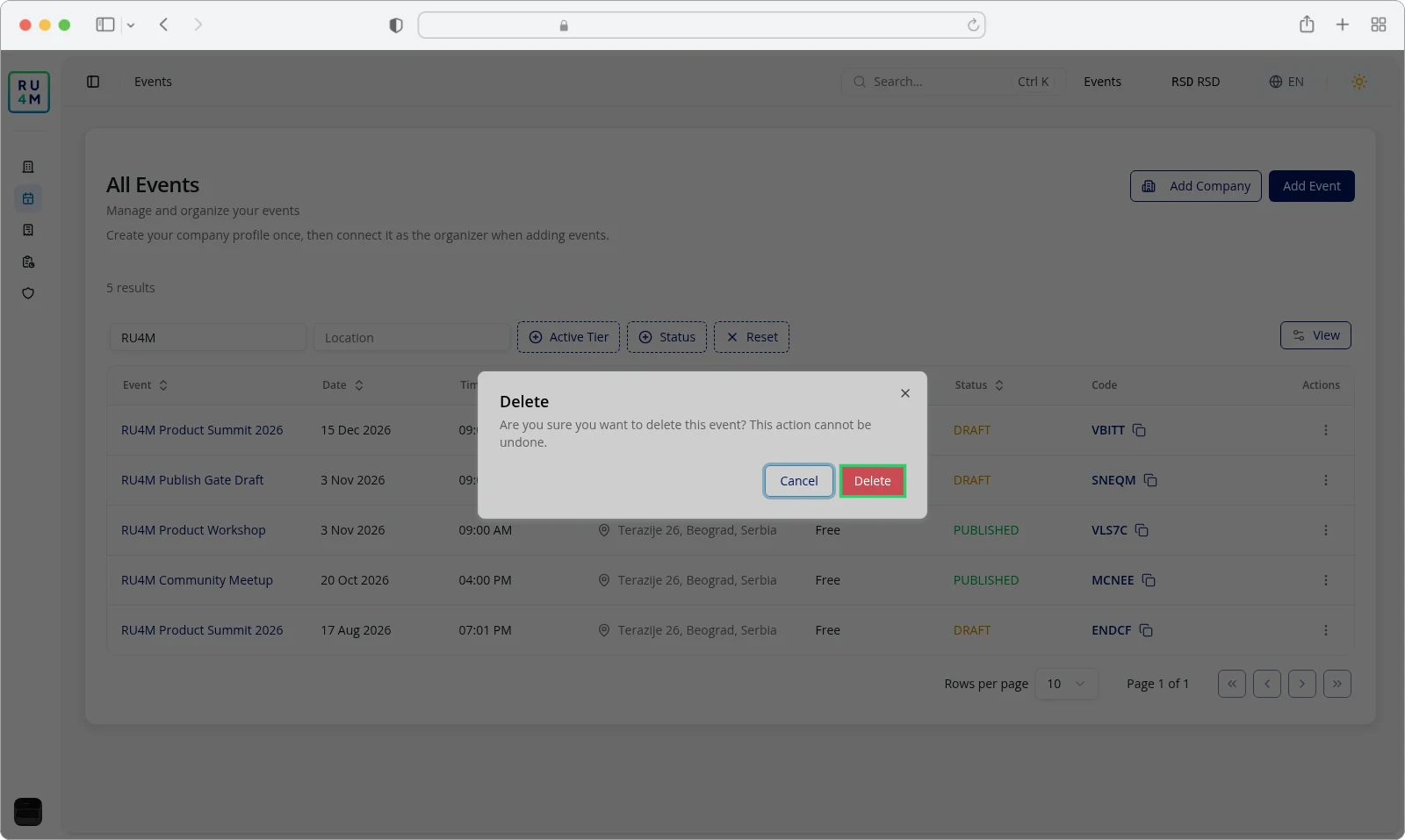
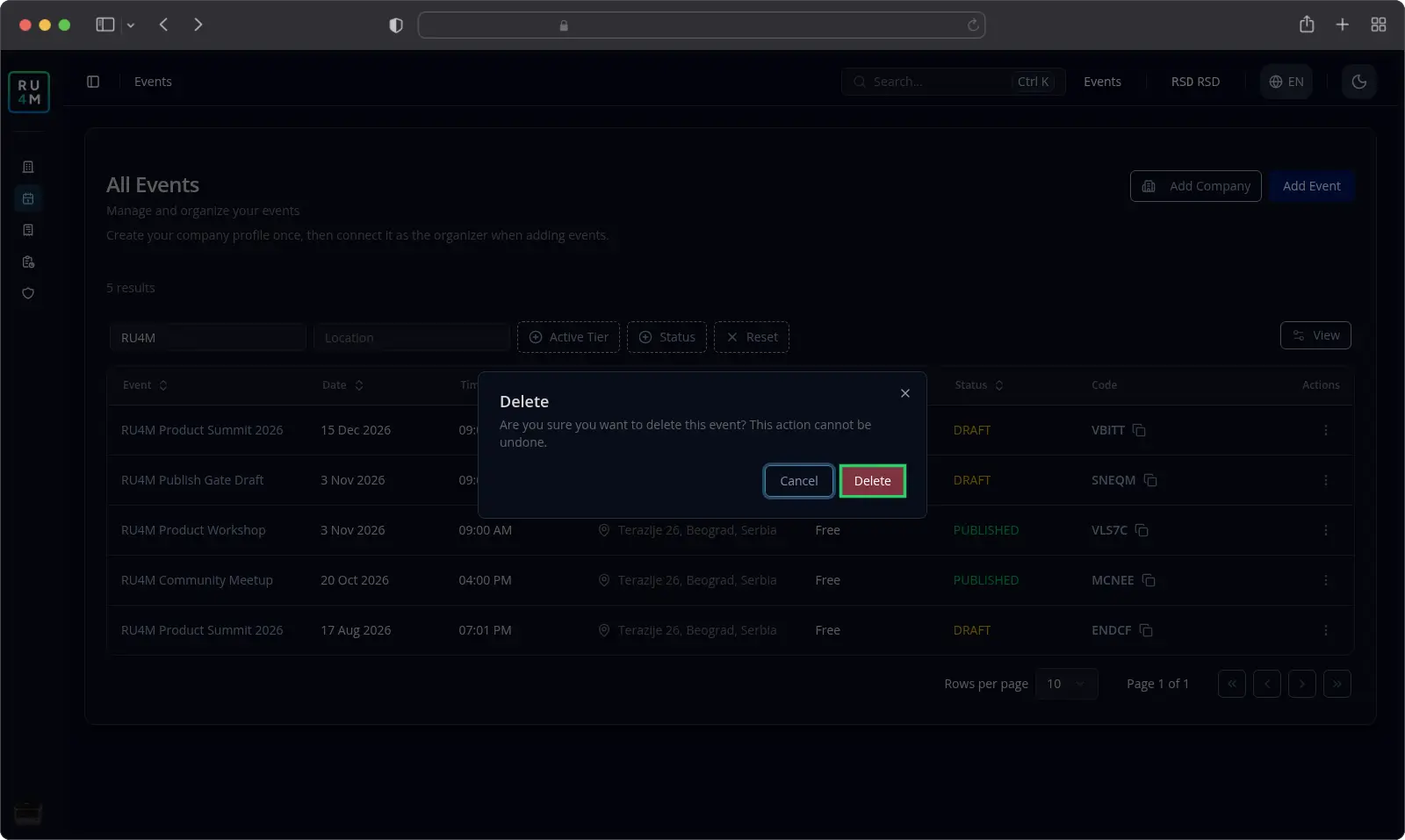
Backoffice asks you to confirm: "Are you sure you want to delete this event? This action cannot be undone."
- Select Cancel to keep the event.
- Select Delete to remove it.
The row disappears from your list. Backoffice reports Event deleted successfully, and your event's code stops working for anyone holding it.
Check your participants and any payments before you delete. See Participants and Tickets.
Troubleshooting
The location field refuses what you typed. Pick a full street-level address from the suggestions, down to the city and country. Typing the address on your own is not accepted.
Nothing happens when you select a save button. Both save buttons stay greyed out until you change a field. Change something first.
Your edit disappeared after you switched tabs. You chose Discard. Make the change again and select Save and Exit before you leave the tab.
Backoffice says "Something went wrong." after saving. The change was not stored. Try once more, and check your connection if it repeats.
A date will not save. The end time must fall after the start time, and a start date in the past is refused. Adjust both dates.
You cannot find a tab you expected. Your event's package does not include it. Check Packages and payment.
Related tasks
- Create and publish — the wizard that sets the event up the first time.
- Organizer and speakers — who is behind the event and who is on stage.
- Program and sessions — sessions, rooms and the schedule.
- Packages and payment — which package unlocks which tab.
- Participants — who registered before you delete an event.
- Tickets — ticket settings and payments.
- Contacting support — when the app cannot do what you need.