Creating and editing a company profile
A company holds the details that appear on your events: its name, description, website, phone, address and logo. Create one company or several, then connect them to your events as organizers.
Before you start
Any signed-in Backoffice user can create a company, so you can start here even without one.
To edit an existing company you must be its Admin or Moderator. The third role, Member, does not see the company in the Backoffice at all. Creating a company makes you its Admin. The Roles and permissions guide is still in preparation.
Finding your company
The sidebar entry changes with how many companies you manage:
- You manage none, and no entry appears.
- You manage one, and the entry shows that company's name and opens its page.
- You manage two or more, and the entry reads Companies and opens the list.
When the entry opens a single company, select Back to companies to reach the list.
The list is called My Companies. Each row shows the logo, Company Name, Description, Created and Status, and every listed company carries the Active badge.
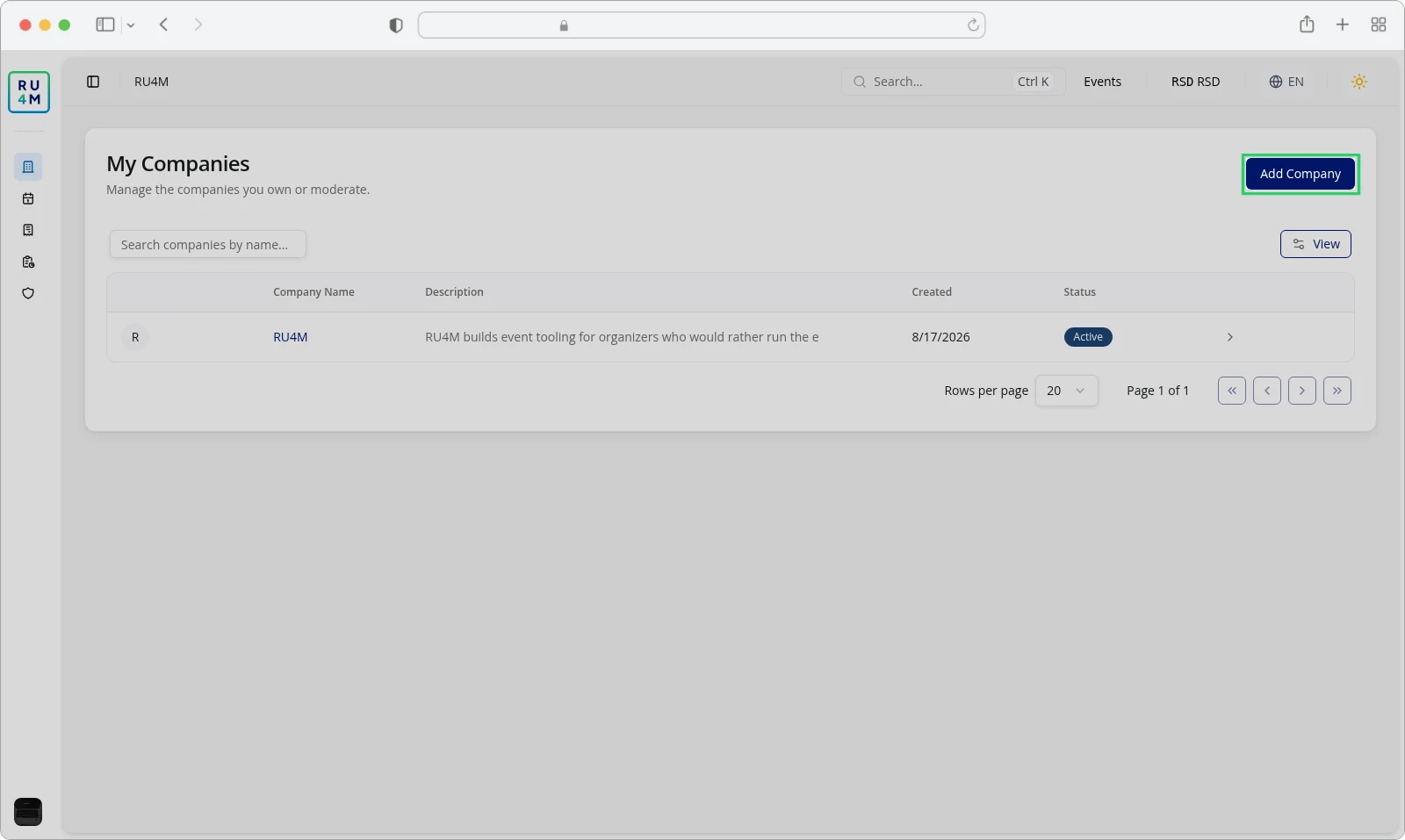
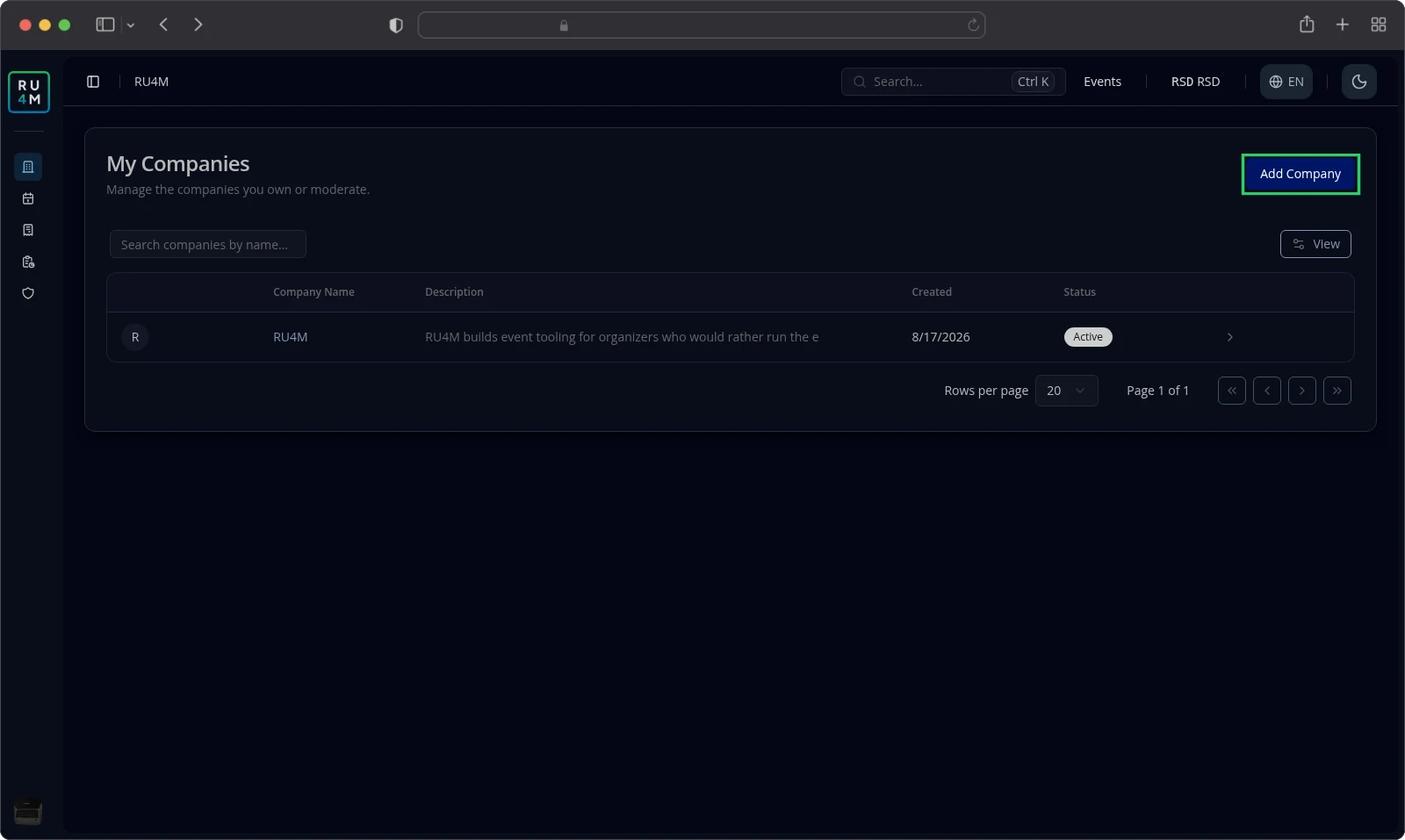
Select the company name to open its page. The arrow at the end of a row is Manage company and opens the same page.
Type in Search companies by name... to narrow the list. A search that matches nothing keeps the table and reports no results.
The Add Company button sits at the top of the list. It appears once you manage at least one company, or once you search.
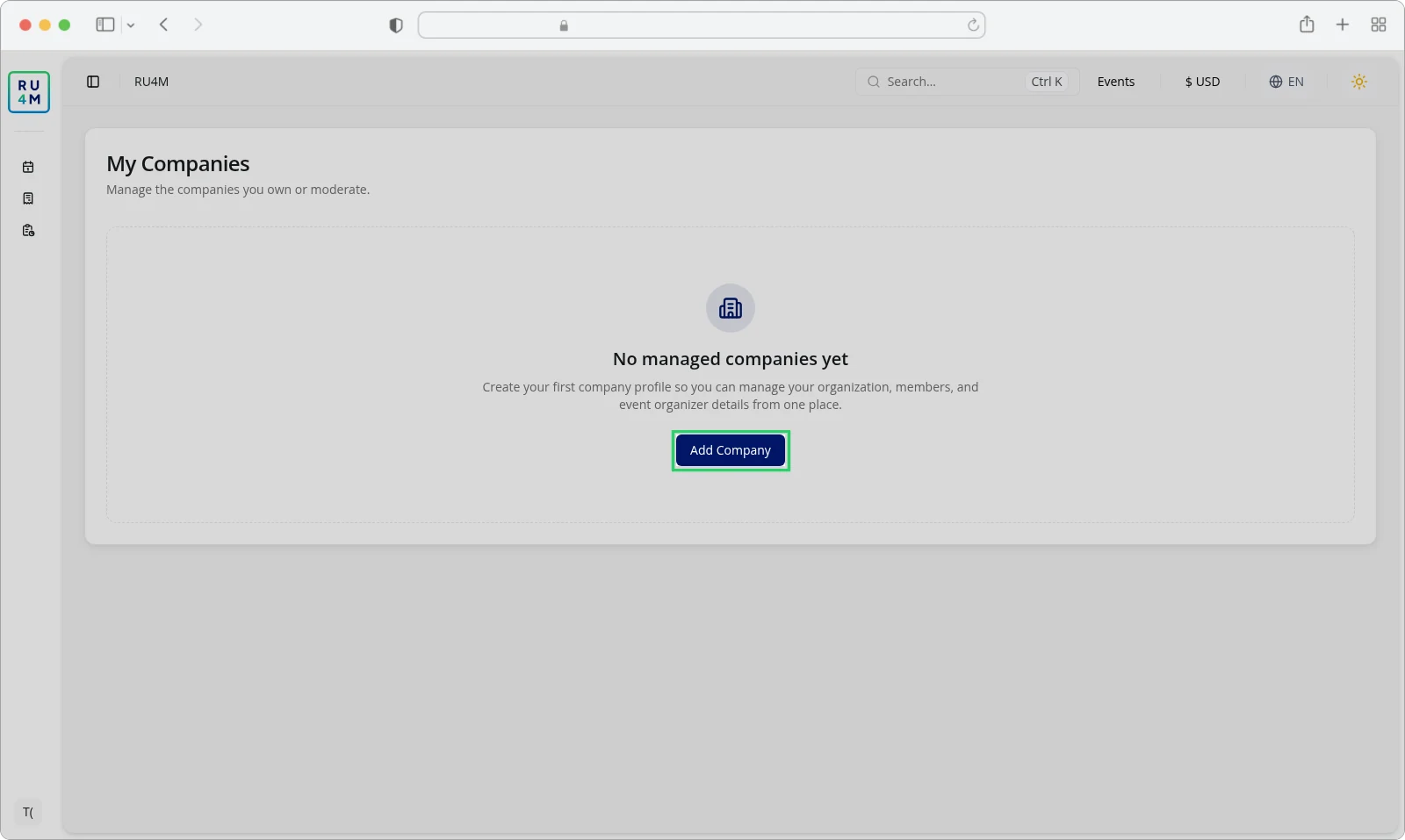
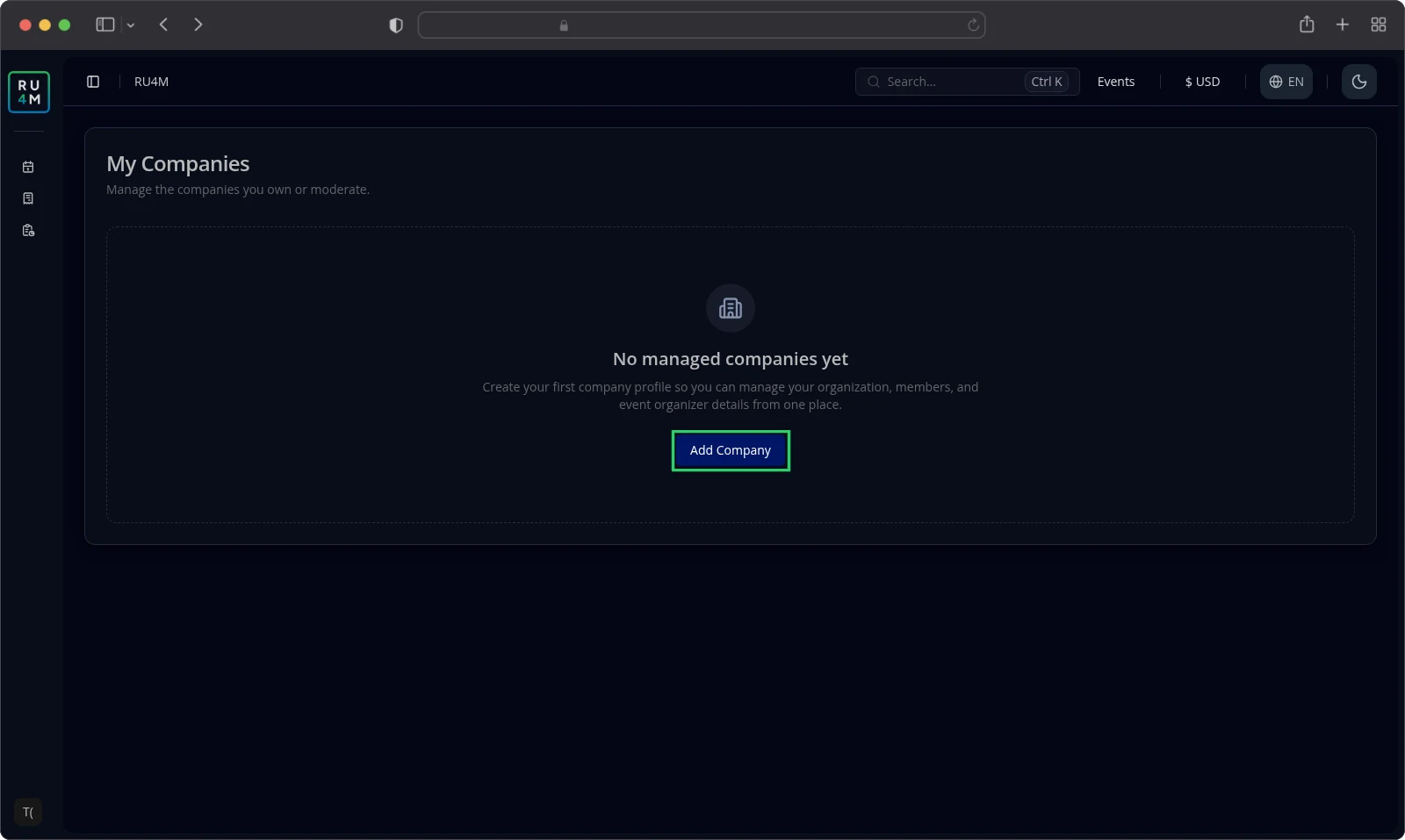
When you manage no companies at all, the page shows No managed companies yet and its own Add Company button.
Creating a company
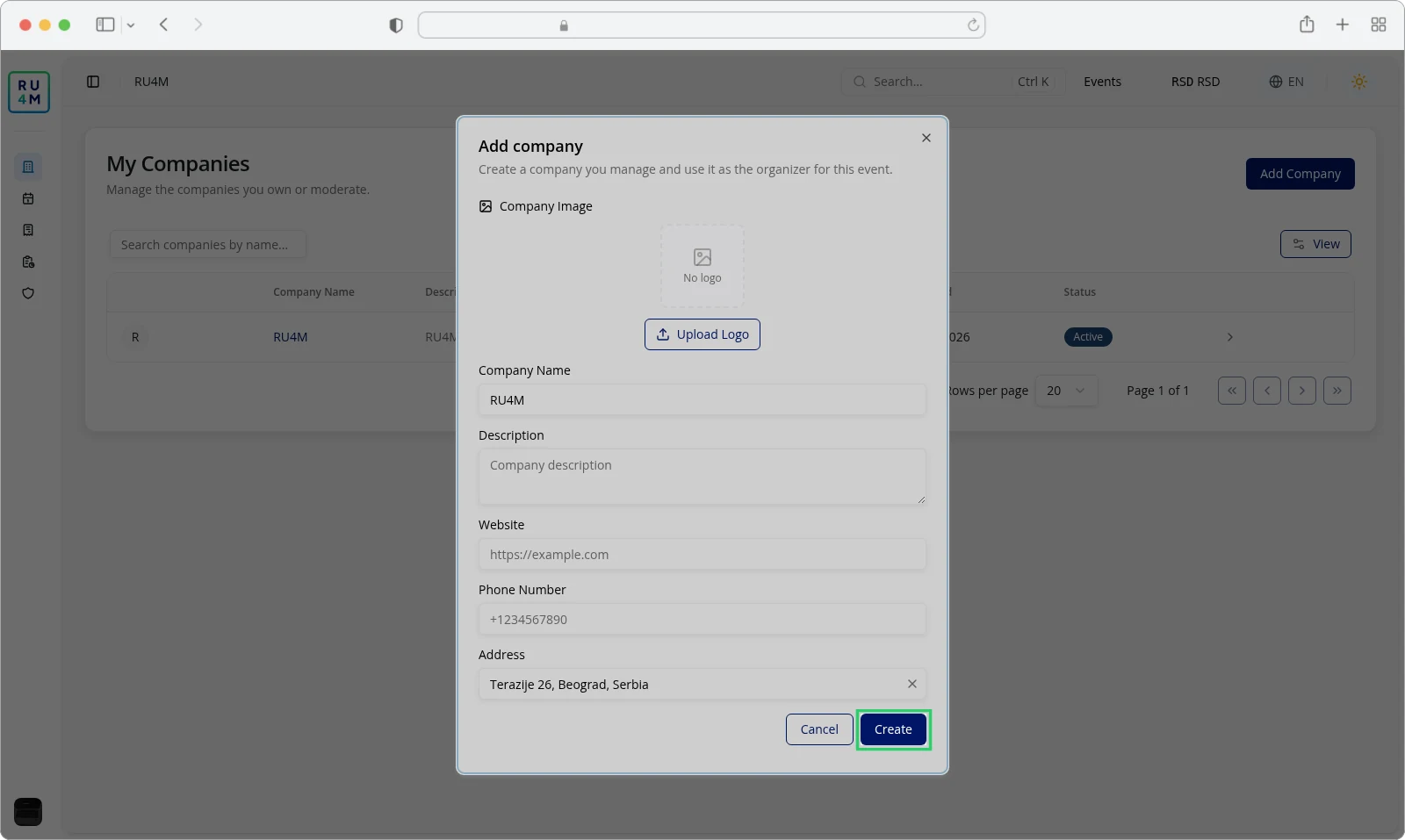
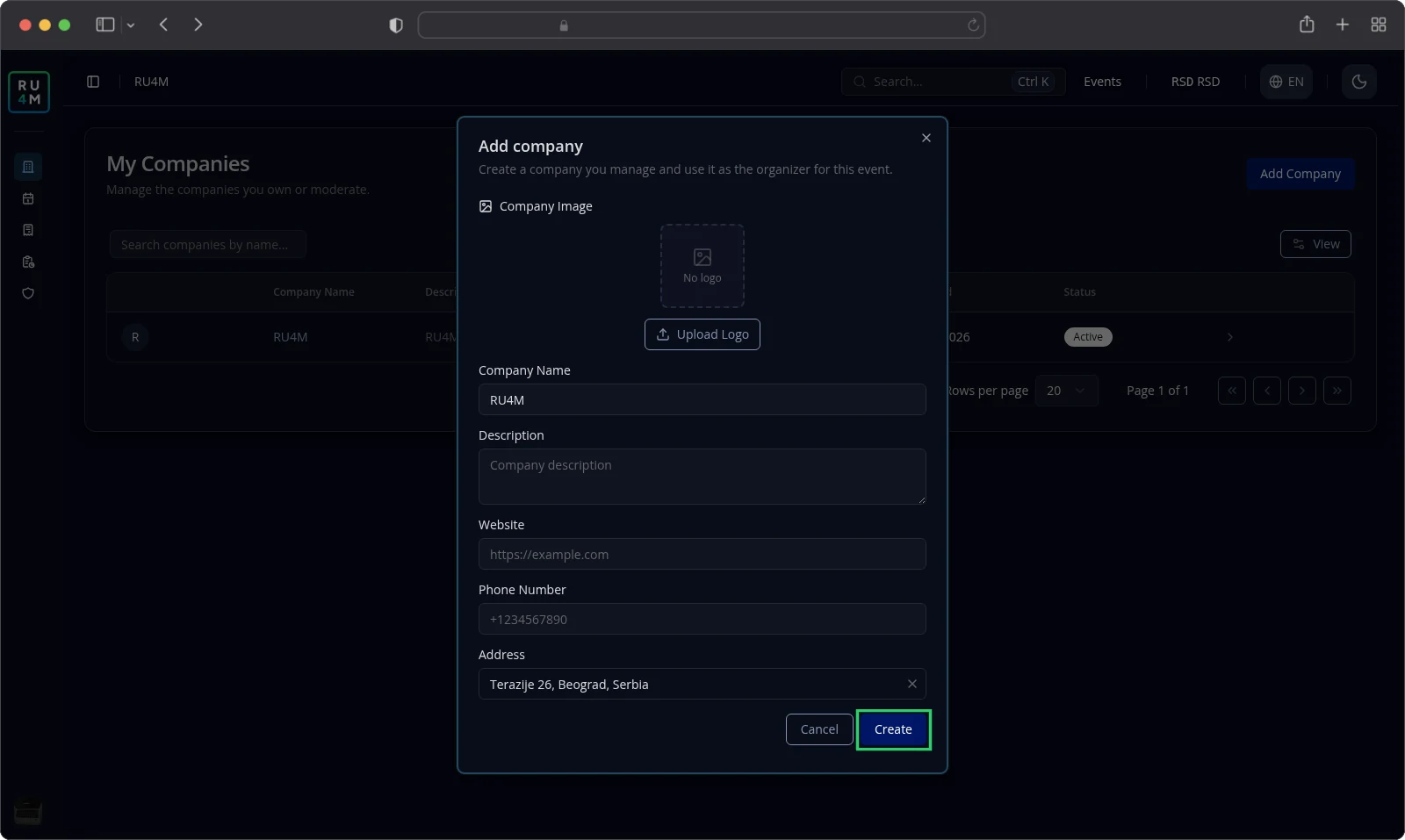
Select Add Company and the Add company dialog opens.
Only Company Name is required. Every other field is optional.
- Enter Company Name, up to 100 characters.
- Enter Description, up to 1000 characters.
- Enter Website as a full address, including
https://. - Enter Phone Number using digits and the characters
+ - / ( ). - Search the Address field, then select an address from the suggestions.
- Select a Company Image when you already have a logo ready.
Select Create. While the company is saved, the button reads Creating....
The company's page opens and the app confirms Company created and selected.
You become the company's Admin. You can also open the same dialog with Add Company on your events list, where it closes once the company is created.
Editing details, logo and contact information
The company's page shows its Website, Phone, Address and the Created date.
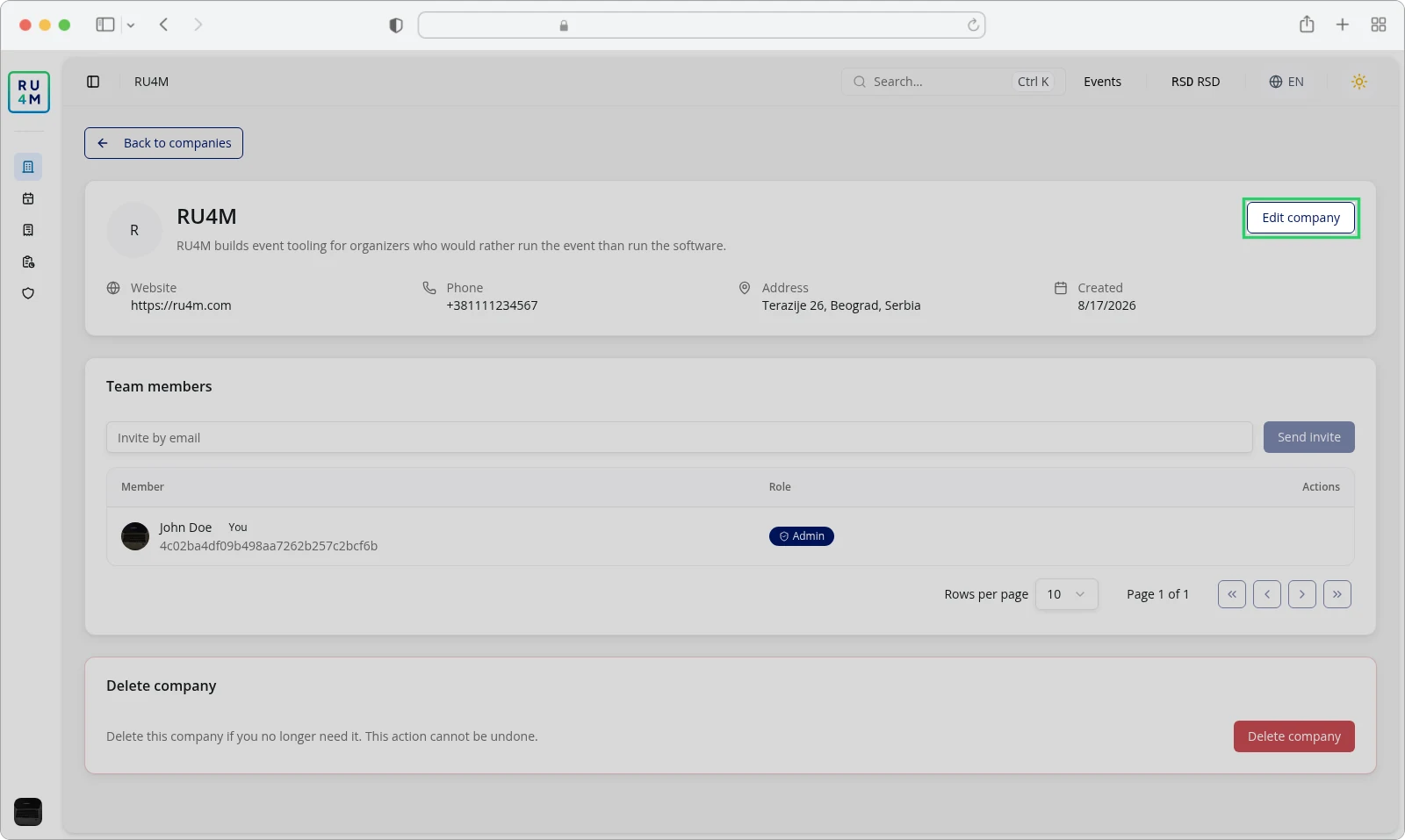
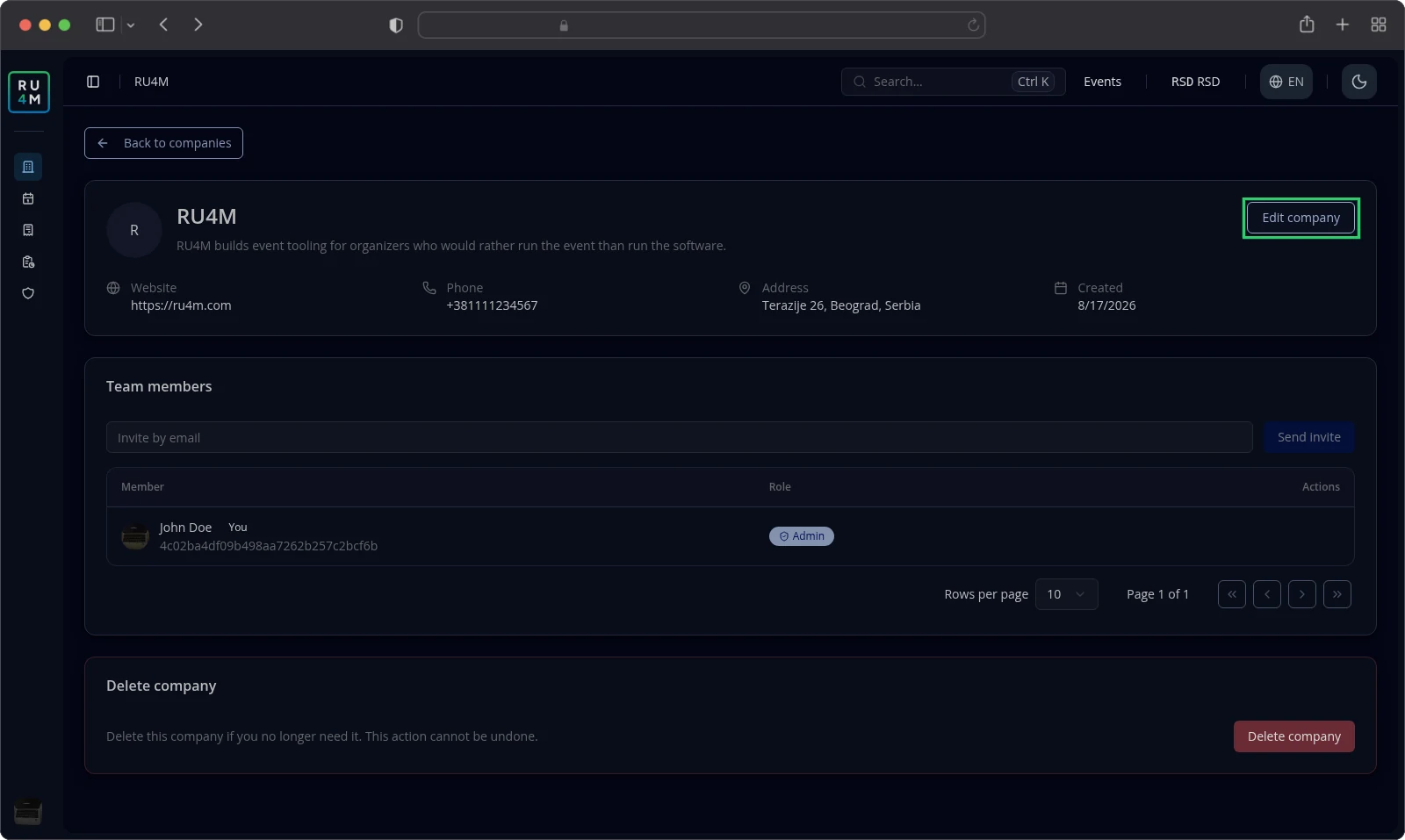
Select Edit company. Only an Admin and a Moderator see this button.
The editor carries the company's name in its title and spreads the fields over two tabs, Basic information and Address.
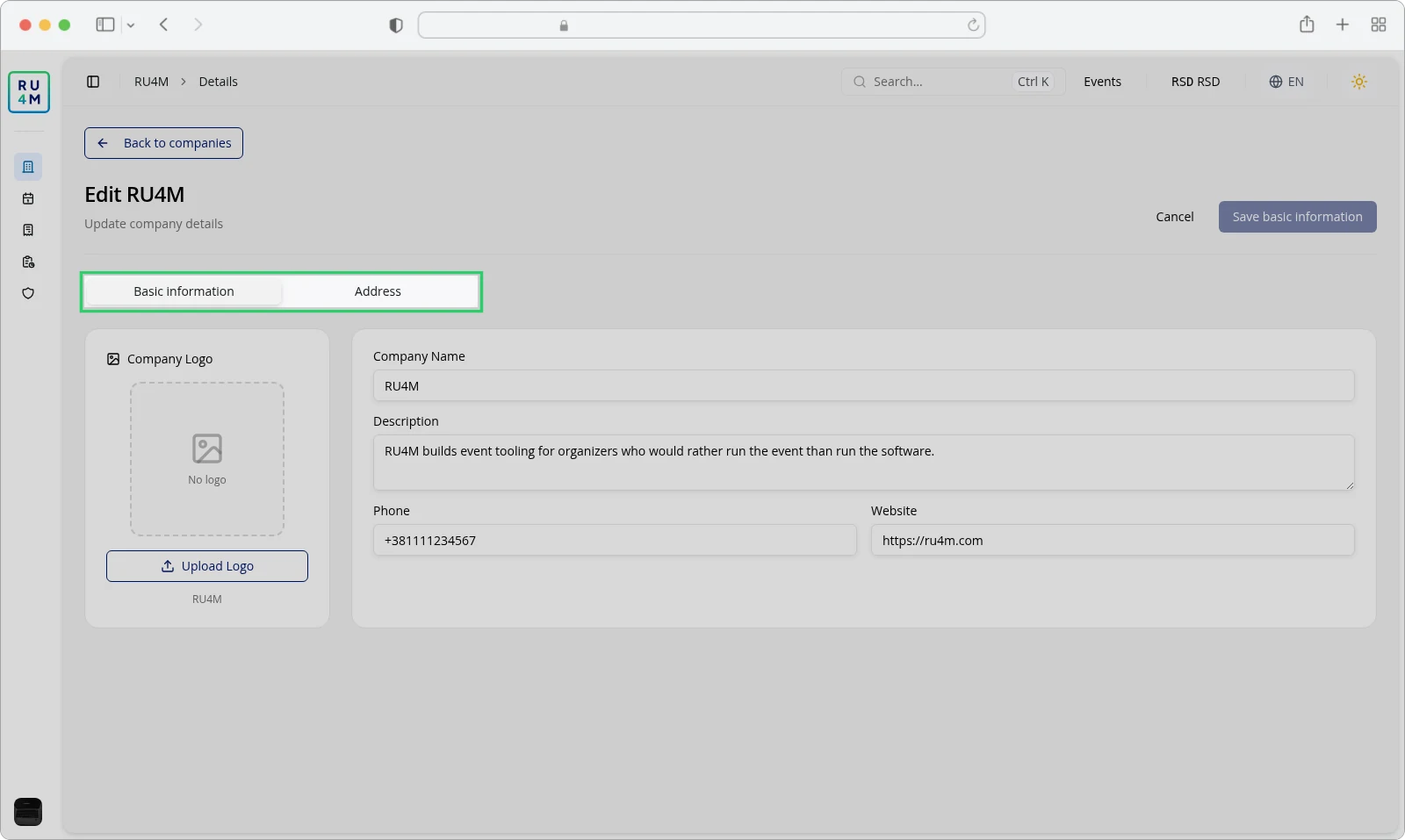
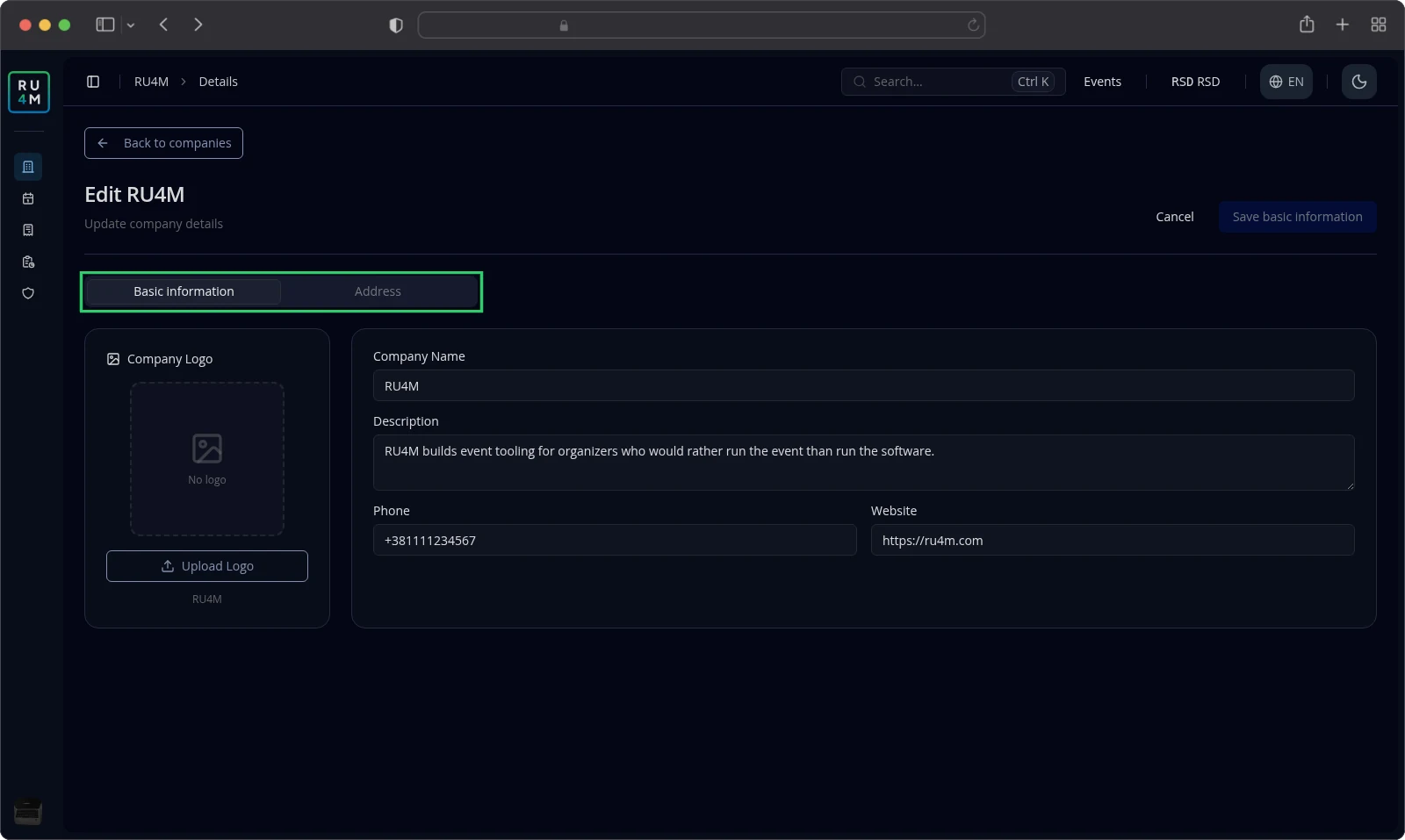
Basic information holds the logo, Company Name, Description, Phone and Website. Address holds the address search and the separate Street, Street number, City, Region, ZIP code and Country fields.
Each tab saves on its own. Save basic information and Save address stay greyed out until you change a valid field on that tab.
Selecting the save button confirms Company updated successfully and returns you to the company's page.
Select Cancel to leave the editor without saving.
Replacing the logo
In the Company Logo card, select Upload Logo and choose an image.
The Position and zoom logo dialog opens.
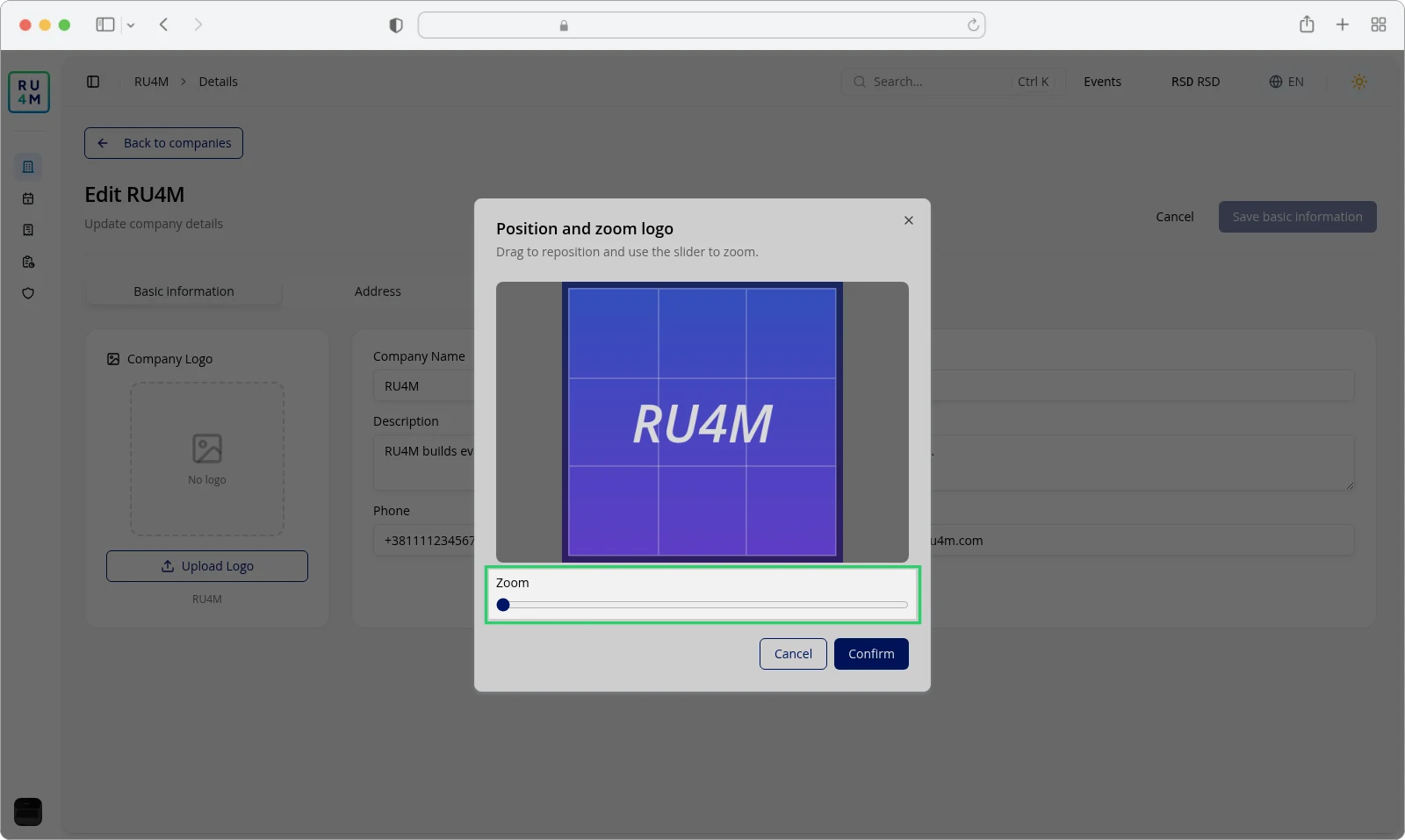
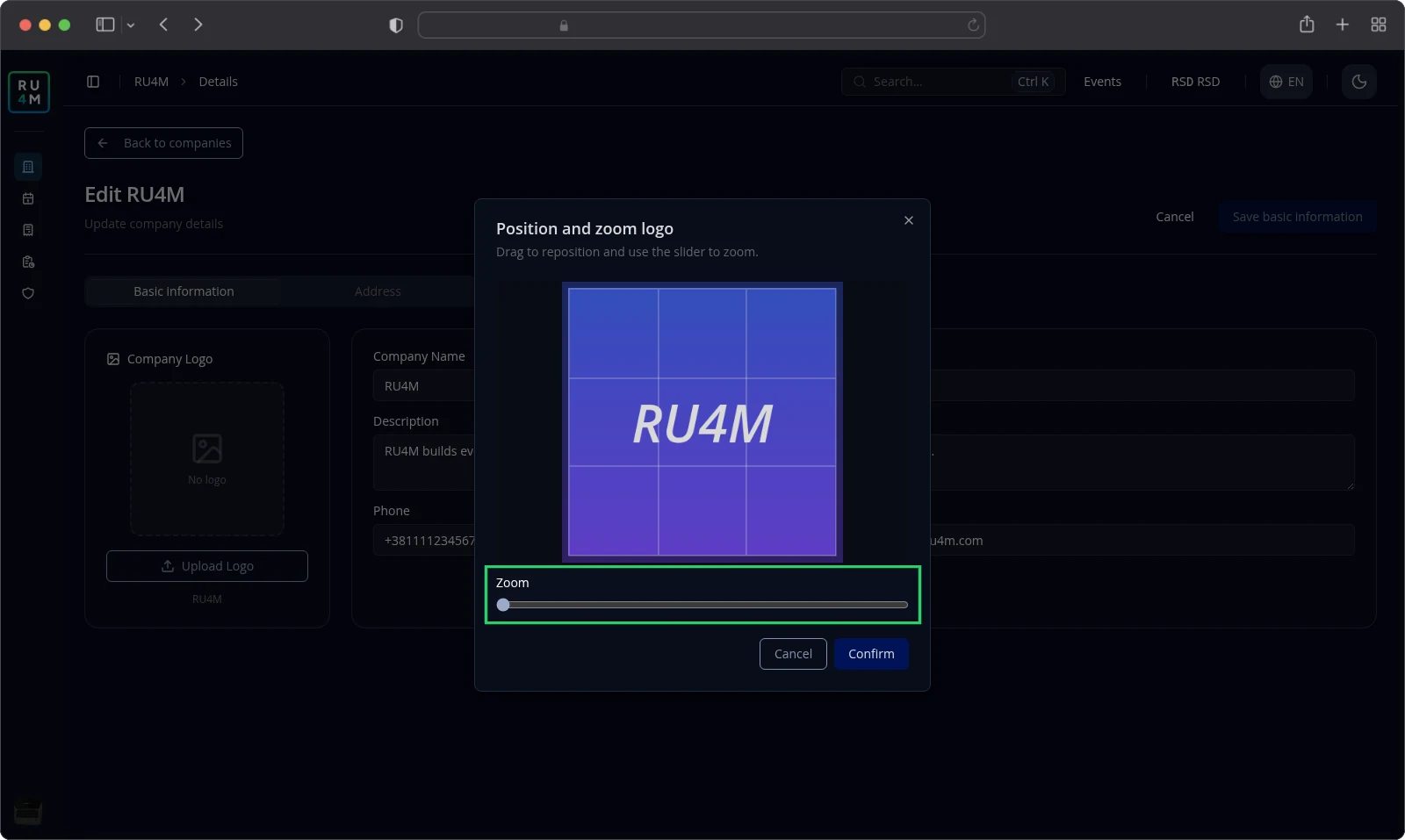
Drag the image to place it, then move the Zoom slider to set its size. The crop is square. Select Confirm to keep it, or Cancel to discard it.
The logo is stored once you select Save basic information. Choosing an image on its own already enables that button.
Leaving with unsaved changes
Switch tabs or leave the editor with unsaved edits and Leave without saving? appears. Select Stay to keep your changes, or Discard changes to lose them.
Troubleshooting
Your company is missing from the list. You are its Member, not a manager, or the company was deleted.
The page reads "Company not found". The company does not exist, or you cannot manage it.
Nothing happens when you select a save button. It stays greyed out until you change a valid field on that tab.
Your edit disappeared after you left. You chose Discard changes. Make the change again and save before you leave.
A website is refused. Enter a full address, including https://.
A phone number is refused. Use digits and the characters + - / ( ) only.
The address is not saved. Choose the address from the suggestions. Typed text alone creates no address.
Backoffice reports that the company was not created. Nothing was saved. Try again.
Backoffice reports that the company was not updated. The change was not stored. Try again.
The logo cannot be processed. Choose a different image and try again.
Related tasks
- Members, invitations and roles — colleagues and what each of them may do.
- Connecting a company to an event — use the company as an event organizer.
- Deleting a company — remove a company you no longer need.
- Creating your first event — create a company while you set up an event.
- Roles and permissions — what each role may do. Still in preparation.