Manual reminders
Send a reminder to the mailing lists you built earlier, in a message you write yourself.
A reminder is the Organizer reminder template inside the same email campaign composer you use for invitations. The app has no separate reminder screen, and participants never press a reminder button.
The app can also send a reminder before the event on its own. That message is automatic and asks nothing of you. Read more in Automatic emails.
Before you start
You need permission to manage the event. That means you created it, you are one of its managers, or you are an administrator or moderator of the organizing company.
Your package decides how many emails the event may send. Reminders count against the same allowance as invitations, so one reminder campaign costs the same as one invitation campaign.
The app sends nothing before you publish the event.
Where the composer is
Open the event and select the Overview tab.
Select New email campaign in the Quick actions card. The Send Email Campaign screen opens.
Read Preparing and sending invitations first if you have never used this screen. Every list, panel and limit on it is described there.
Choosing recipients
Recipients are mailing lists. You cannot pick people one by one.
Select your lists in the Select Mailing Lists card, the same way you do for an invitation.
The Recipients Preview panel counts your recipients the same way here. It shows how many unique addresses the reminder reaches.
Preparing and previewing the reminder
Open Email template and select Organizer reminder.
The Compose Email card keeps Email Subject * and Email Content *. This template adds five more fields below them.
- Message title (optional) — a second title for the reminder, for example
One week to go. - Button text — the label on the button. Only this template asks for it.
- Button destination — where that button leads.
- Preview text (optional) — the line a recipient's inbox shows beside the message.
- Calendar URL (optional) — an https address of a calendar file, for a button that adds the event to a calendar.
The two AI assistent buttons do not appear on this template. You write every word yourself.
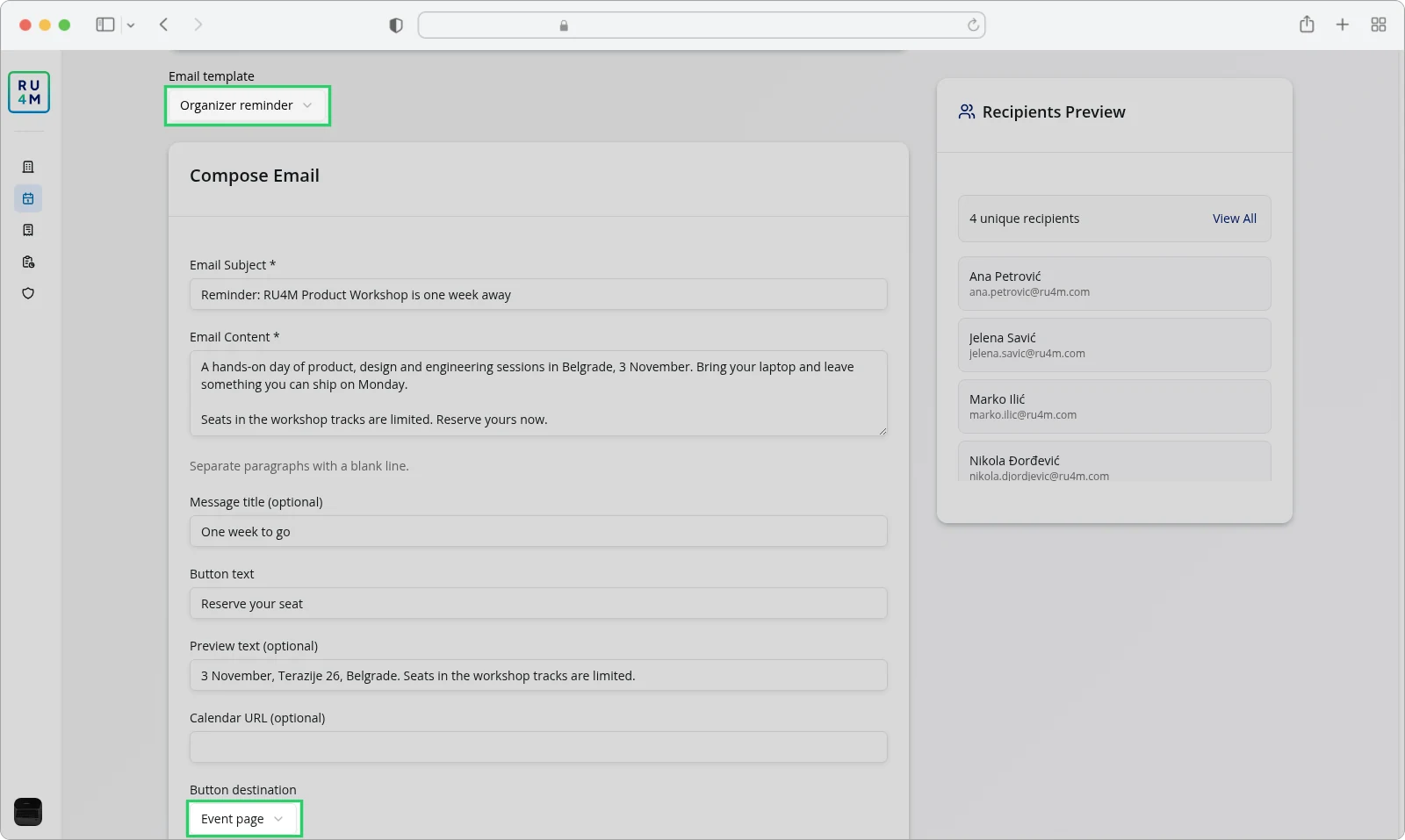
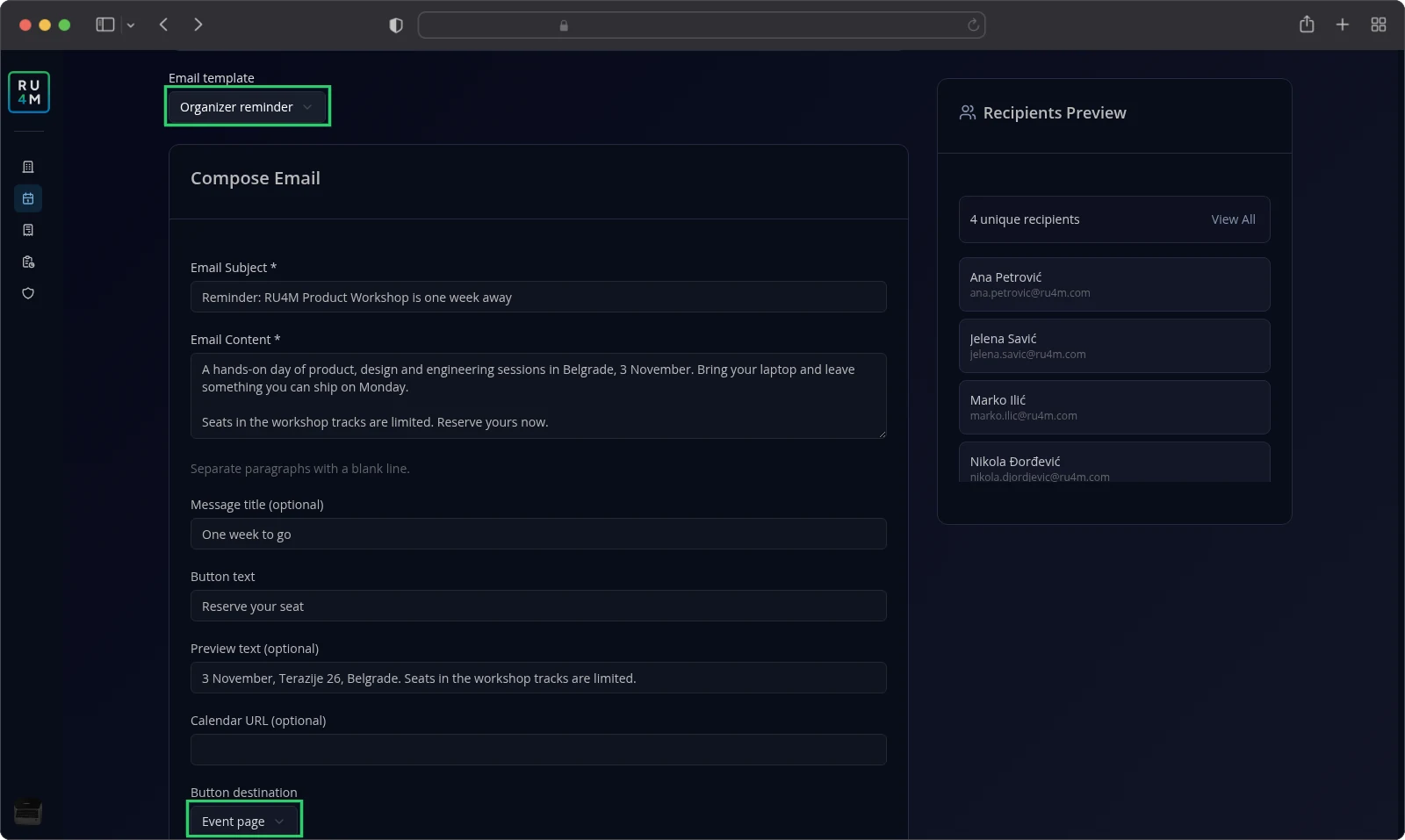
Type a line into Email Subject *.
Write the reminder into Email Content *. Leave one empty line between paragraphs, because the app reads the empty line as a paragraph break.
Enter a short label into Button text.
Select Button destination. Event page sends the button to your event page. Edit profile sends it to the profile page on ru4m.com. Custom HTTPS URL opens an address field, and the address must begin with https://.
Leave Calendar URL (optional) empty unless you have an https address of a calendar file.
There is no preview of the finished reminder. The Recipients Preview panel and the Confirm email dialog are your only checks.
Sending the reminder
Select the send button below Email Content *. With no list chosen it reads Send Email. Once you choose lists, it names them, for example Send to 1 selected list.
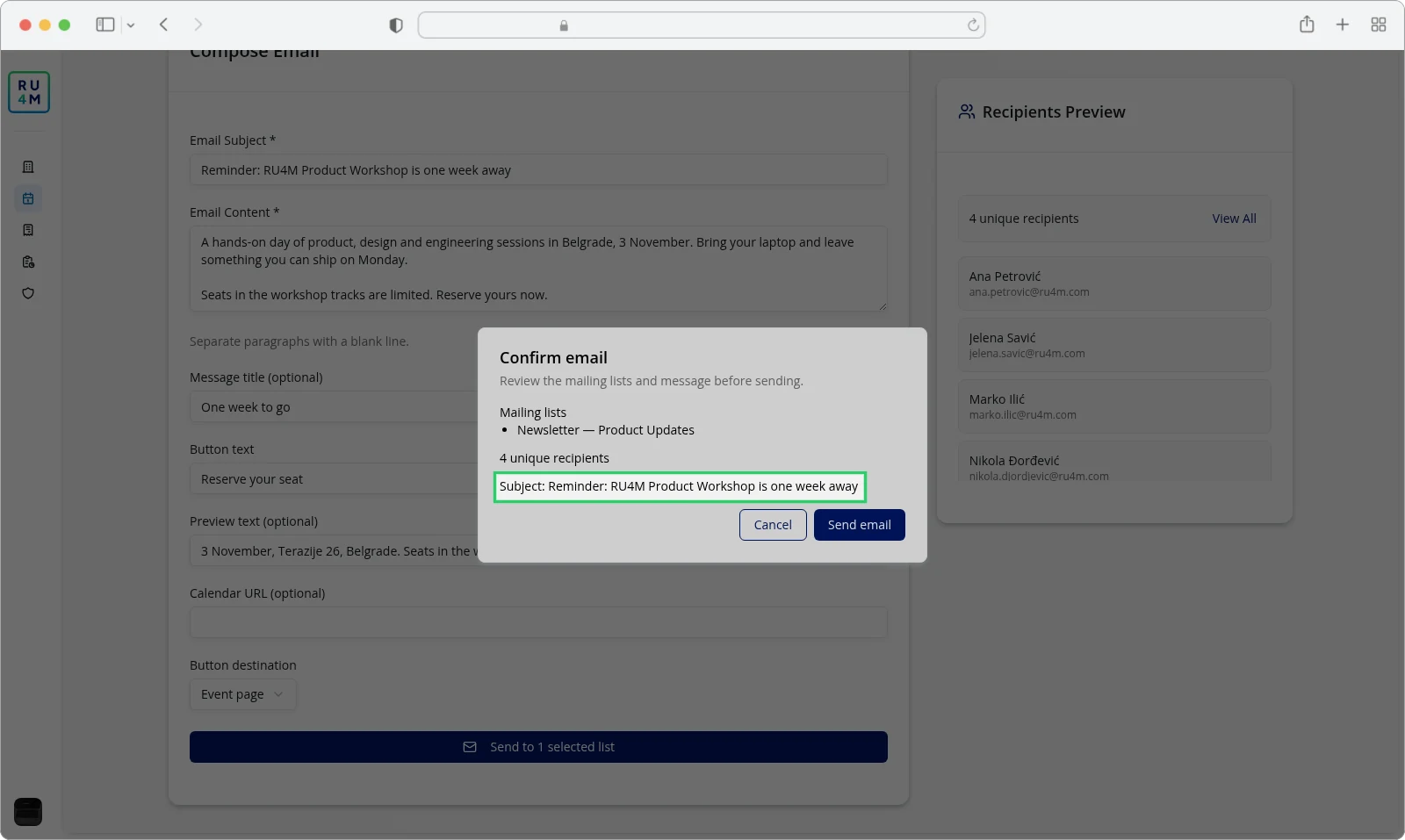
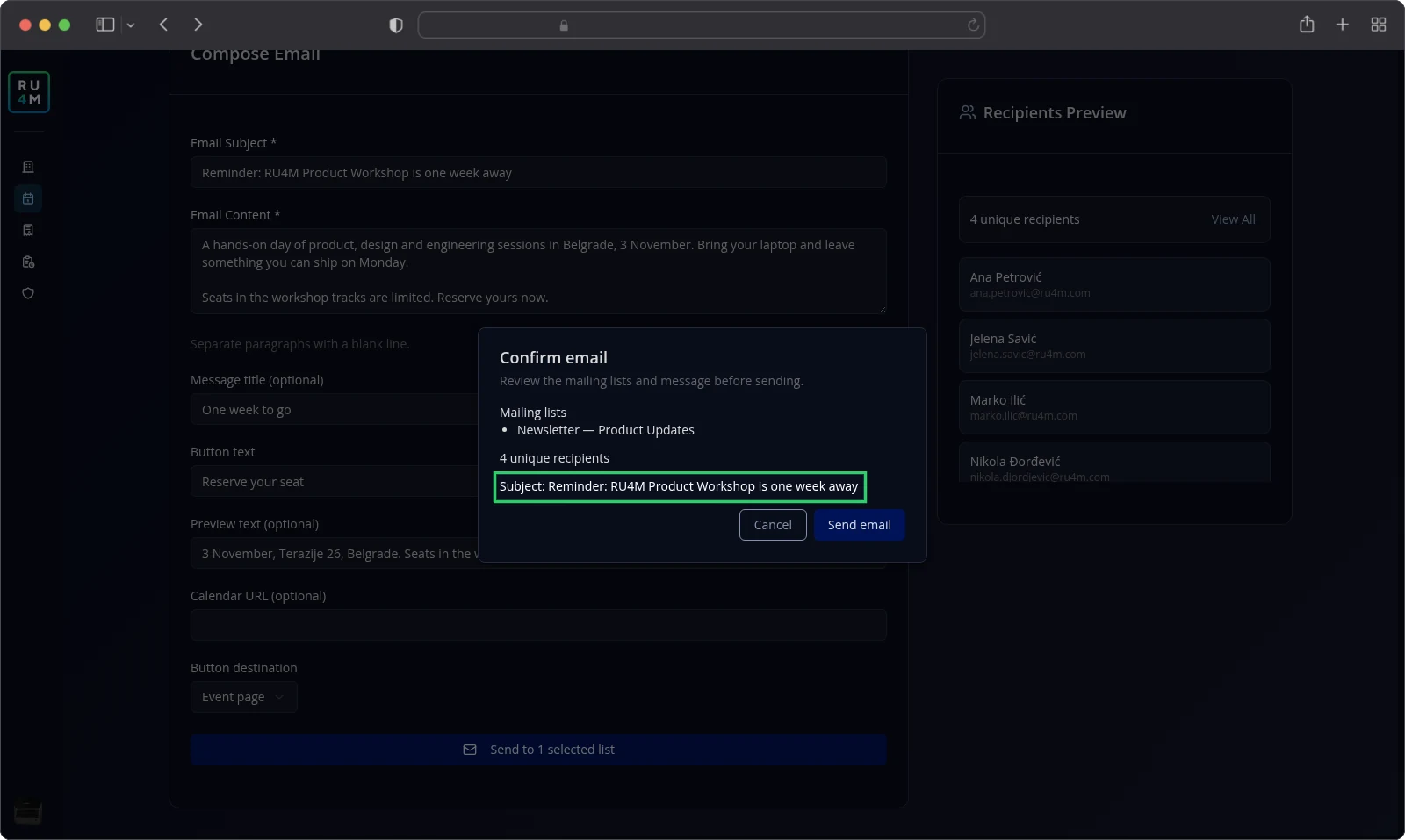
The Confirm email dialog names your mailing lists, the number of unique recipients and the subject line. It does not name the template, so read the subject carefully.
Read the dialog before you continue. Select Cancel to go back and change something.
Select Send email to send the reminder.
The app reports Email sent successfully to {count} of {total} recipients! and returns you to the event page.
Your results live in your analytics: Email campaigns and Email funnel.
Troubleshooting
The app says the template is not published. It shows This email template is not published on the sending domain. Ask the person who manages your sending domain, then send again.
Some messages fail. The app keeps your draft and tells you not to send again. Read the whole warning before you act.
A custom address is refused. Button destination accepts Event page, Edit profile or an address beginning with https://.
The send button is greyed out. Hover over it to read the reason. Publish the event, or free allowance in your package.
Your draft is gone after a send. The app clears it on purpose. Until then it stays in this browser, separately for each template.