Contact lists and CSV import
Build the mailing lists your invitations go to, fill them one contact at a time or from a CSV file, and review who is on them.
Every mailing list belongs to one event. You create a list once, and you reuse it for invitations and reminders you send yourself. Automatic emails do not use your lists — they go to the address on each participant's account.
Before you start
You need permission to manage the event. That means you created it, you are one of its event managers, or you are an administrator or moderator of the company that organizes it.
Anyone who can manage the event can create lists and add contacts to them. Hosts cannot.
Where mailing lists live
Open the event and select the Overview tab.
Select Invite people in the Quick actions card. The app opens the Mailing Lists screen.
Creating and managing lists
A new event starts with no lists at all.
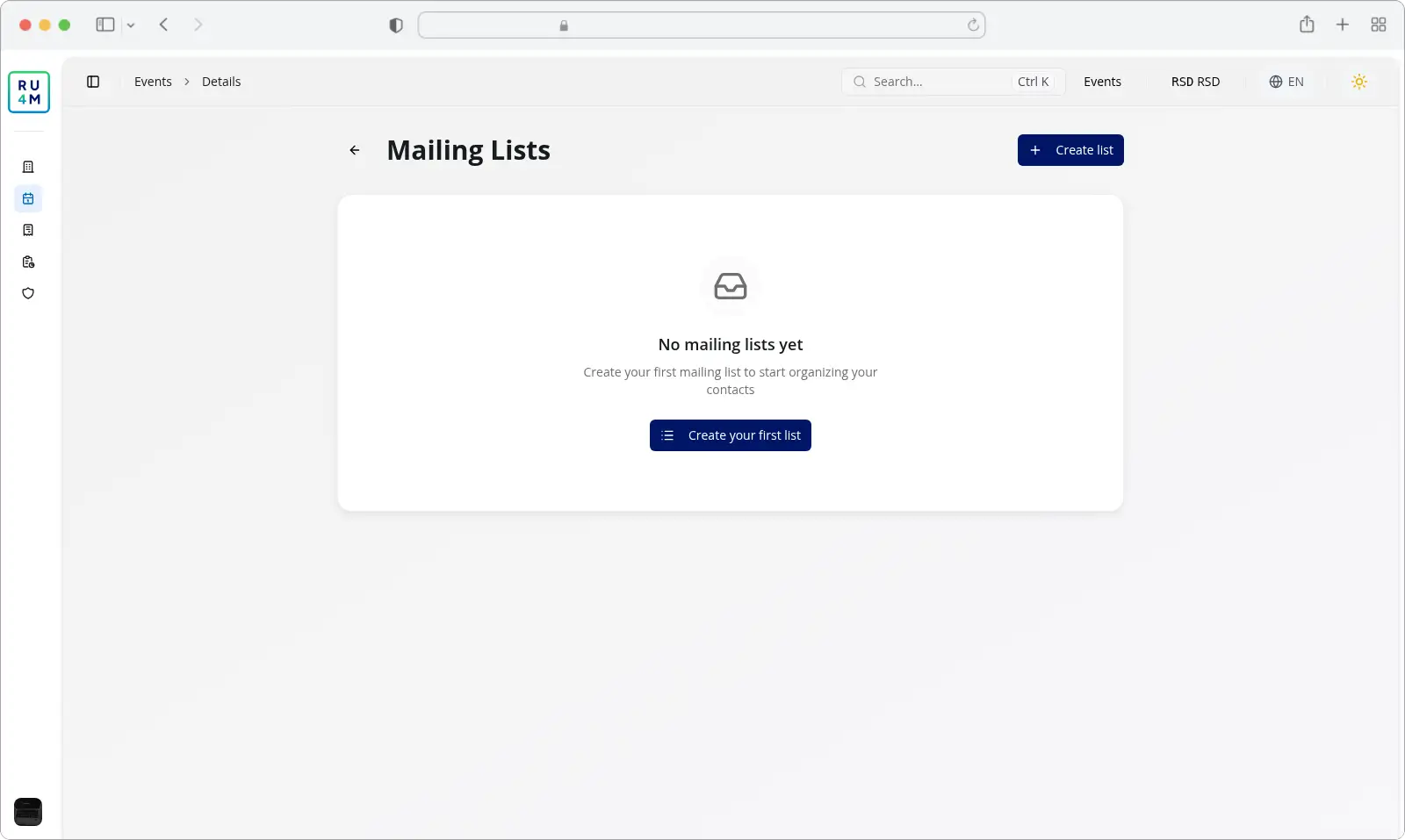
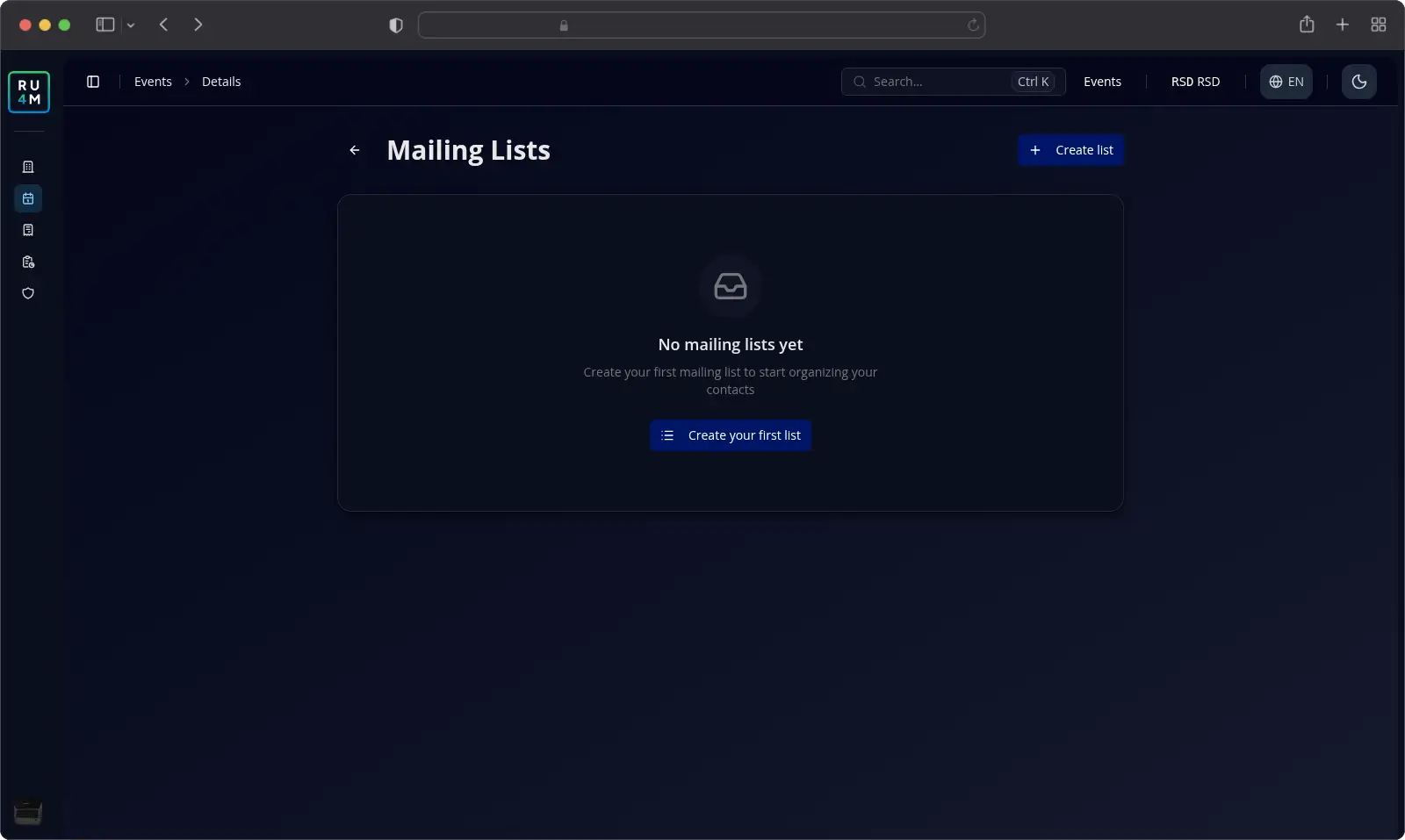
Select Create your first list. You can also select Create list at the top once you have at least one list.
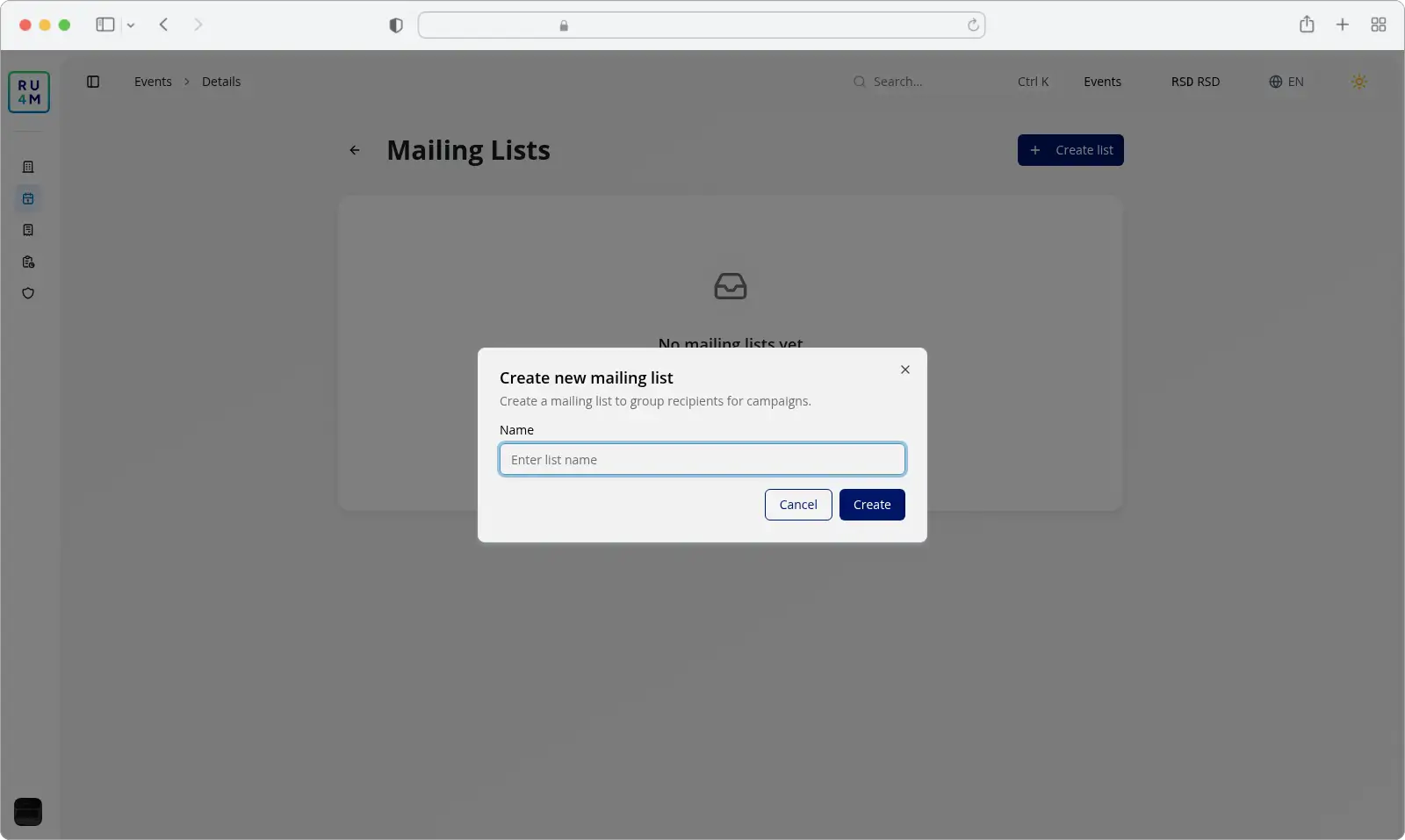
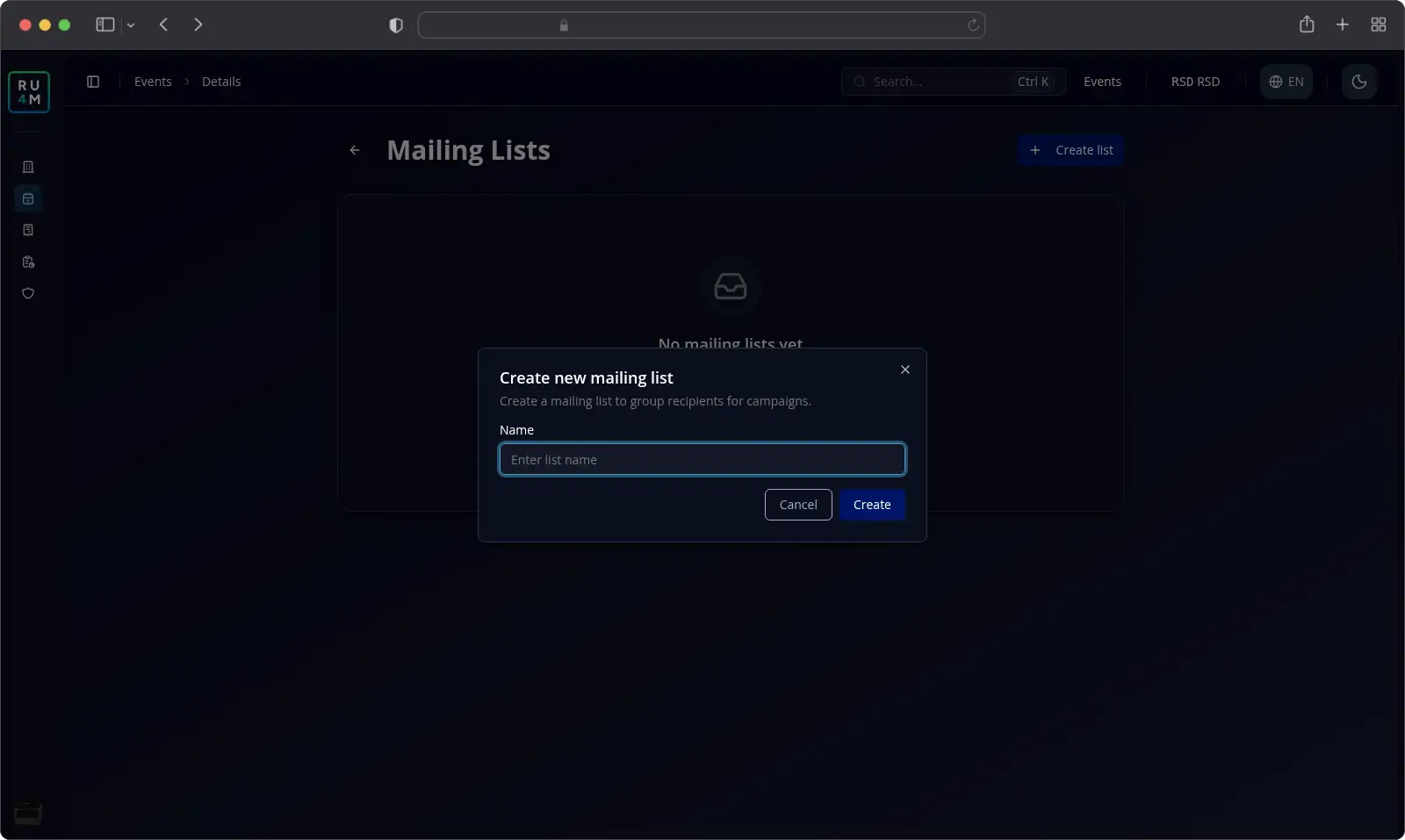
Type a name for the list.
Select Create.
Each list needs a name between 3 and 50 characters. The app writes these rules in English in every language.
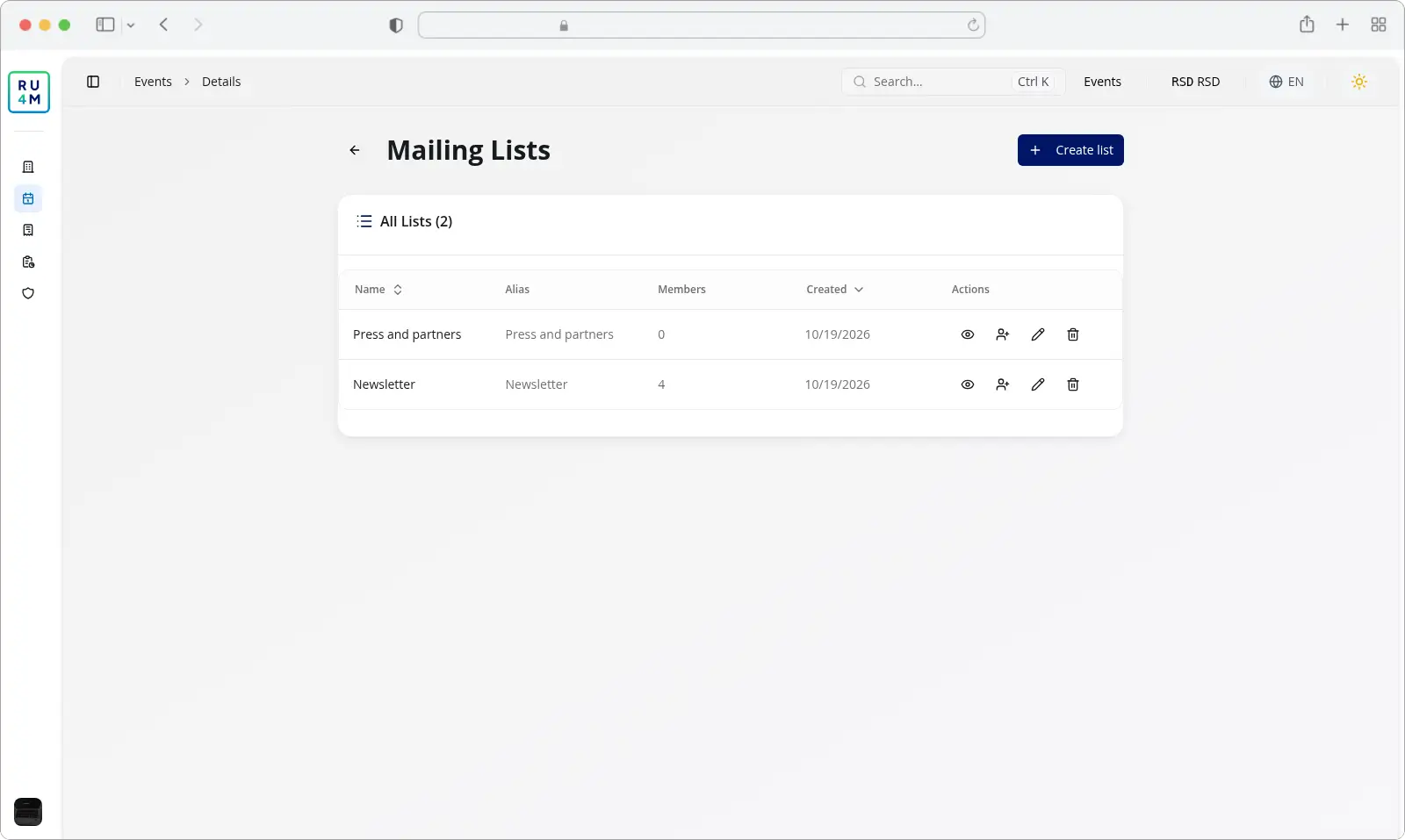
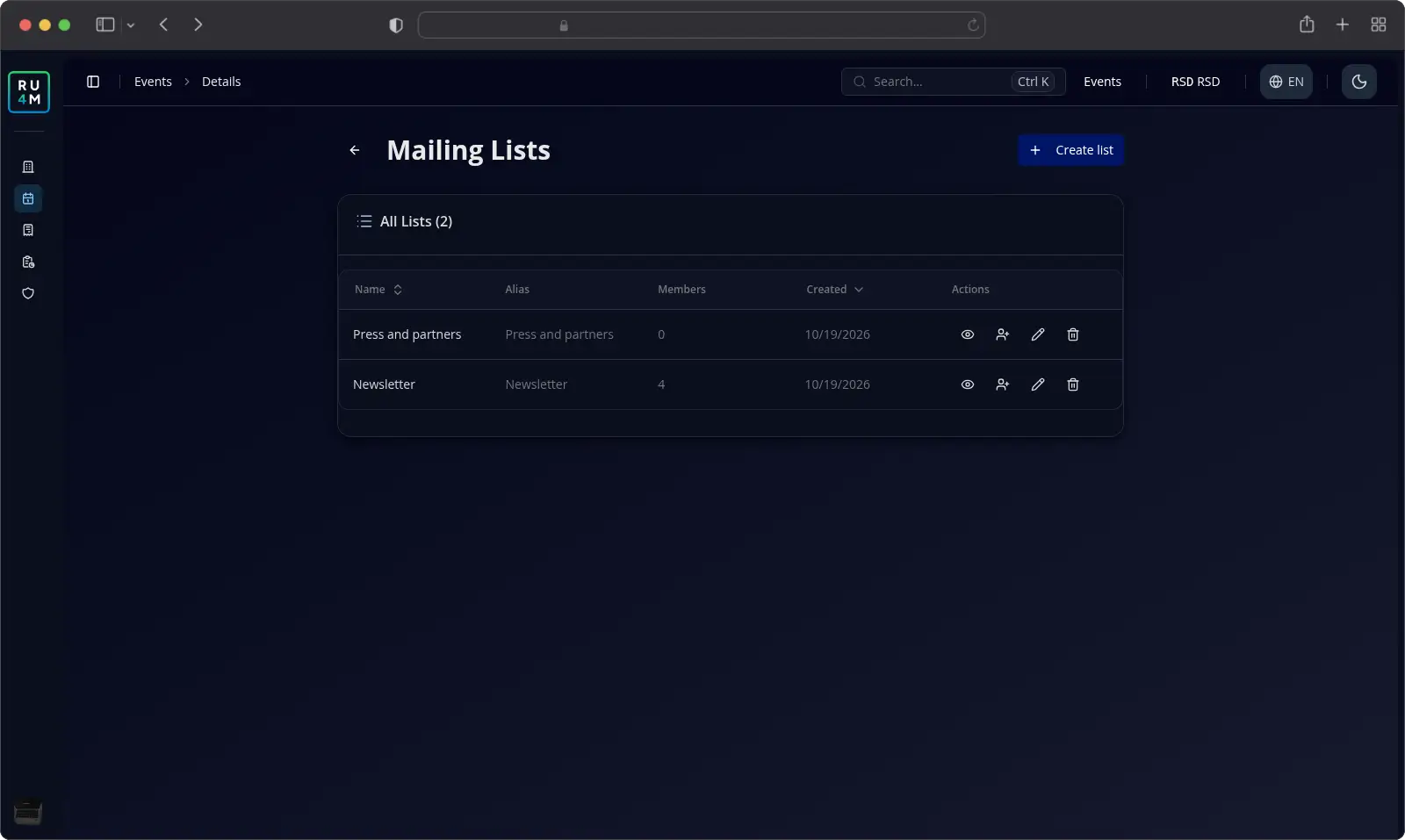
All Lists shows one row per list. The Alias column is the address the app sends to, so you never type it yourself. The Members column counts the contacts on that list.
The icons at the end of each row open the members of a list, add members to it, rename it, or delete it.
To rename a list, select the pencil icon and type the new name. Select Rename to save it.
To delete a list, select the trash icon. The app asks you to confirm, and you select Delete. Deleting a list removes it from the event together with everyone on it.
Adding a contact one at a time
Select the icon that adds members on the row of your list. The Manage Mailing List screen opens.
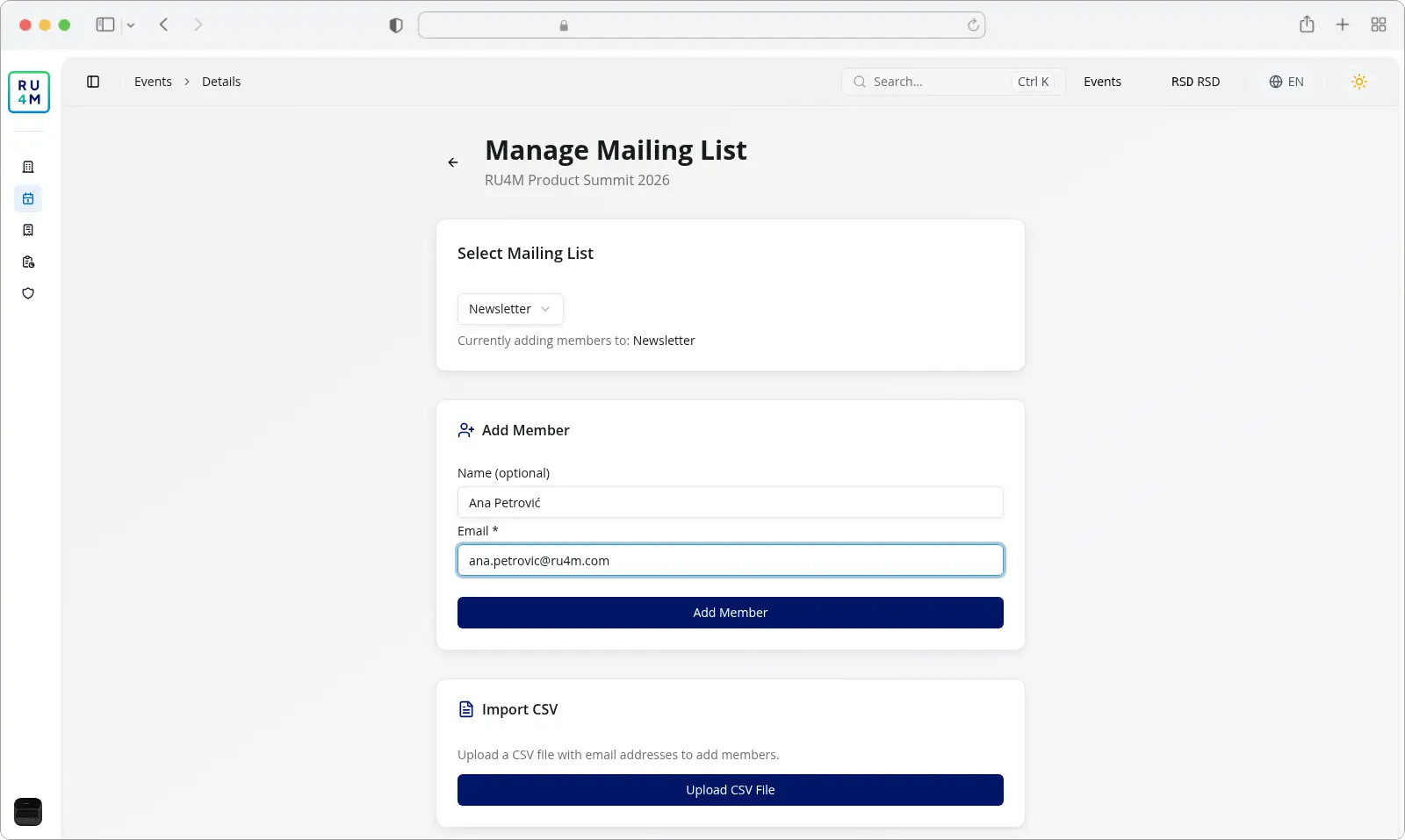
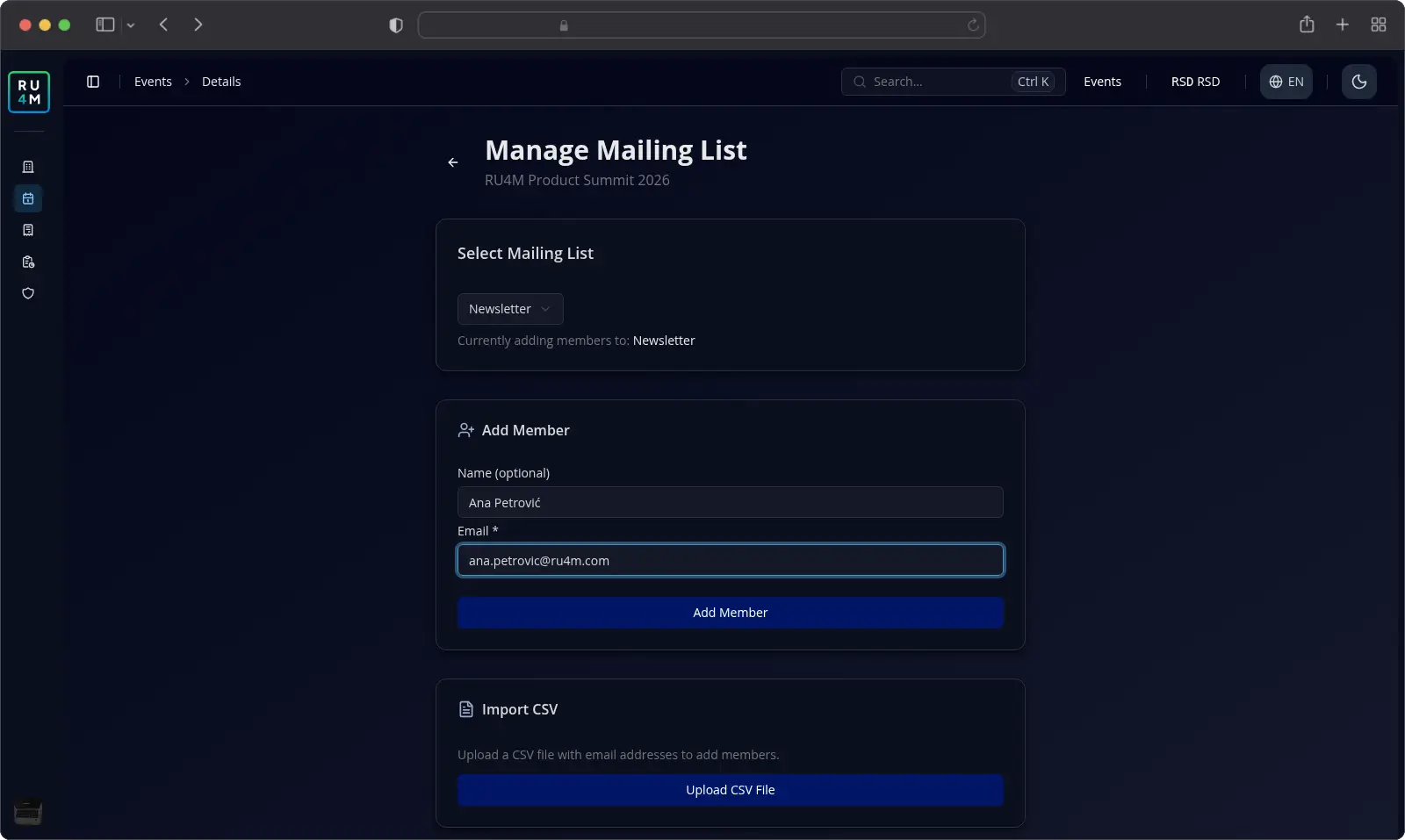
Use Select Mailing List at the top to choose which list you are adding to. The line under it names the list you are working on.
Type the contact's name into Name (optional). Leave it empty when you have no name for that contact.
Type the contact's email address into Email *.
Select Add Member.
A confirmation reading Member added successfully appears. The app keeps the address if it is already on the list, and updates it instead of adding a duplicate.
Importing contacts from a CSV file
Importing is faster than adding contacts one by one. The app accepts a .csv file and no other format.
Select Upload CSV File.
Choose your file.
Wait while the app reads it. A dialog shows how many rows it found and how many were valid.
A confirmation reading 3 contacts uploaded successfully appears when the file was read.
What the file must look like
The app reads your file one row at a time, and it recognises an address in only two positions:
- The only column in the row. Put one address per line and nothing else.
- The second of two columns. Put the name first and the address second, for example
Marko Ilić,marko.ilic@ru4m.com.
A header row counts as one of your rows. The app reads it as data and discards it.
Any other layout fails. A file with Email,Name columns fails, because the address comes first. A file exported from Download CSV fails too, because it has three columns.
When the app cannot read the file
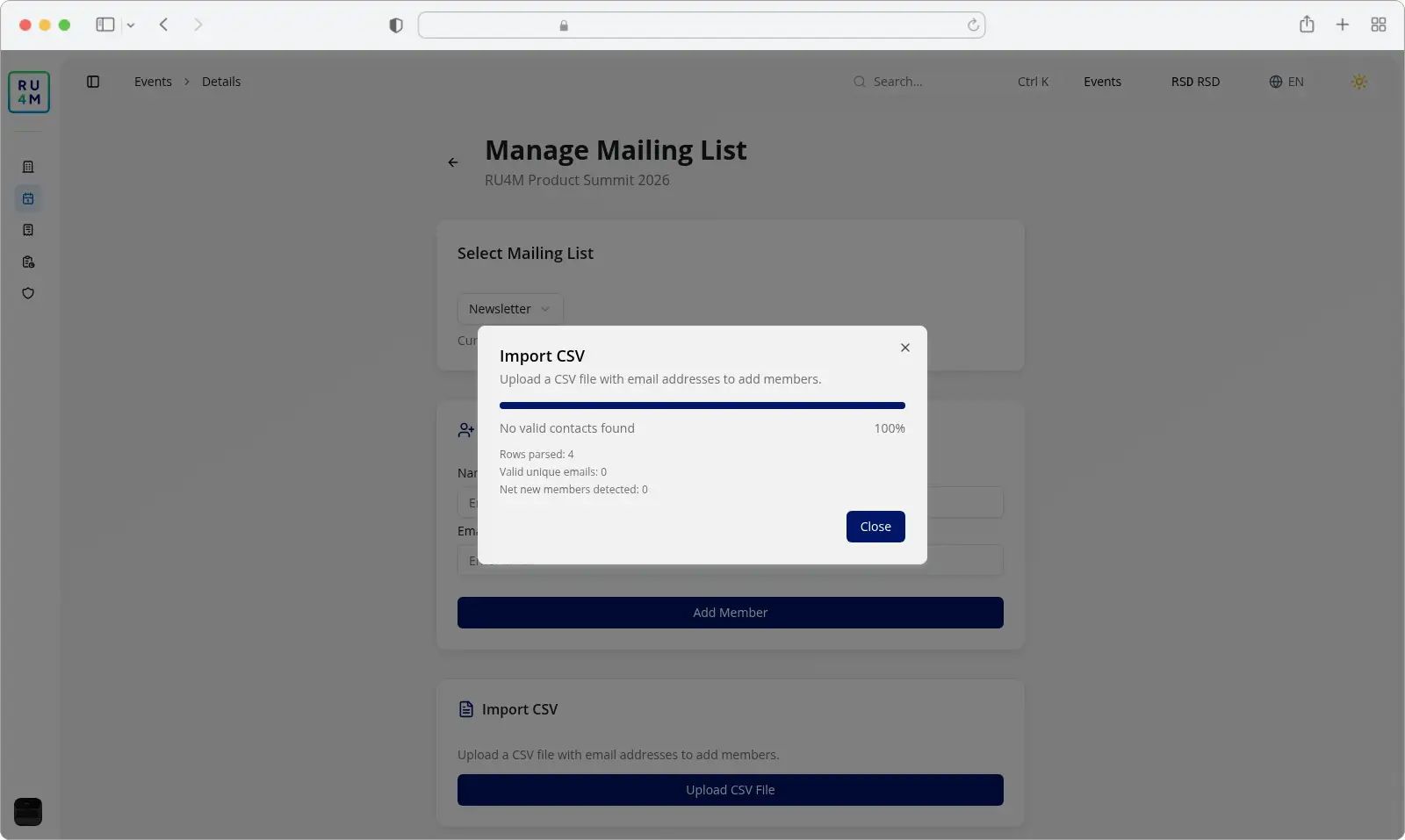
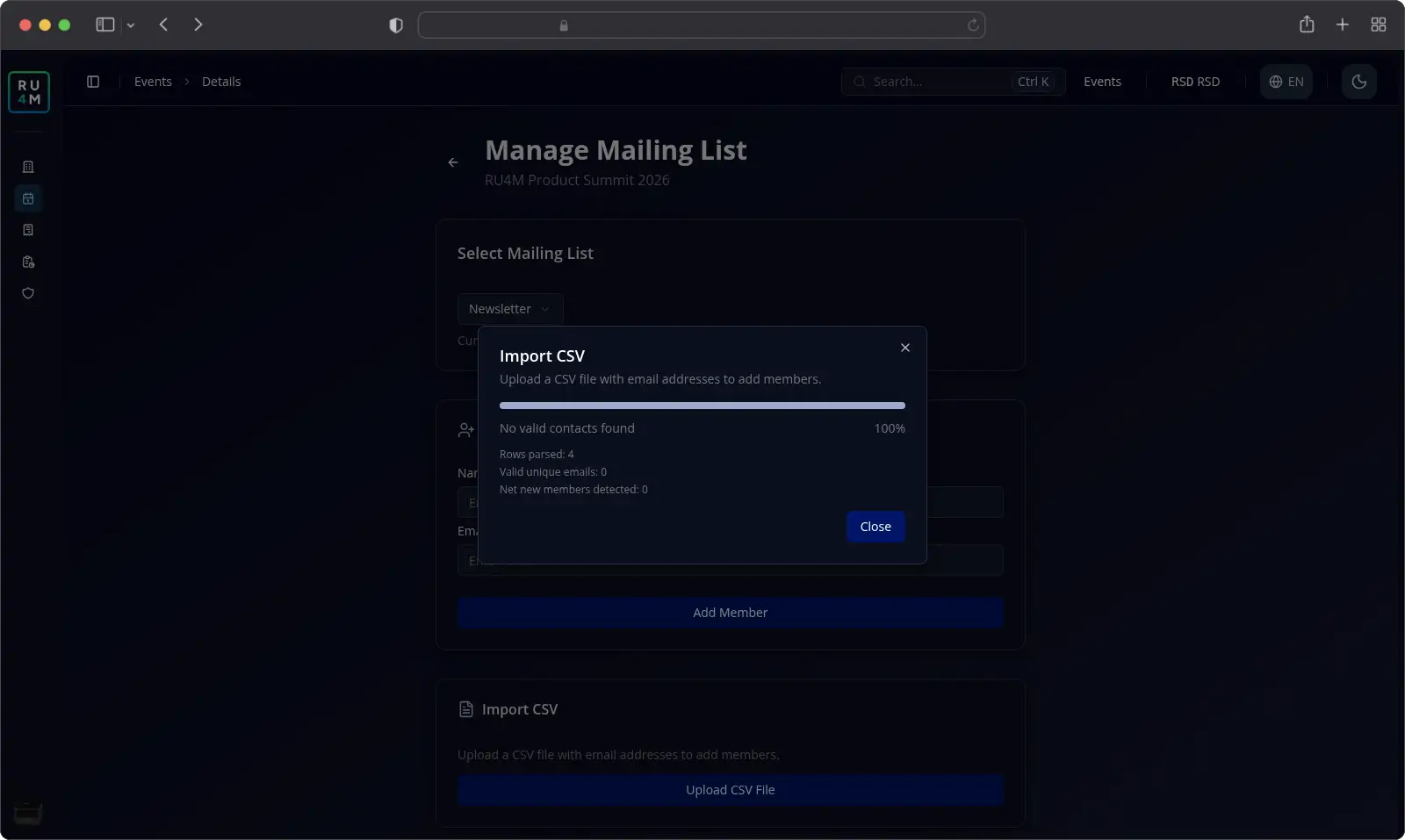
No valid contacts found means the app read your file but found no address in a position it recognises. Move each address into the first or the second column and upload the file again.
The app also reports Failed to upload contacts and Error parsing CSV: {message} when the file cannot be read at all.
Viewing, removing and exporting contacts
Select the icon that shows members on the row of your list. The Mailing List Members screen opens.
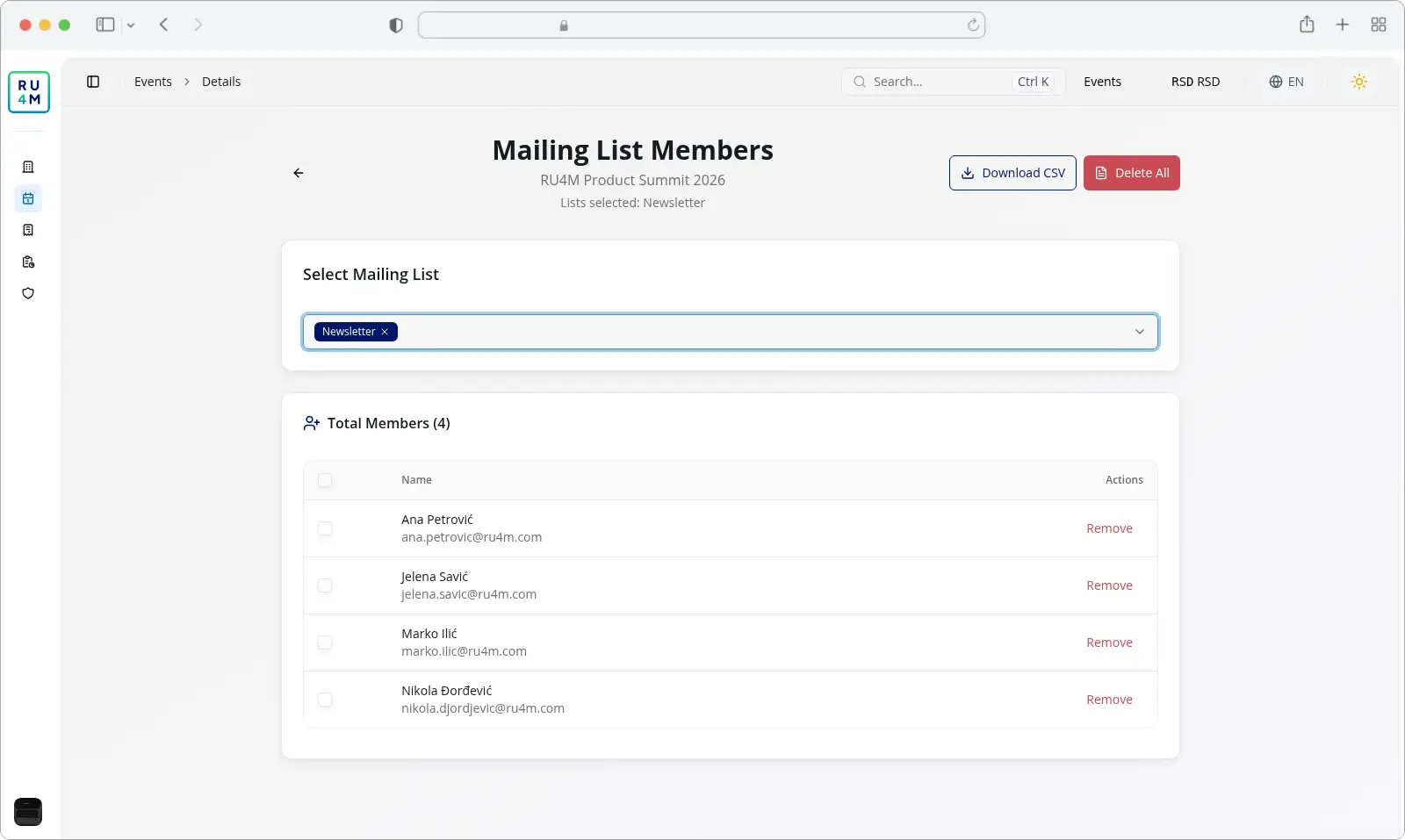
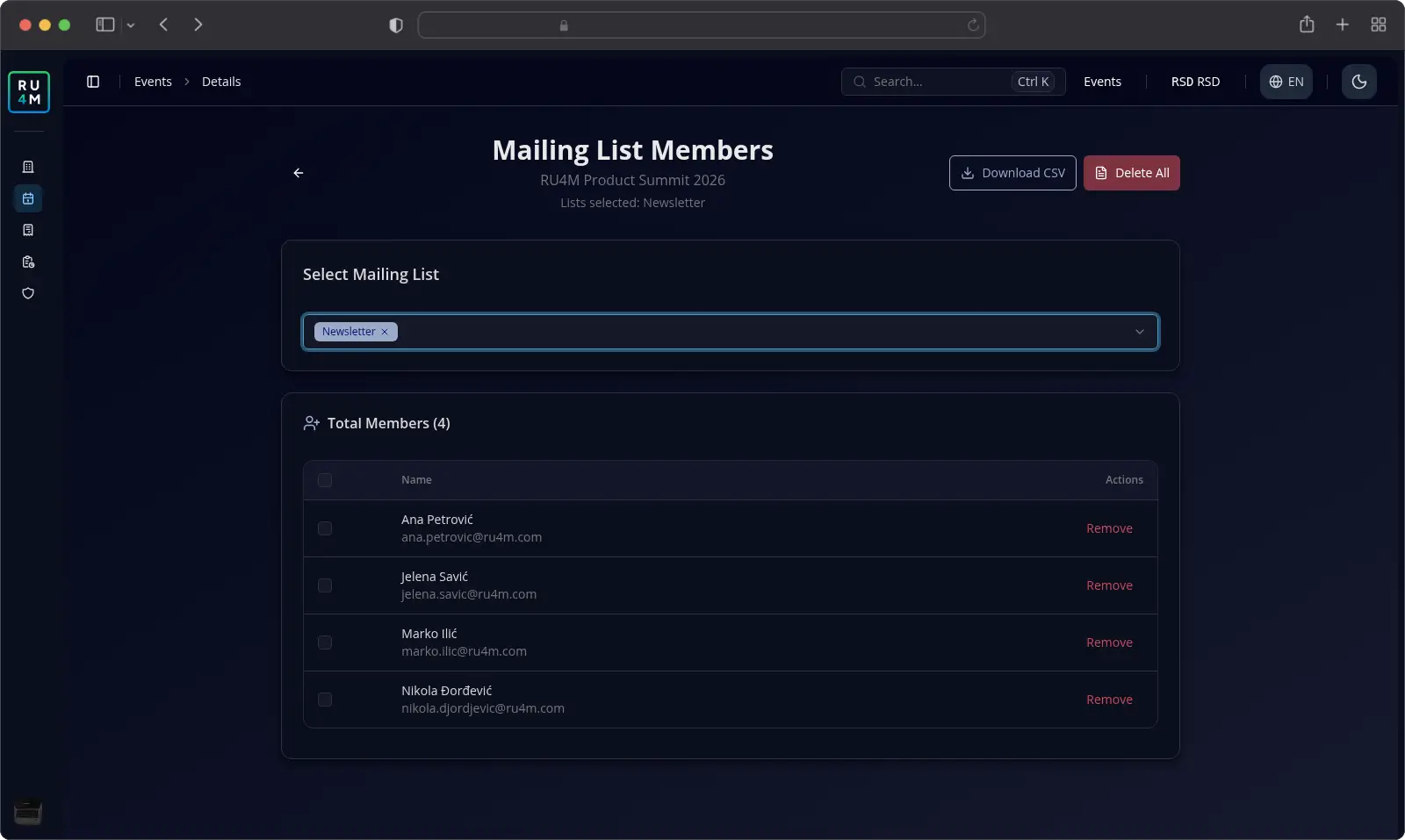
Use Select Mailing List to choose which lists to show. Select Select All Lists to show every list of the event. The app adds up the contacts of the selected lists, and Total Members gives the total.
The table shows 50 contacts at a time. Move to the next page to see the rest.
The same contact on two lists appears once, because the app groups contacts by address.
Removing a contact
Select Remove on the row of that contact.
The browser asks you to confirm, and you select OK.
The app removes the contact from the lists you selected in Select Mailing List. With Select All Lists chosen, it removes the contact from every list it appears in.
Removing every contact from your lists
Select Delete All.
The browser asks you to confirm, and you select OK.
Delete All empties the lists you selected in Select Mailing List. With Select All Lists chosen, it empties every list of the event.
You can also remove a few contacts at a time. Tick them in the table and select Delete Selected.
Exporting contacts
Choose your lists in Select Mailing List first, because the app exports the lists you selected on this screen.
Select Download CSV.
A Download members CSV dialog opens and names the lists you chose.
Select Start download.
The app shows its progress and saves the file to your computer.
The exported file has three columns: Email, Name and Mailing Group. The app groups contacts by address, so one row appears per address.
With no contacts on your lists, the app reports No members to export.
Troubleshooting
A list name is refused. The name needs 3 to 50 characters. The app writes this rule in English in every language.
Creating a list fails with a plain error. Another list in the same event already carries that name. Choose a different one.
Your CSV reports no valid contacts. Move each address into the first or the second column of its row.
A contact appears on two lists. Remove it from both, then add it to the list you want.
The event has no lists at all. You need permission to manage the event. Ask the person who created it, or an administrator of the organizing company.