Automatic emails
RU4M sends two participant messages on its own. You never write them and nobody on your team presses a button to send them.
- Email after joining reaches a person the moment they join your event.
- Reminder email reaches every participant on the day before the event.
You switch each message off on its own in the event editor. Both are already on when you create the event.
Before you start
You need permission to edit the event. Read Editing an event for who qualifies and how the editor saves your work.
Where the switches are
Open the event from your events list and select Edit.
The editor opens in Quick edit. Scroll down to the Emails and tickets group.
Its first two switches are Email after joining and Reminder email. The three below them control how tickets appear in the mobile app; Tickets explains those.
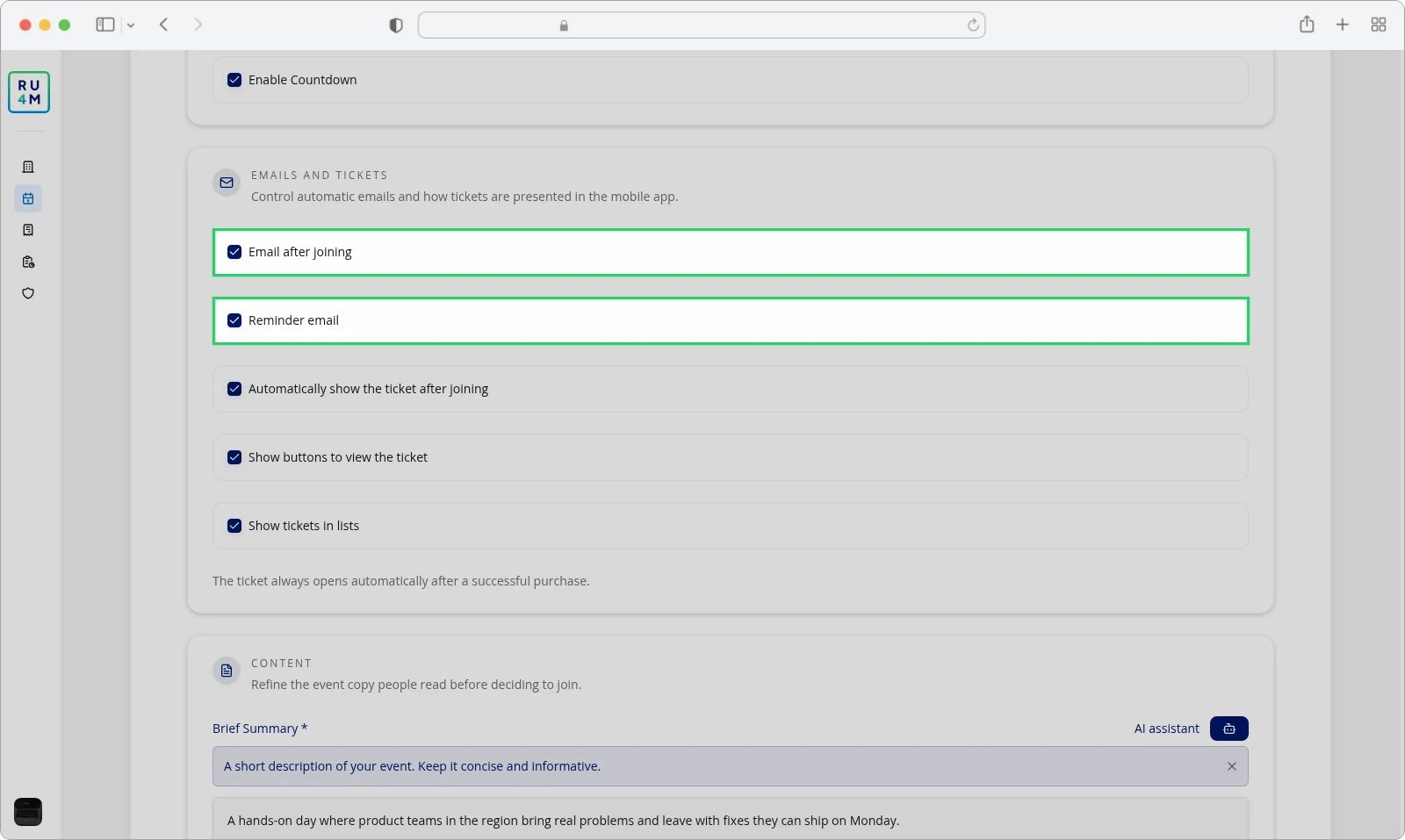
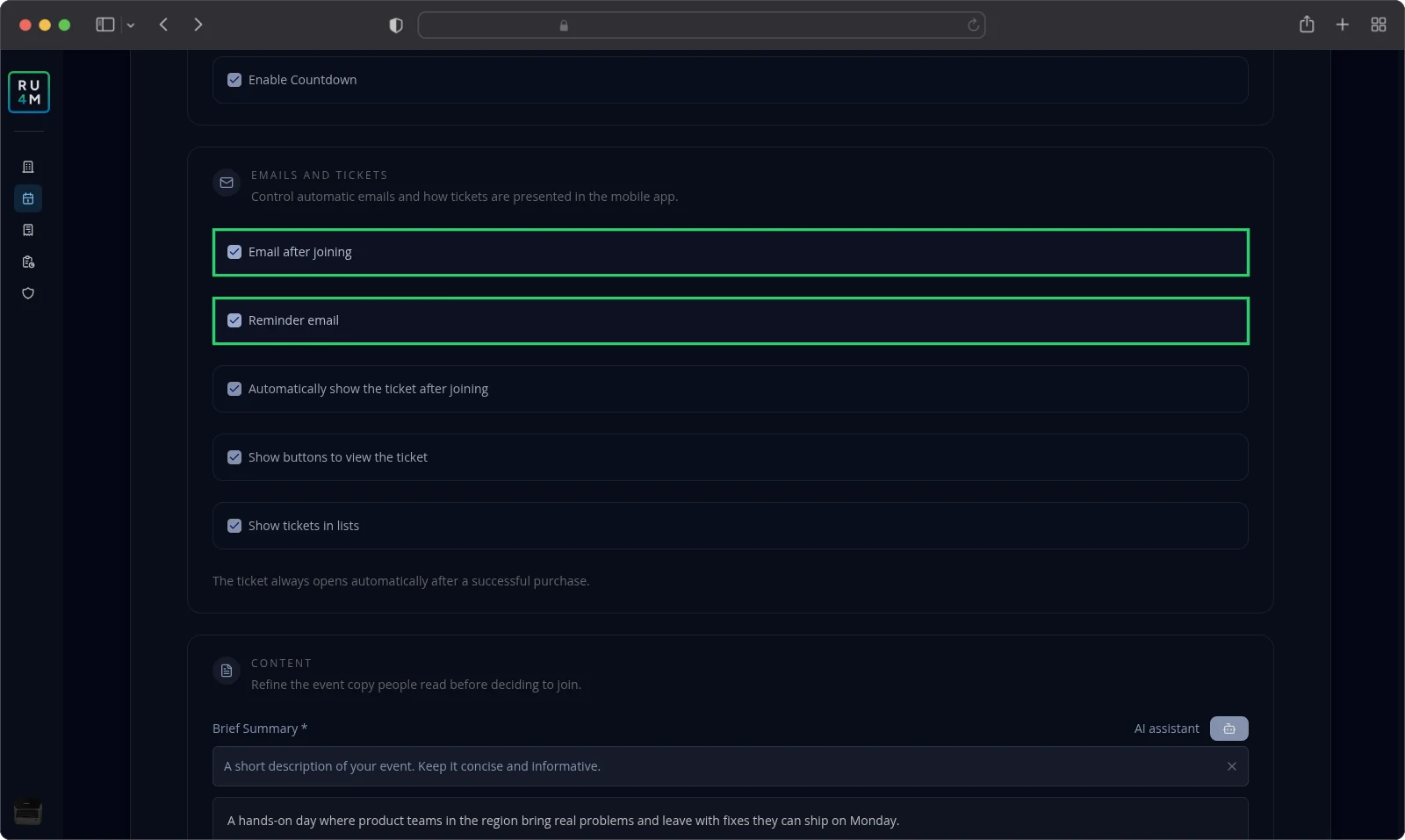
Message and ticket after joining
RU4M sends this message the moment a participant joins your event. It goes to the email address on their account, so a participant without one receives nothing.
The message carries two files.
- A calendar file, so the participant can add your event to their own calendar.
- The participant's ticket, but only when they hold one.
The subject line carries your event's name, for example You're going to RU4M Product Workshop. A participant whose account is set to Serbian receives the same message with the subject Potvrđen dolazak: RU4M Product Workshop.
Reminder before the event
RU4M sends this message on the day before your event, at 10:00 in the event's time zone.
Five conditions decide who receives it.
- The event is published.
- Reminder email is on.
- The person joined the event.
- The person confirmed their account.
- The person has an email address on their account.
Each person receives this message once, no matter how often they join.
The subject line reads Reminder: RU4M Product Workshop starts soon.
Manual reminders are a different thing. There you choose the mailing lists, write the message and send it yourself.
Enabling and disabling automatic messages
Open the event and select Edit. Scroll down to the Emails and tickets group.
Clear the switch beside the message you want to stop.
Select Save and Exit. RU4M keeps your change straight away.
Clearing a switch stops messages that have not gone out yet. Messages participants already received stay in their inboxes.
To start a message again, tick its switch and select Save and Exit once more.
The app shows no results for these two messages. The email campaign pages report only the campaigns you send yourself; read them in Email campaigns.
Troubleshooting
A participant received nothing after joining. Check that Email after joining is on and that the participant has an email address on their account.
Nobody received the reminder. Check that the event is published and that Reminder email is on.
A participant who joined received no reminder. The message goes out at 10:00, so someone who joins later that day misses it. Check that the participant confirmed their account before that hour.
A participant read the message in the wrong language. RU4M sends each message in the language set on the participant's account.
You cannot find the switches. They live in the Emails and tickets group of Quick edit, not in the event creation wizard.