Promotional banners
A promotional banner is one image that RU4M repeats for you in two places: the invitation email you send to your mailing lists, and the ticket PDF your participants receive.
You place one banner per placement. Choose a sponsor, a partner or your own company. RU4M serves the banner as a static image, so it never changes after you save it.
Before you start
Two conditions decide whether you see this screen.
- You must be the person who created the event. Event managers and company managers do not see the Marketing tab.
- Your package must include Sponsors. Read Packages and payment for what each package includes.
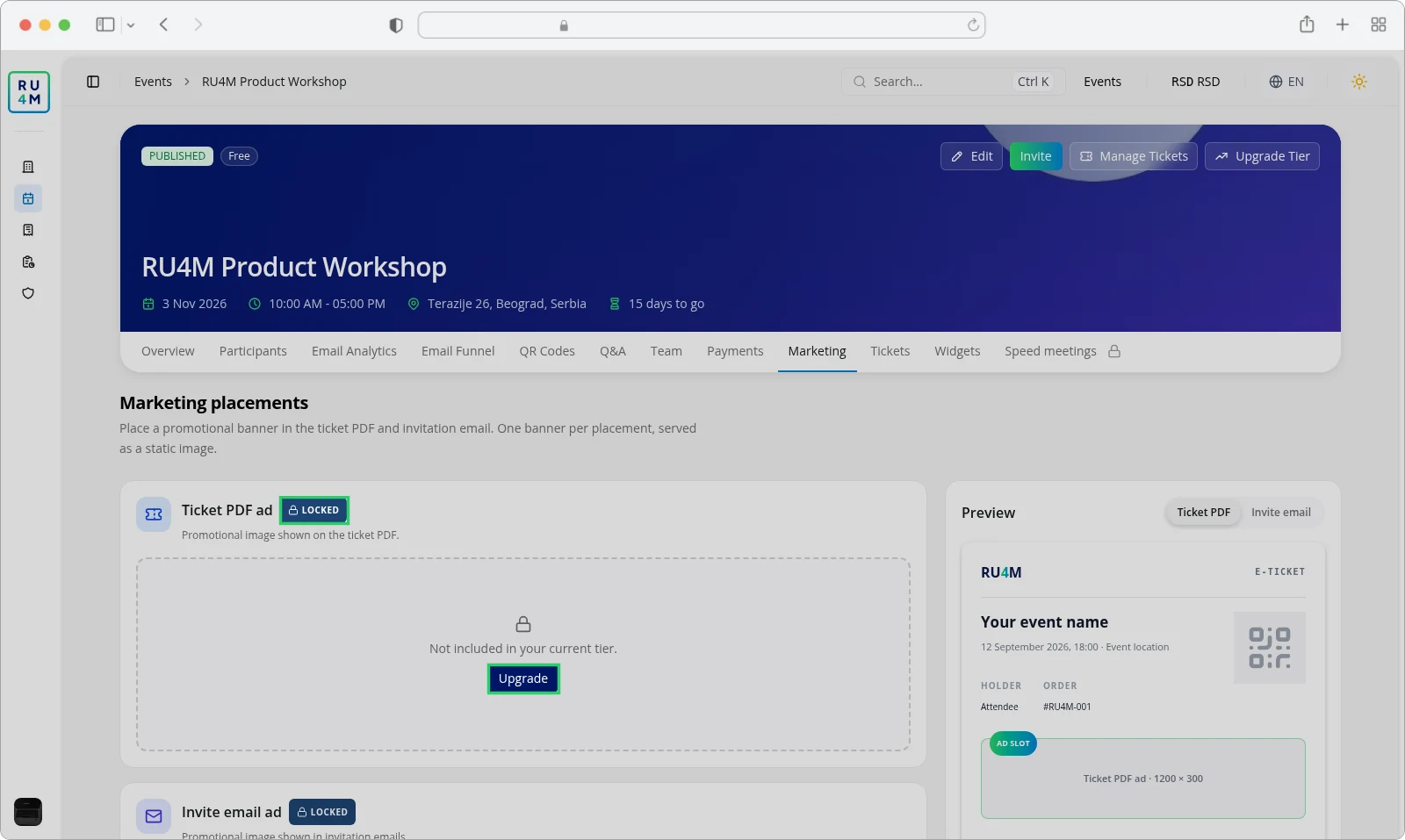
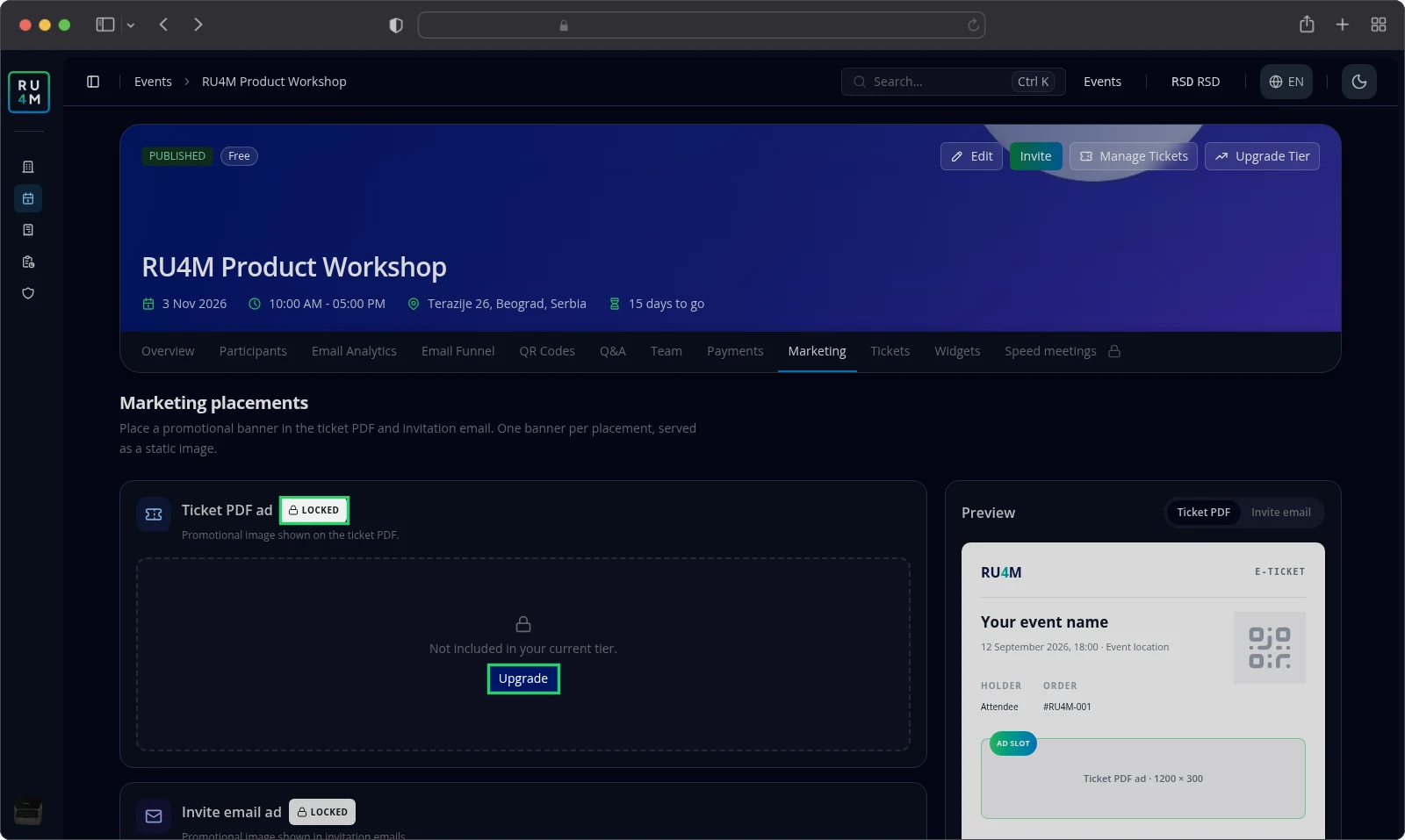
When the package does not include Sponsors, both placements show Locked and an Upgrade button instead of the banner controls. Locked placements explains that state.
Where the placements are
Open the event from your events list.
Select the Marketing tab. The page Marketing placements lists two cards.
- Invite email ad — the banner inside the invitation email.
- Ticket PDF ad — the banner on the ticket PDF.
The Preview panel on the right shows how the banner looks. Switch between Ticket PDF and Invite email.
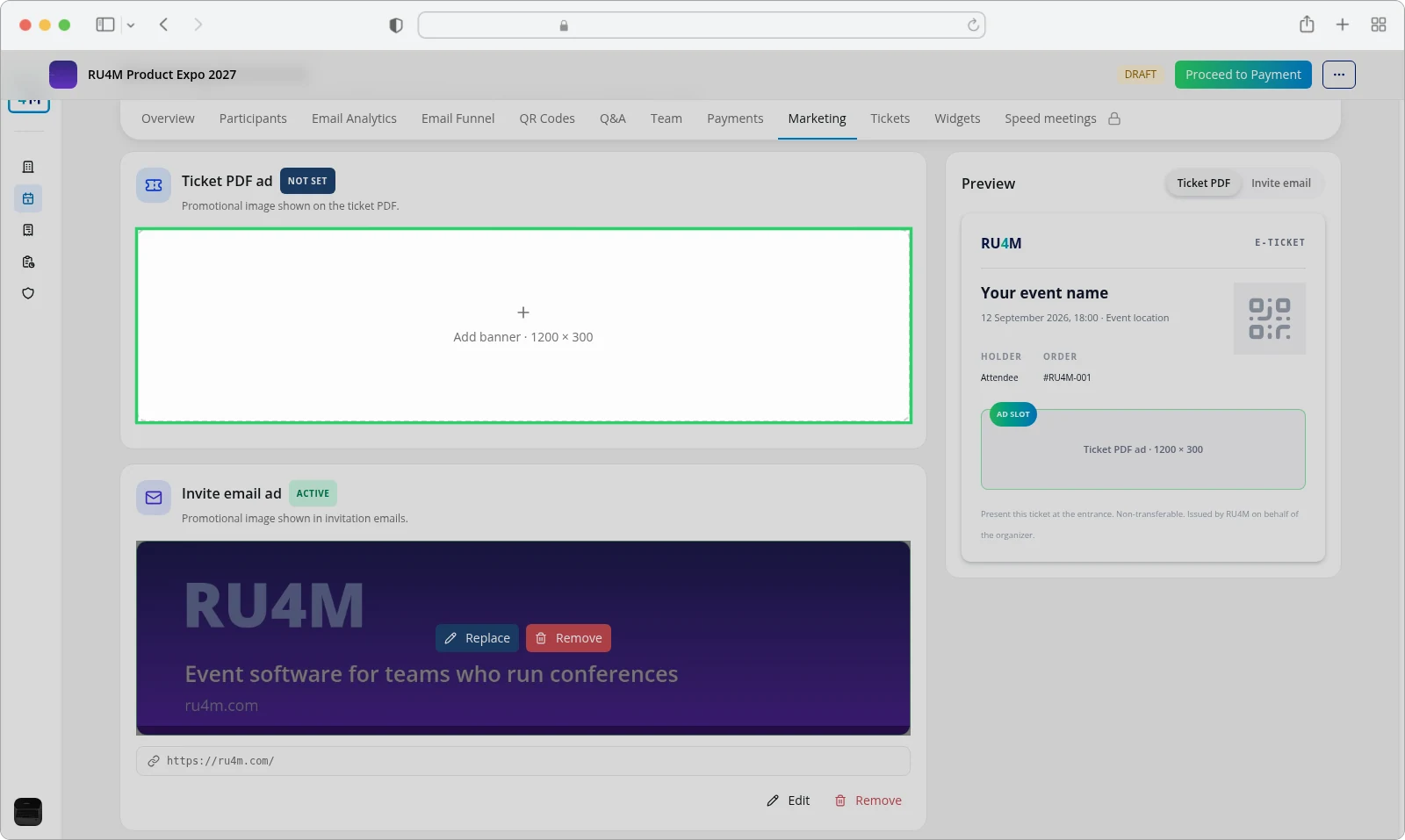
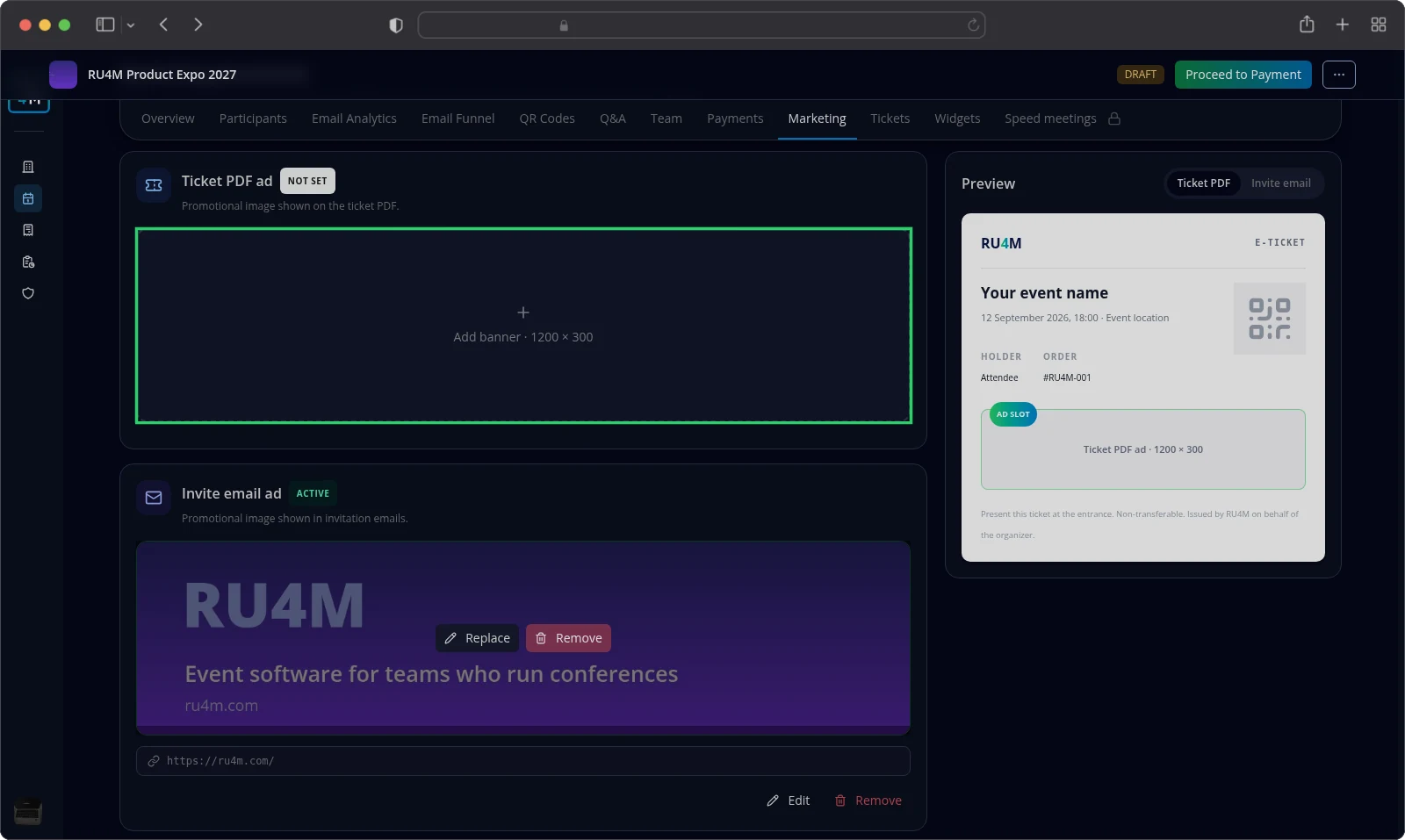
A card shows Not set while it holds no banner, and Active once you save one.
Adding a banner to an invitation
Open the Invite email ad card. On an empty card, select the dashed area that reads Add banner · 1200 × 300.
The dialog opens with four fields.
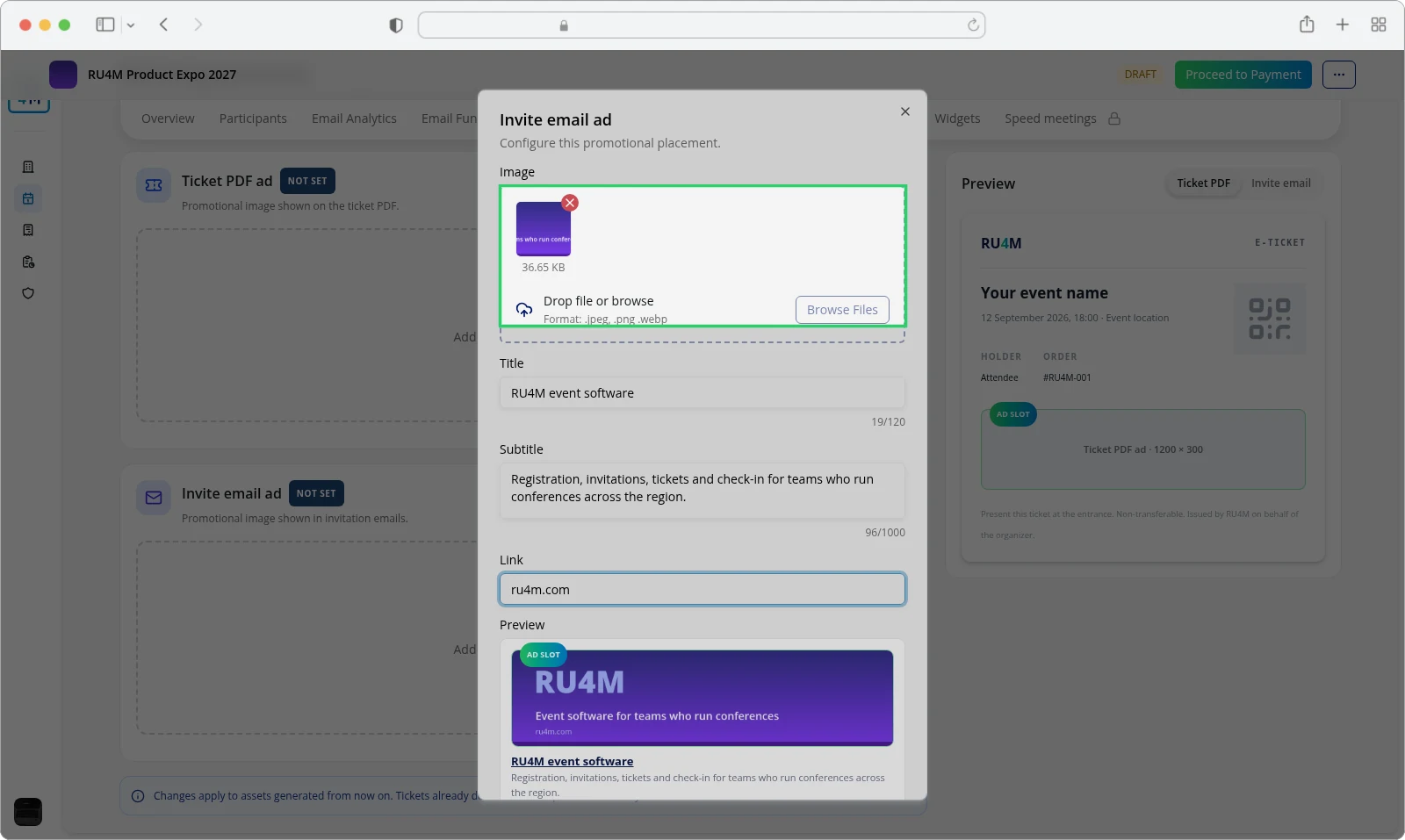
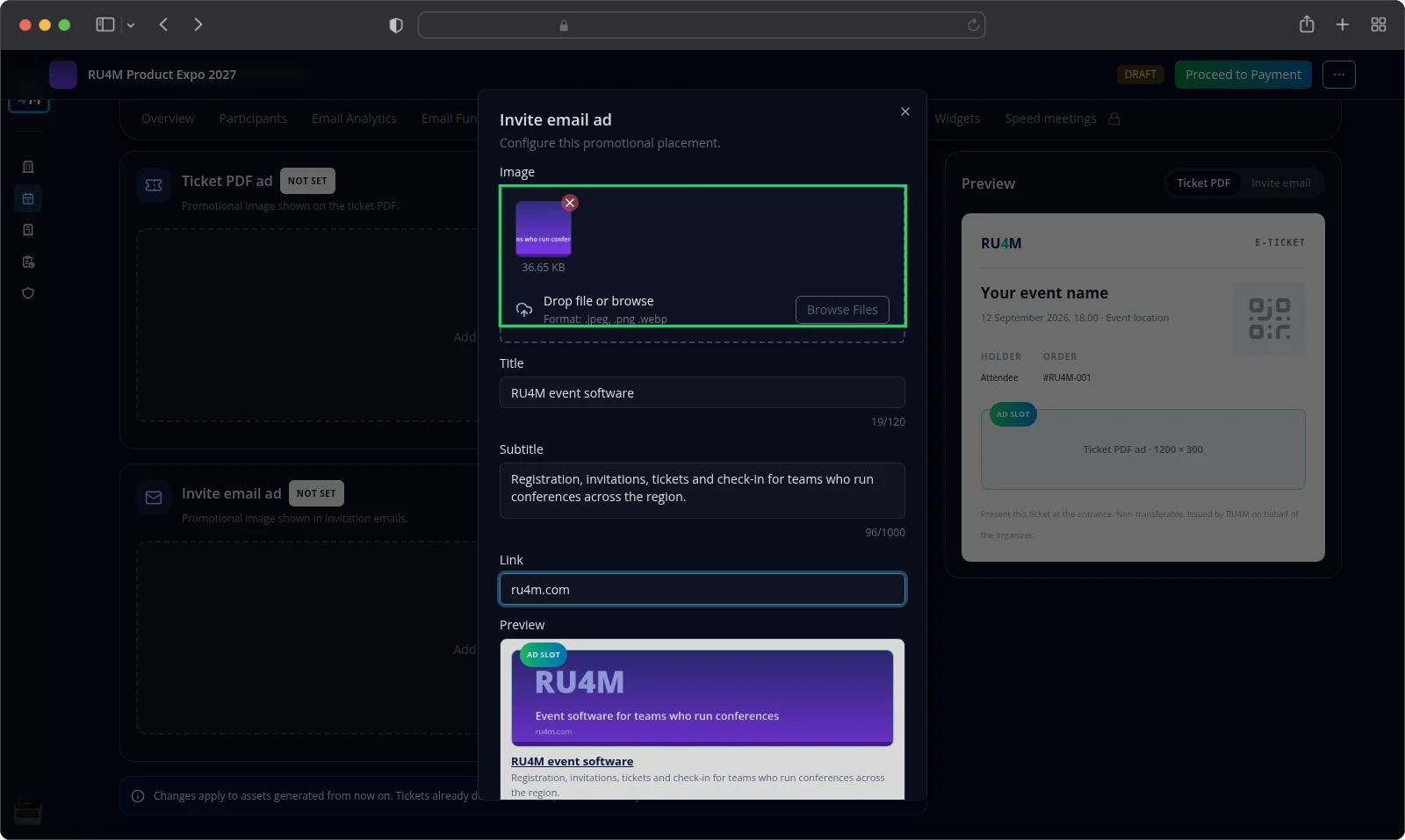
- Select Browse Files and choose your image.
- Enter a Title of up to 120 characters.
- Enter a Subtitle of up to 1000 characters.
- Enter a Link such as
ru4m.com.
Select Save.
RU4M confirms with Ad saved. and the card changes to Active.
Image rules
Keep the image a PNG or JPEG. A GIF works only in the invitation placement.
The image may be up to 2 MB and up to 4096 × 4096 pixels. A wide banner around 1200 × 300 pixels fits both placements.
RU4M completes a link for you: ru4m.com becomes https://ru4m.com/. Leave the Link field empty when the banner should not lead anywhere.
Changing or removing a banner
Select Replace on the card to open the dialog again. Change any field and select Save.
Select Remove on the card to delete the banner. RU4M asks Delete this ad? before it deletes anything. Confirm only when you mean to remove the banner for good.
Banners in PDF tickets
The Ticket PDF ad card works the same way, with two differences.
- The image must be a PNG or a JPEG.
- The banner appears on the ticket PDF that RU4M attaches to the automatic join and reminder emails.
Changes reach tickets generated from that moment on. Tickets a participant already downloaded keep the banner they arrived with.
The banner never appears in the body of those automatic emails. Only the PDF carries it. Read Automatic emails for the messages themselves.
Where the invitation banner appears
The Invite email ad goes into every invitation sent through the campaign composer, including invitations sent by another editor on your team. Nothing extra is needed from the person who sends it.
Preparing and sending invitations covers choosing the mailing lists and sending the campaign.
When a placement is locked
Both cards show Locked, Not included in your current tier. and an Upgrade button when your package leaves out Sponsors.
Select Upgrade to open the package chooser for this event, then complete the payment to unlock both placements.
Troubleshooting
A card shows Locked. Your package does not include Sponsors. Select Upgrade, or read Packages and payment to compare packages.
You cannot find the Marketing tab. Only the person who created the event sees it. Event managers and company managers do not.
You see the message Failed to save ad. Try again. If it persists, choose a smaller image under 2 MB.
RU4M refuses your image. The two rules that catch most files are the format and the size. A ticket banner must be a PNG or JPEG, and every image must stay under 2 MB and under 4096 × 4096 pixels.
Your banner does not appear in an invitation. Check that Invite email ad shows Active on the event.
A participant's ticket still shows the old banner. Tickets already downloaded keep the banner they arrived with. New tickets carry the current one.