Event results
The Overview tab of your event carries a block called Event Analytics. It shows how people behaved around the event: the meetings they arranged and the connections they made. It also shows the tickets they held and who was in the room.
Most figures on this page belong to one period of time. Choose a different period and the block follows it. The four counts in Meeting Engagement are the exception: they always cover the event's own days.
Before you start
You need permission to manage the event. That means you created it, you are one of its managers, or you are an administrator or moderator of the organizing company.
Your package does not limit analytics. Free, Professional and every other package show the same cards.
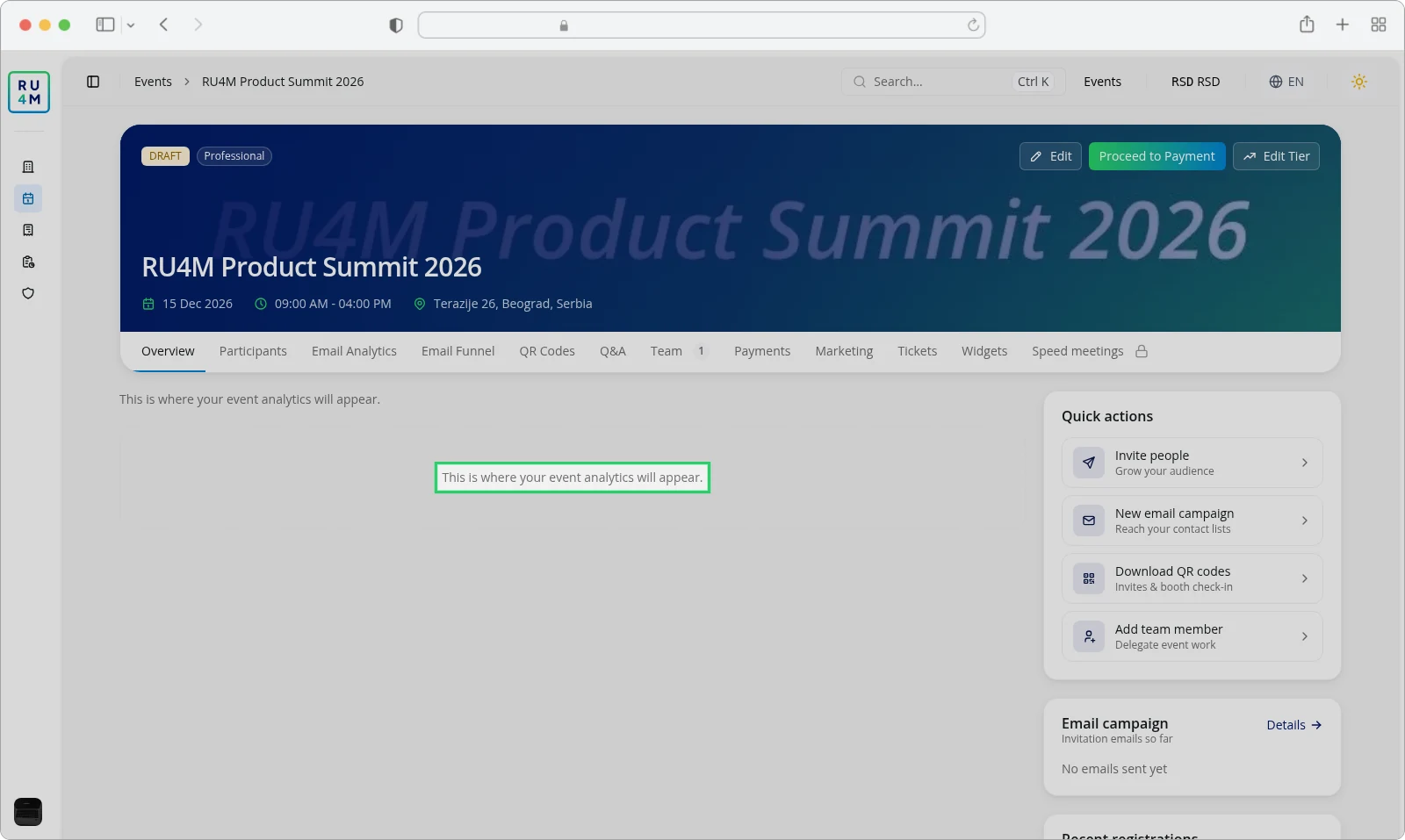
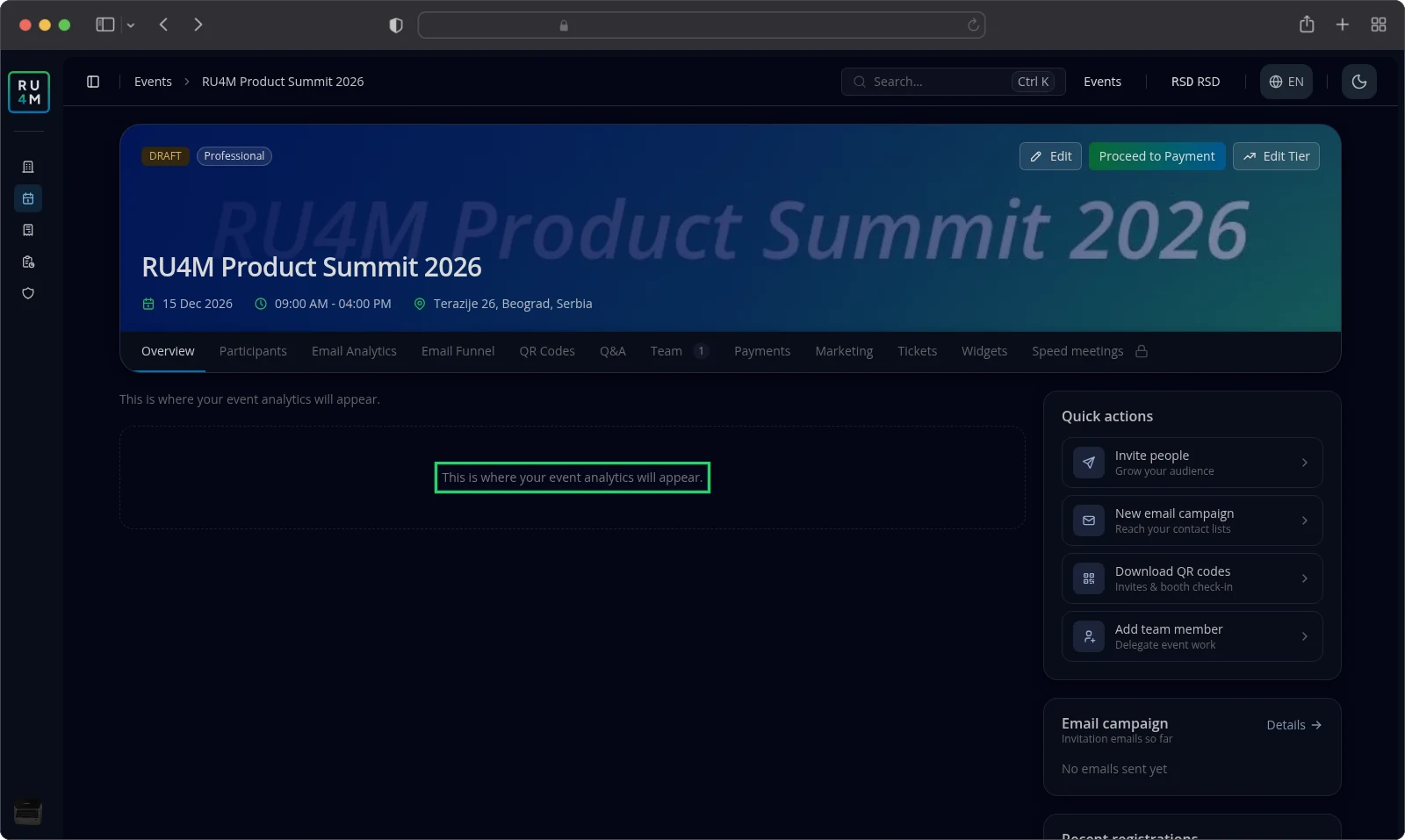
Analytics appear once the event is published. A draft event shows a placeholder instead of figures.
Most figures come from what people did in the mobile app. Somebody who never joined there has no meetings, no connections and no audience entry.
Where the analytics are
Open the event from the events list by selecting its title.
Select the Overview tab. It is the first tab for anyone who can edit the event.
The Event Analytics block opens at the top of the left column. Its cards follow from top to bottom: Meeting Engagement, then Engagement Trend, then Benchmarks vs Current beside Engagement Highlights, then the audience and participation cards.
Activity and engagement
Meeting Engagement is the first card. Its four counts follow fixed event rules. Beside them sits a toggle with three options: All, Within event and Outside event.
The toggle filters only the trend chart underneath. Choose Within event to keep the meetings whose participants are all on this event's member list. Choose Outside event to leave those out. All counts both.
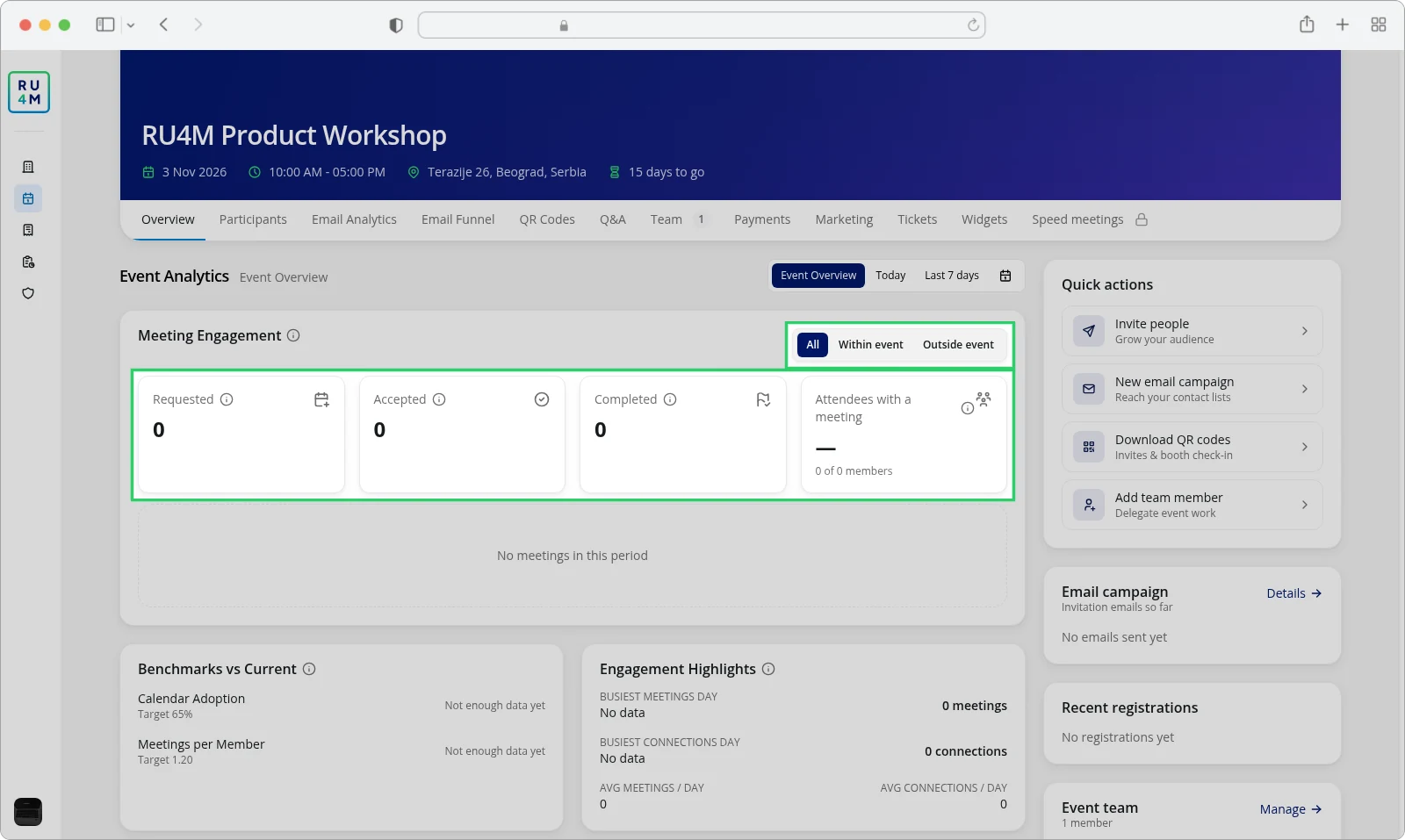
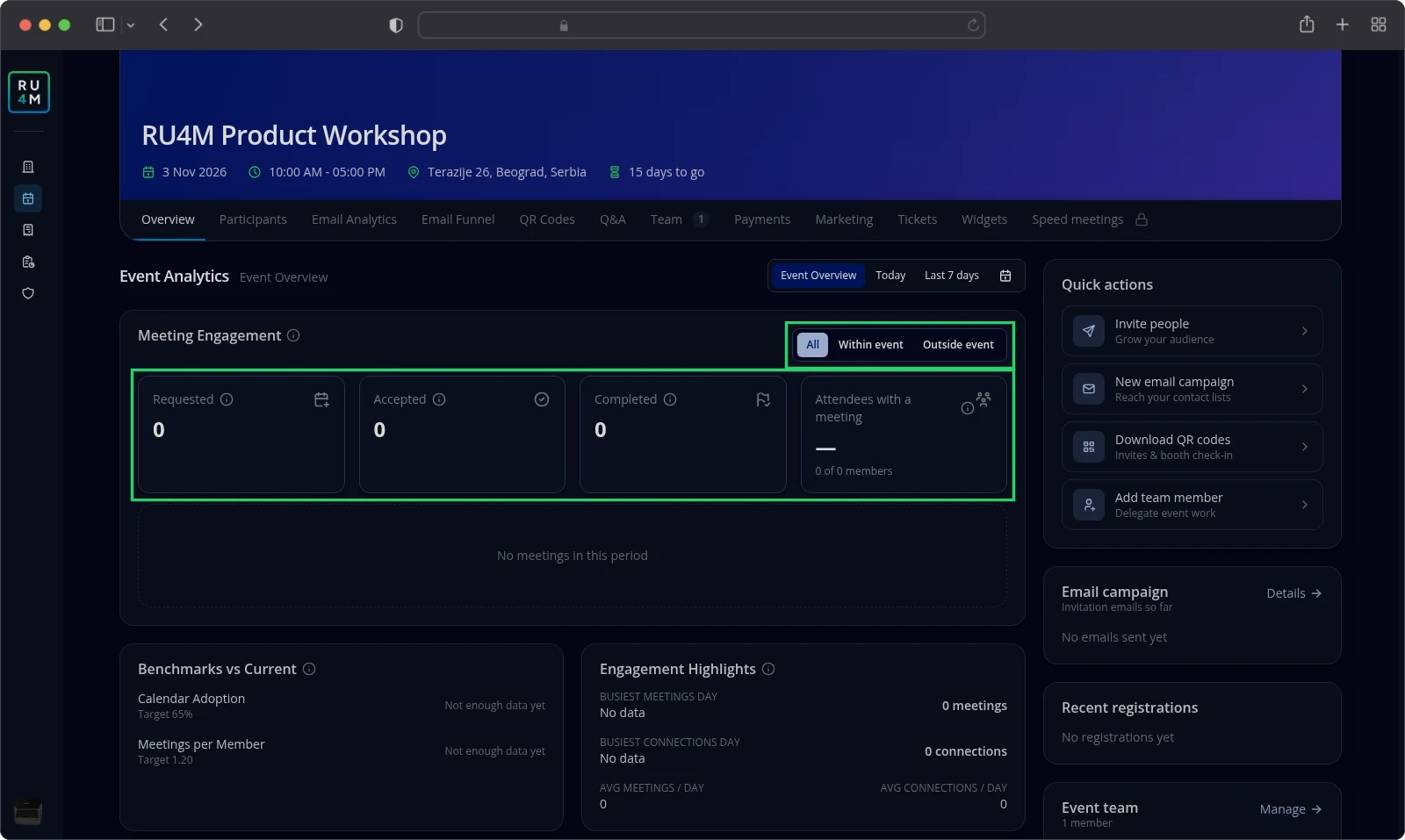
Four counts sit under the toggle.
Requested counts the meetings created during the event's own days, in the event's time zone. A meeting created earlier also counts when it was scheduled to start during those days. It counts only when it has more than one participant and every one of them is a verified event member.
Accepted counts those same meetings where every participant accepted.
Completed counts the accepted meetings that have already taken place.
Attendees with a meeting shows the share of verified members who joined at least one counted meeting. A dash replaces the share when the event has no members to divide by.
Cancelled meetings are never counted in any of the four.
Engagement Trend draws the daily meetings and connections of the selected period. Cancelled meetings stay out of it. The card appears only when the period holds some activity, and reads No meetings in this period when it holds none.
Benchmarks vs Current measures the event against three targets.
Calendar Adoption counts the share of members who added the event to their calendar. The target is Target 65%.
Giveaway Completion counts the share of members who finished every required step of the giveaway. The target is Target 45%. The row is absent when the event has no giveaway.
Meetings per Member divides this period's meetings by the members counted in the same period, including the ones who arranged none. The target is Target 1.20.
Below ten members every row reads Not enough data yet. The app treats a smaller group as too small to compare.
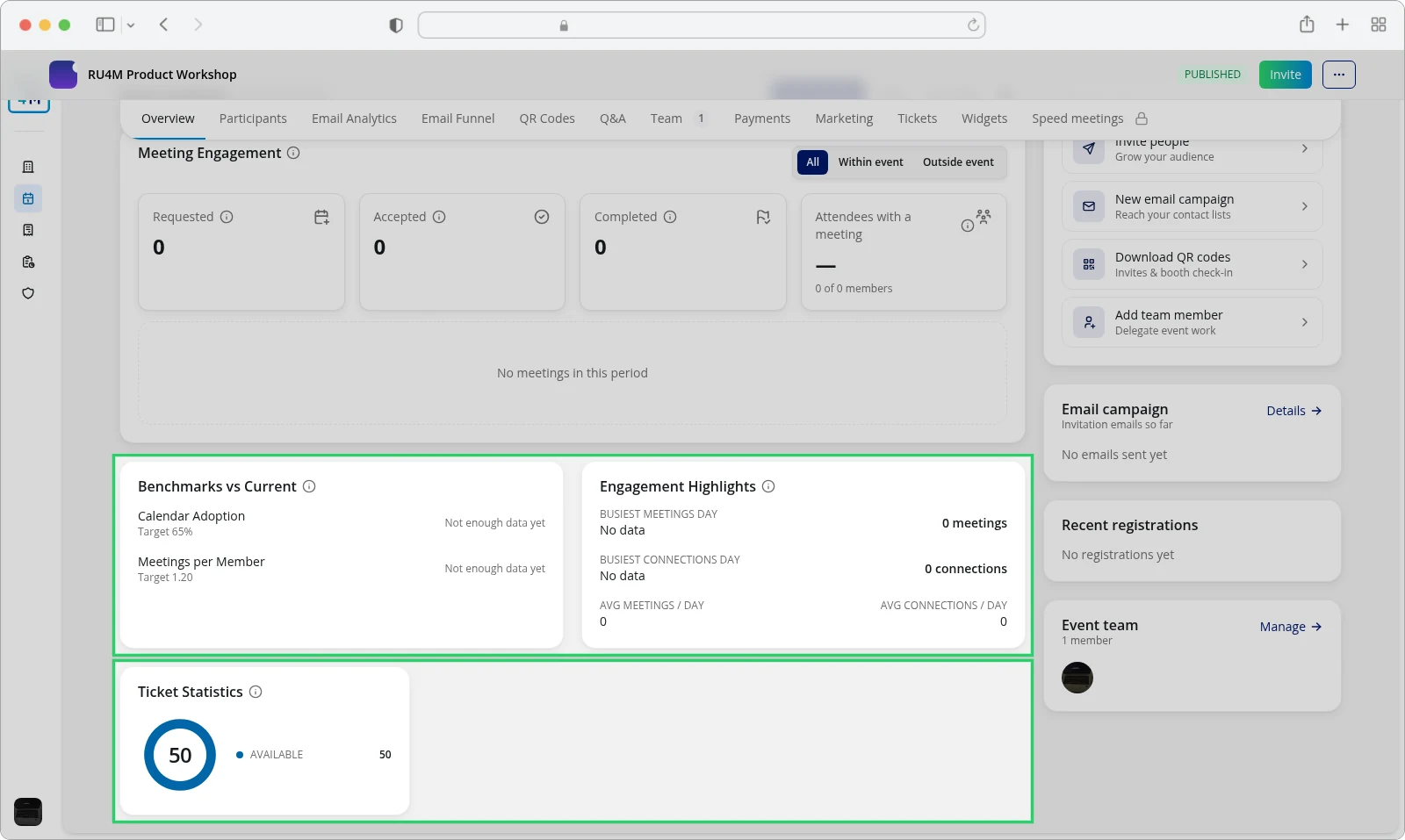
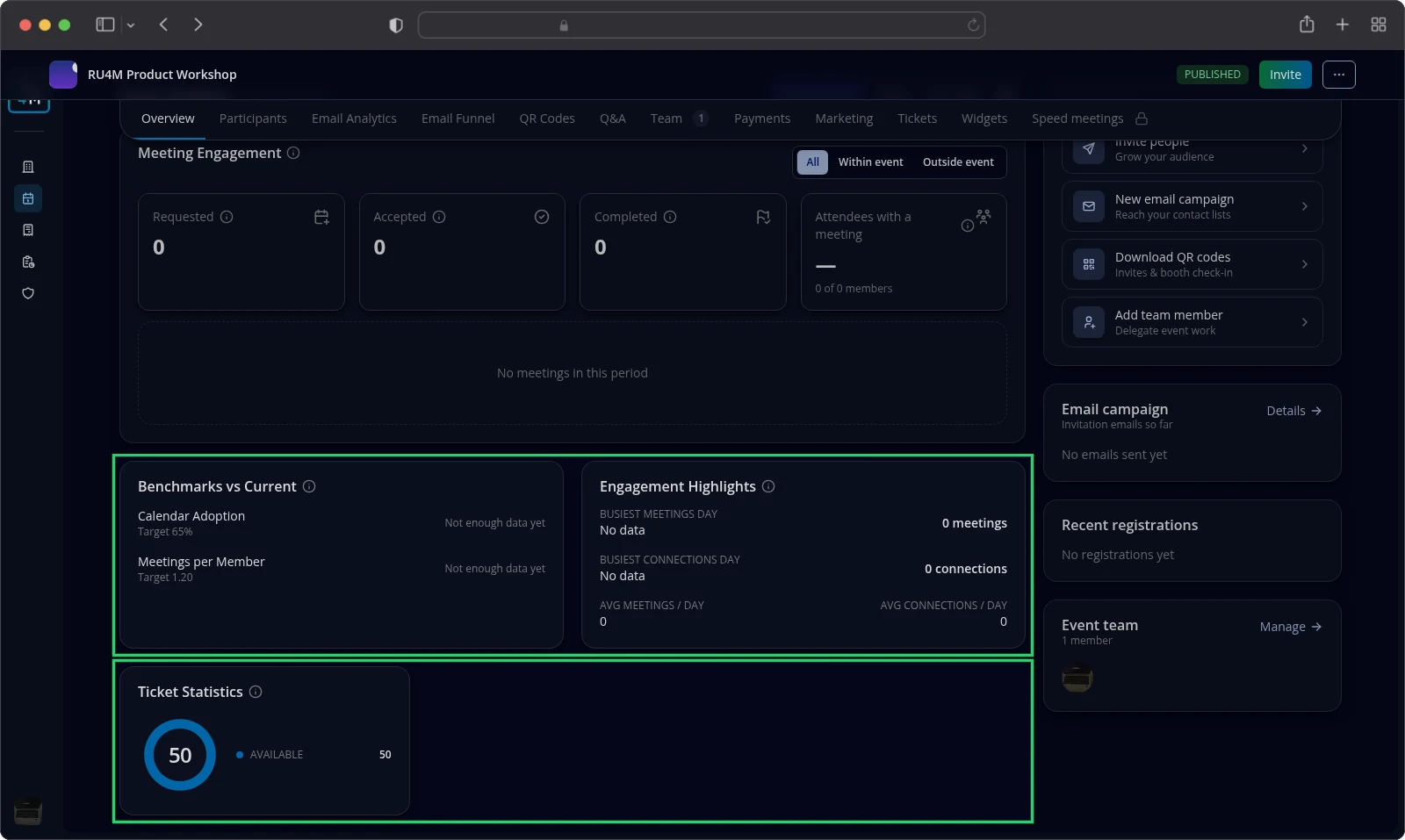
Engagement Highlights names the busiest days and the daily averages. Busiest Meetings Day and Busiest Connections Day name the single day with the most of each. Avg meetings / day and Avg connections / day average the period.
Daily averages divide by every day of the selected period, including days without activity. A quiet month therefore pulls the averages down.
Meetings and participant profiles
The lower cards describe who came. They are aggregates only. The app shows no per-person analytics view.
Top Job Titles lists the ten most common current job titles. Members without a current job title are left out.
Top Companies lists the ten most common companies among members, taken from their current job. Members without a current company are left out.
Each list appears only when it has data to show. On an event with no members yet, neither card appears.
Ticket Statistics groups the tickets of the period by their current status, counted from the day each ticket was created.
Calendar Status splits the members of the period into With Calendar and No Calendar. The card is absent while the event has no members.
Giveaway Participation splits the members into Completed Giveaway and Not Participated. The card appears only when the event has a giveaway.
The capture above shows Ticket Statistics on an event that has tickets but no members. The audience cards appear once members arrive.
Meetings and connections come from the mobile app, so the same event tells you different stories at different times. Read Participants and attendance for the roster behind these numbers. Read Speed meeting reservations for the bookings themselves.
Periods, filters and interpreting results
The control at the top right of the block chooses the period. It carries Event Overview, Today and Last 7 days, and a calendar button that opens a custom range.
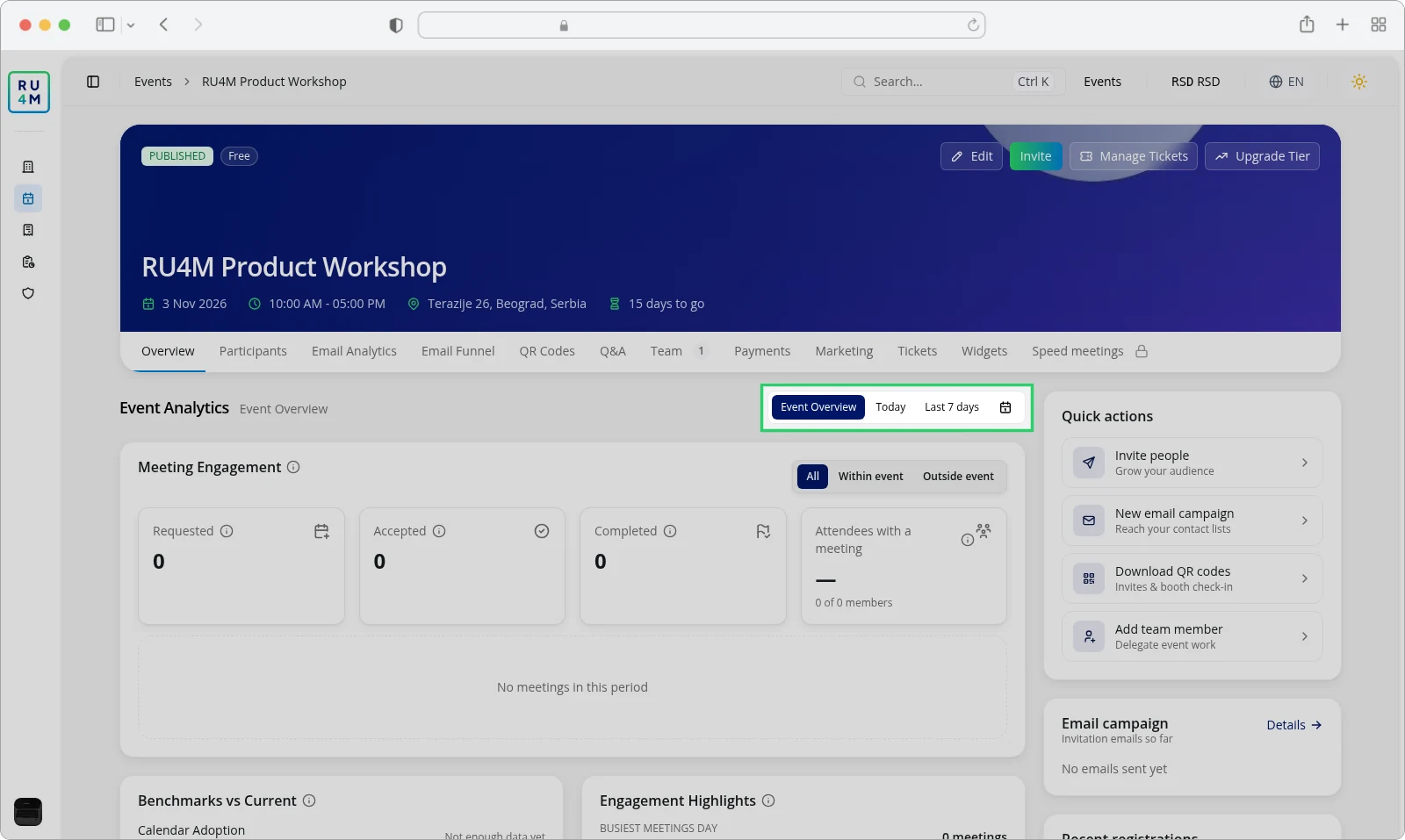
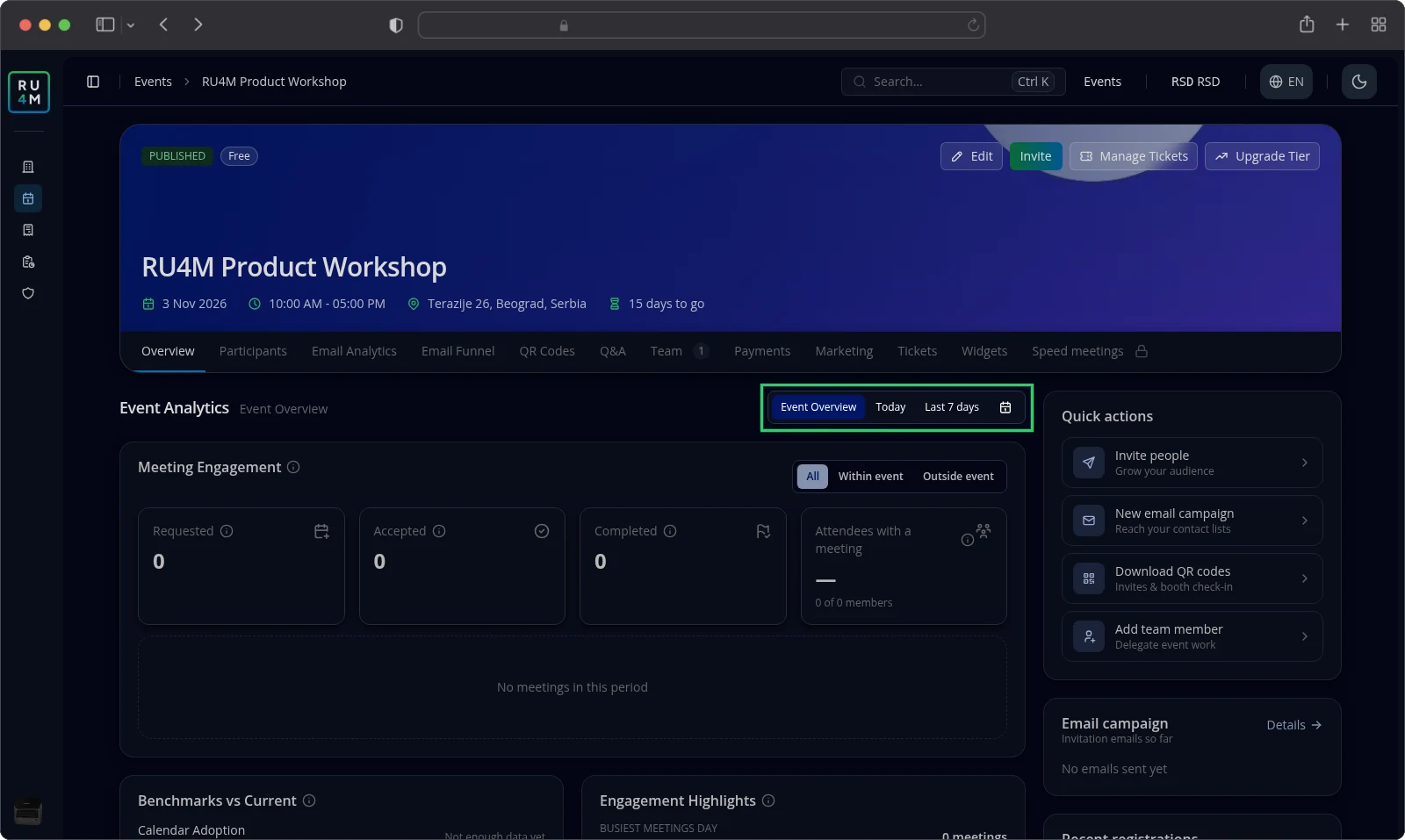
Event Overview covers the whole life of the event so far. It starts on the day you created the event and ends today. It is the default.
Today covers today only. Last 7 days covers the last seven days, today included.
Select the calendar button to pick your own period. Choose the start date first, then the end date. The card reminds you with Pick a start date, then an end date. Reset clears the selection.
Select Reset to clear the selection, then Apply to load it. Selecting a preset applies at once.
Live appears only while the event is running. It turns the block into a live view and adds Auto-refreshing every 10 seconds. Leave it off when the event is over, because a live window never closes.
An event that has no figures in the selected period reads No analytics data available for this event.
When the figures cannot be loaded, the app reports Failed to load analytics. Please try again. Select Try again to load them once more.
Troubleshooting
The Event Analytics block is missing. Only people who can edit the event see it. Ask one of the event's managers to look.
The block shows a placeholder instead of figures. The event is still a draft. Publish it and reload the page.
Every count reads zero. Nobody joined through the mobile app in the selected period. Try Last 7 days, or check the participants list.
The benchmarks read "Not enough data yet". The event has fewer than ten members, which the app treats as too small to compare.
The figures did not change after you picked dates. A custom range needs Apply. Selecting Reset loads the whole period again.
The app reports that analytics failed to load. Select Try again. If it keeps failing, come back later.
Top Job Titles or Top Companies is missing. Members without a current job title or company are left out. The card appears once at least one member has one.
Giveaway Participation is missing. The event has no giveaway. Read Giveaways to add one.